Arkio 2.3
Arkio 2.3 brings major improvements to visual quality, mobile AR, and import workflows. Experience more realistic imported materials with PBR support, position and explore your designs more naturally in AR, and work more smoothly with movable elements, improved navigation, and better performance across all Arkio-supported devices.
✨ More Realistic Materials with PBR
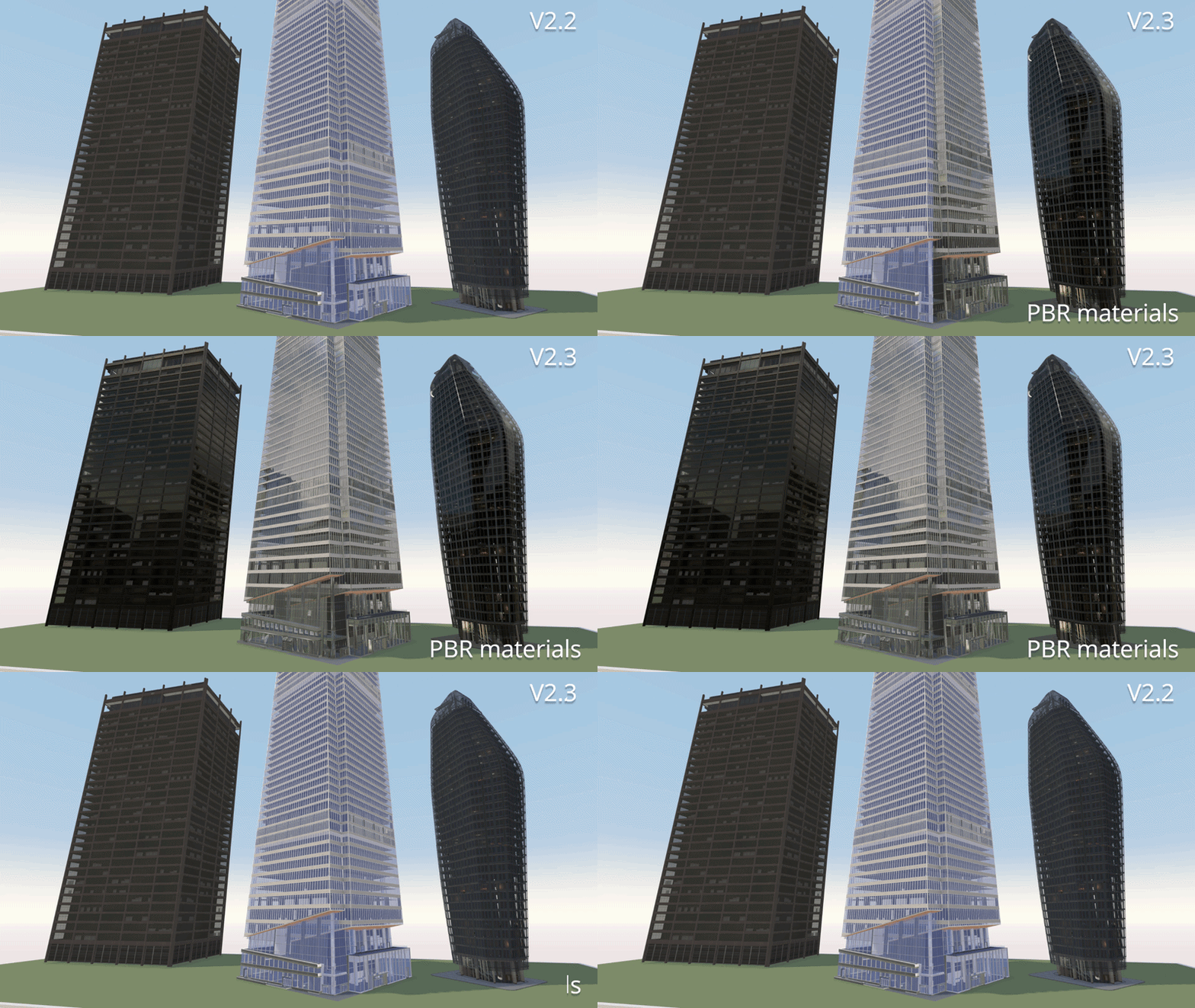
Arkio now supports Physically Based Rendering (PBR) materials for imported models, bringing richer, more realistic materials to your designs and improving their overall visual quality—even on mobile devices like Meta Quest 3.
PBR properties from plugins
PBR material properties are now exported from our plugins for Revit, Rhino, SketchUp, and Archicad. The available properties depend on your software's capabilities, so refer to your tool’s documentation for details on configuring PBR materials.
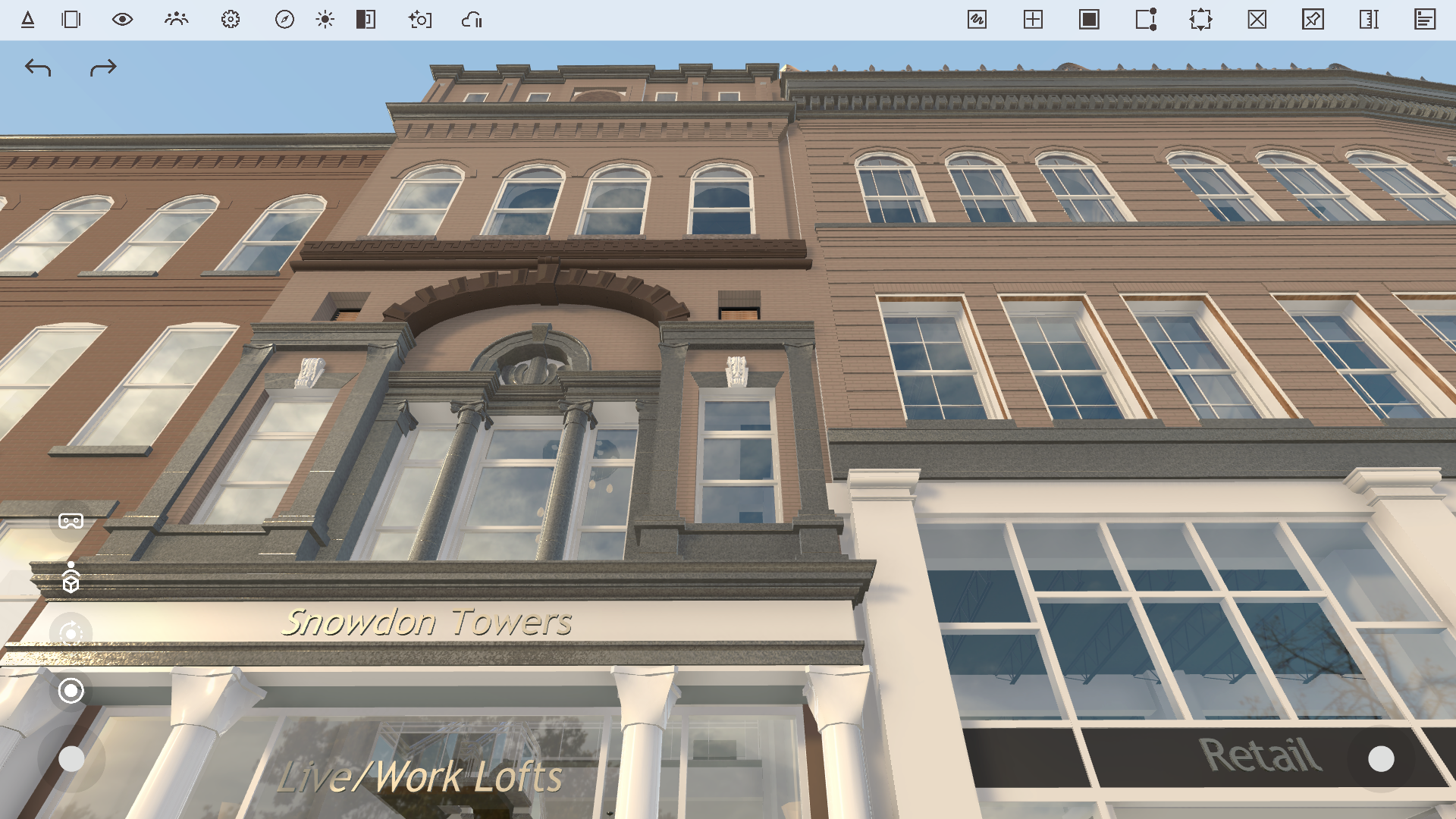
Arkio supports material properties such as reflections, roughness, metallic surfaces, and normal maps. You can also load glTF files with advanced PBR properties, including custom reflection and metallic maps and emissive materials, to bring highly realistic models into Arkio.
You can explore examples of these materials in our updated Arkio sample scenes.
If you prefer Arkio’s previous flat rendering style or want to improve performance for large imported scenes, you can disable PBR materials in View Settings. This toggle also makes it easy to compare your models using the previous and new material systems.
Reflections
New reflection settings in the View Settings panel give you more control over the appearance of glass and other reflective materials, such as metals and polished surfaces.
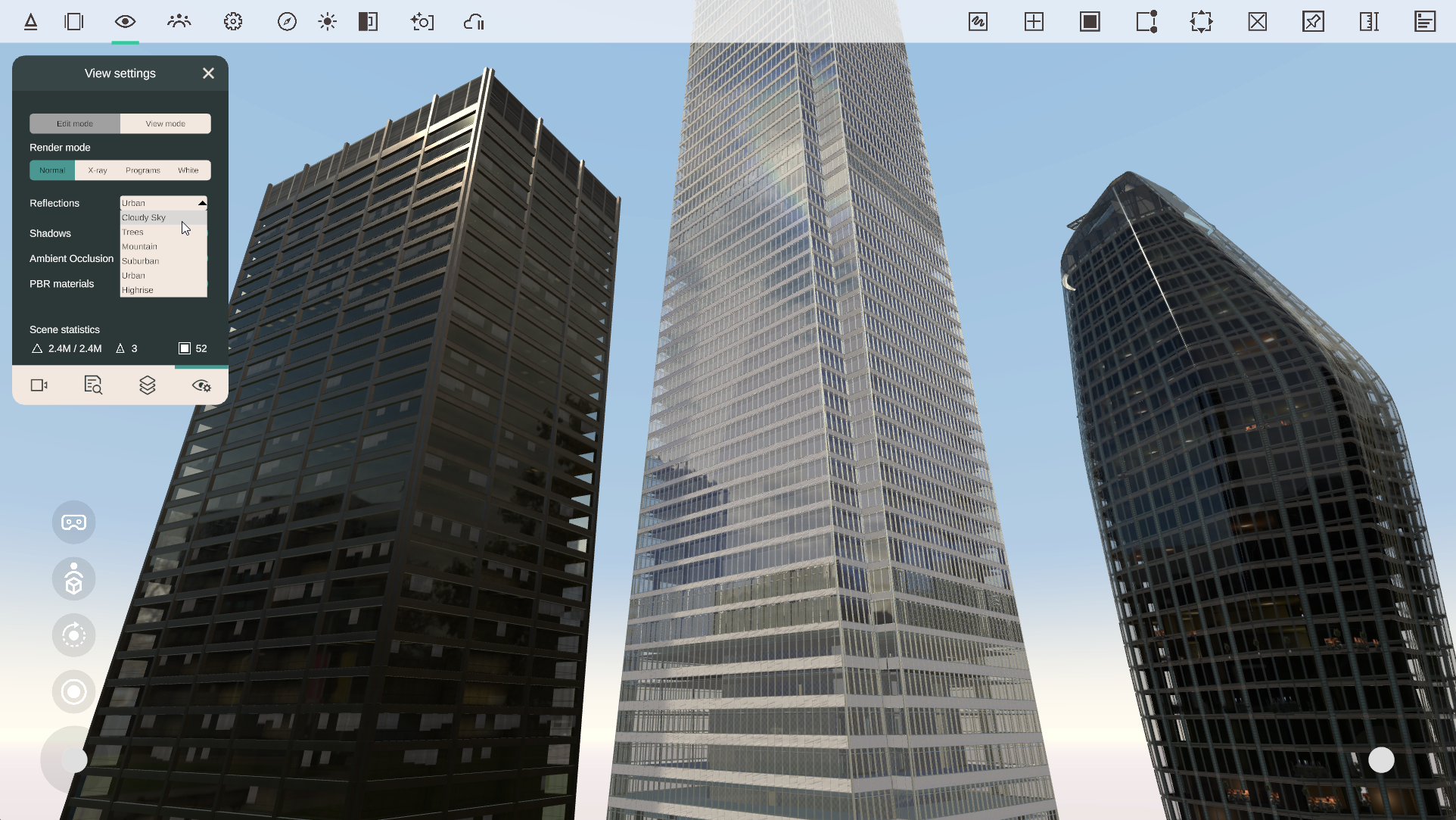
Choose from several reflection environments:
Cloudy Sky – blue sky with clouds
Trees – green field surrounded by trees
Mountain – distant mountain landscape
Suburban – residential gardens and surroundings
Urban – urban square with distant towers
Highrise – street surrounded by high-rise buildings
Changing the reflection environment affects reflective PBR materials throughout your scene. Your selection is saved with the Arkio scene, together with your sun and location settings.
📱 Mobile AR Improvements
Mobile AR has received a major update, making it easier to position, align, and explore your Arkio models in the real world without needing a VR headset. Using a tablet or smartphone, anyone can experience models at full scale simply by walking around with their mobile device.
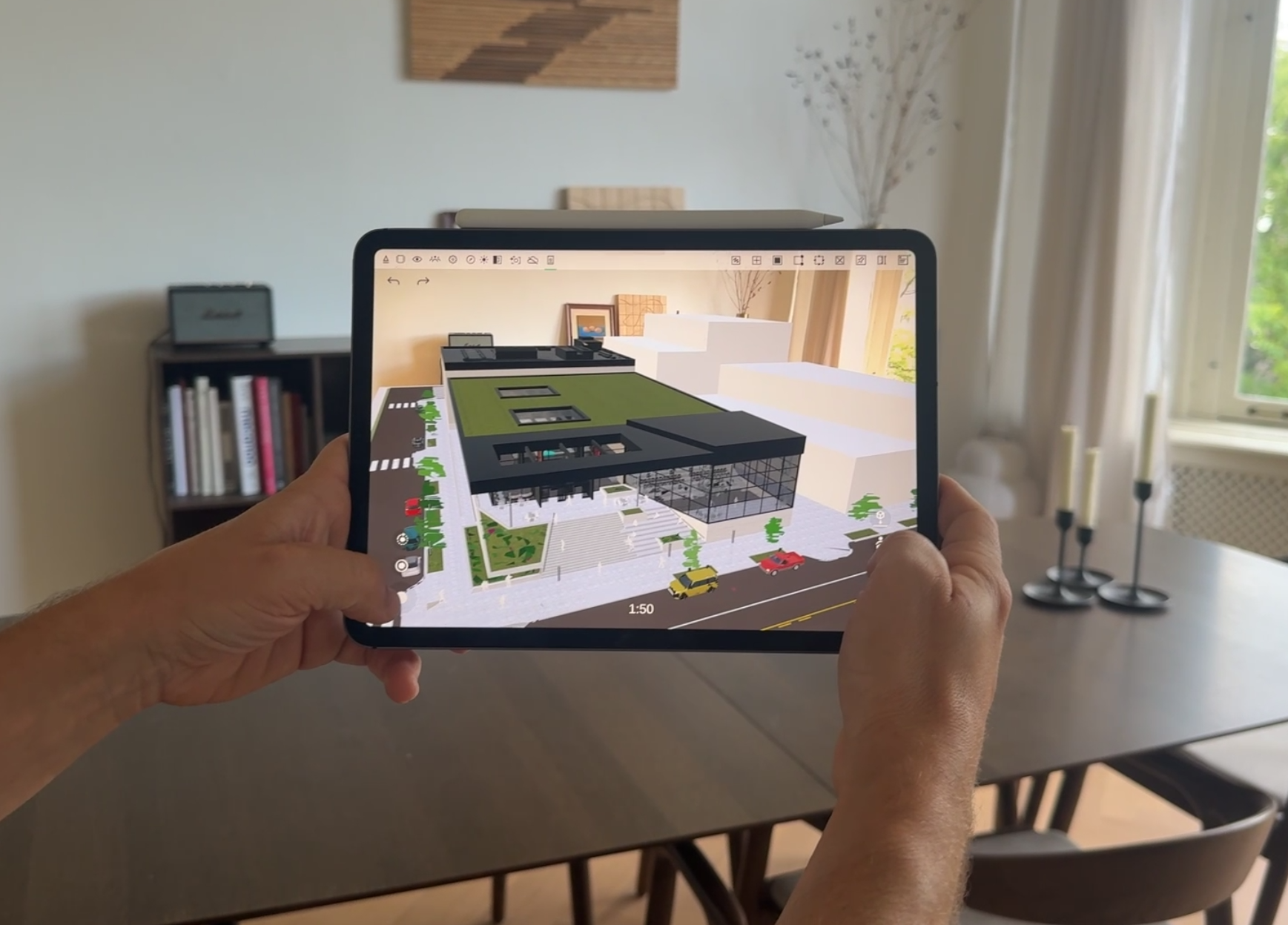
Explore and lock your model at 1:1 scale
You can now teleport into your model in AR and explore designs at human scale, making it easier to experience spaces at their true size and in their real-world context.
When you lock a model at 1:1 scale, Arkio creates a teleport marker at that location. You can use this marker to quickly return to your previous locked position, similar to how locking and anchoring work in Arkio on mixed reality headsets.
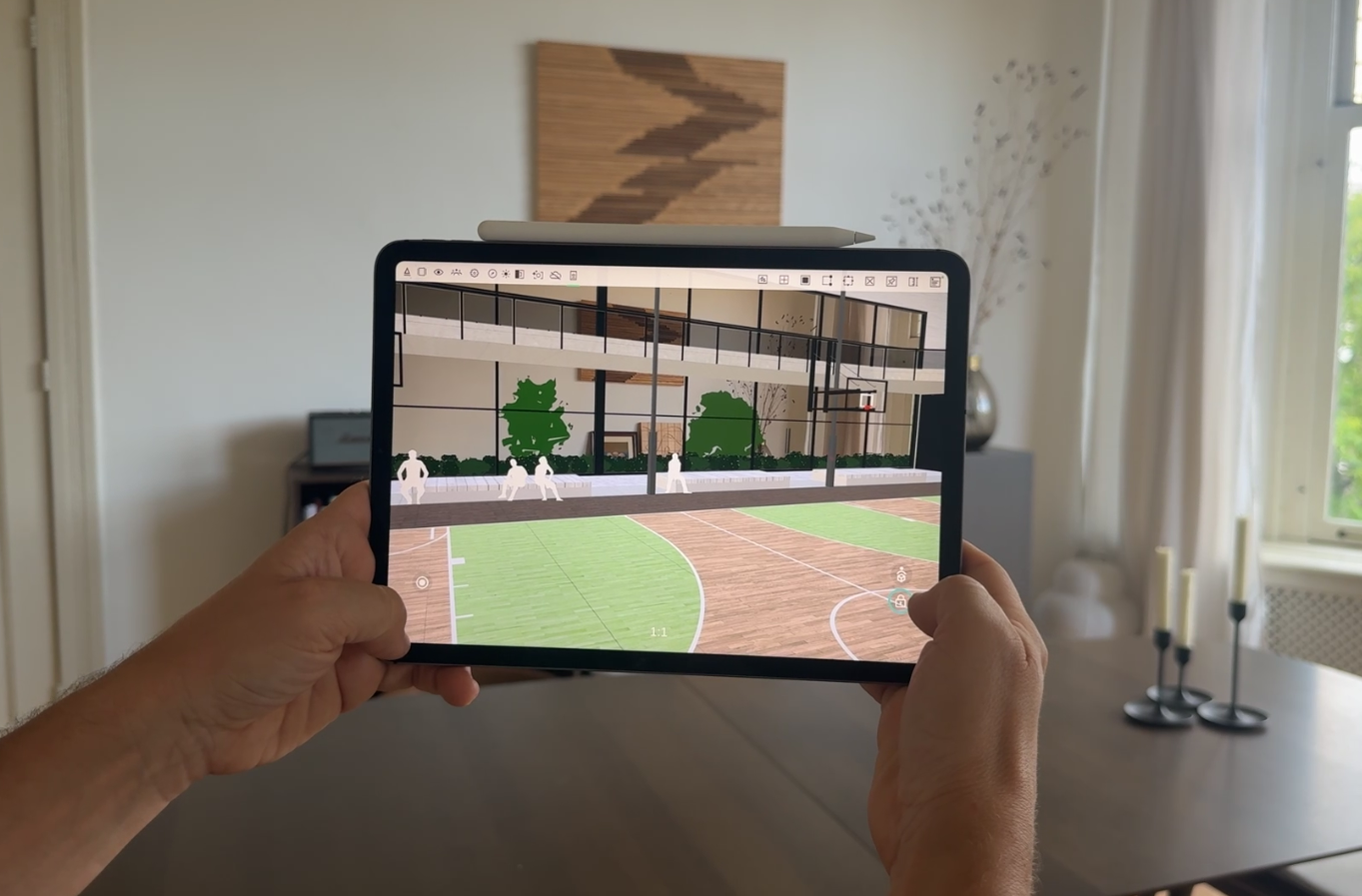
New AR placement controls
New AR placement controls give you more precise control over your model's position, scale, and orientation:
Select the plane where you want to place your Arkio scene
Place, recenter, and lock your model using the new controls
Adjust the horizontal position by swiping with two fingers or using the left thumbstick
Adjust the placement height using the right thumbstick
Scale the model by pinching with two fingers
Rotate the model using the orbit tool or by swiping outside the model
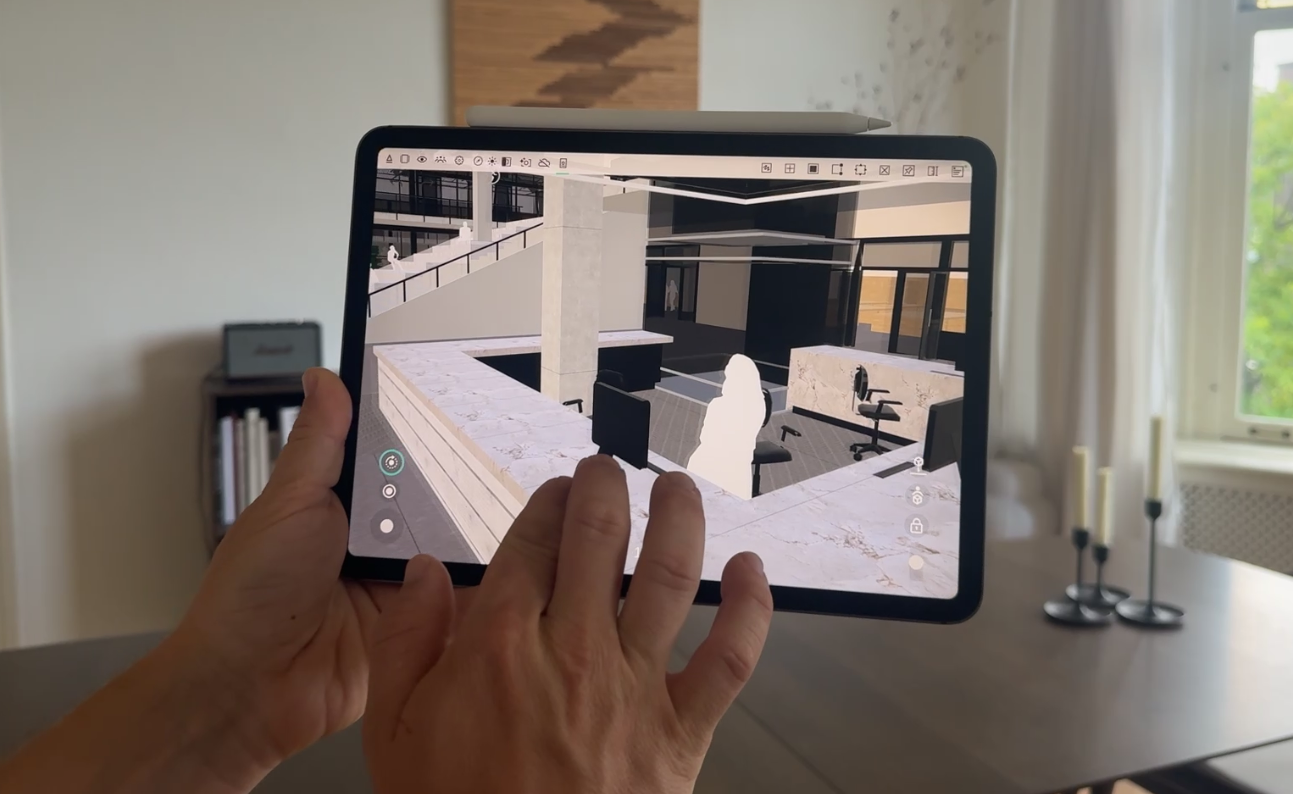
These navigation interactions are similar to Arkio in 3D mode. For the most accurate alignment at human scale, teleport to a location close to where you are standing in the real world using the Arkio map or other loaded 3D context references.
Once inside the 1:1-scale scene, you can fine-tune the model's position using the left thumbstick for horizontal adjustments and the right thumbstick for vertical adjustments. And use the orbit tool to rotate a corner of the building to a right angle.
When everything is aligned, lock the model in place. You can return to the scale model at any time using the new view reset button, then use your teleport markers to jump back to previously locked 1:1 positions.
AR mode switching and persistence
Your AR placement plane and locked position now persist when switching between AR and 3D on mobile devices. This means you can move between tools and view modes without losing your original AR placement.
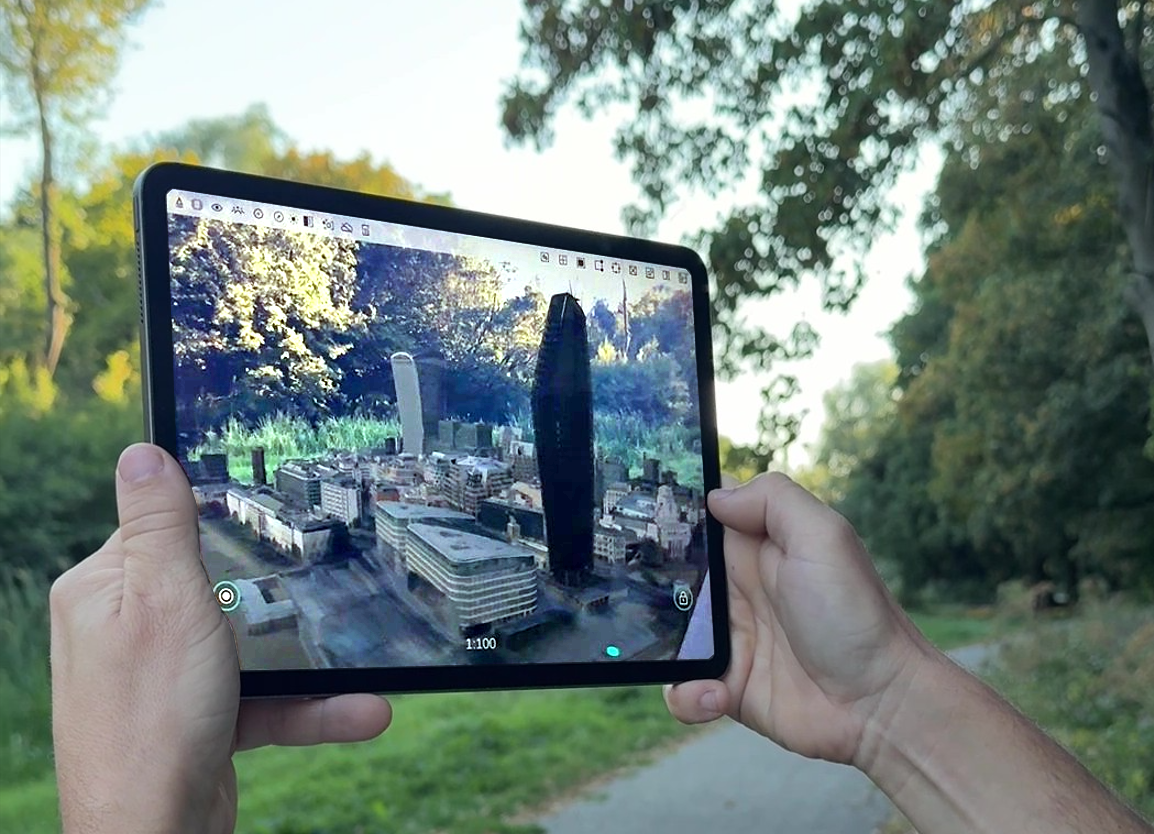
Arkio will also maintain your model alignment when your device enters standby or when you switch between apps, allowing you to resume where you left off or pass the device to others to explore the model at scale or 1:1.
🧩 Improved Movable Element Workflows
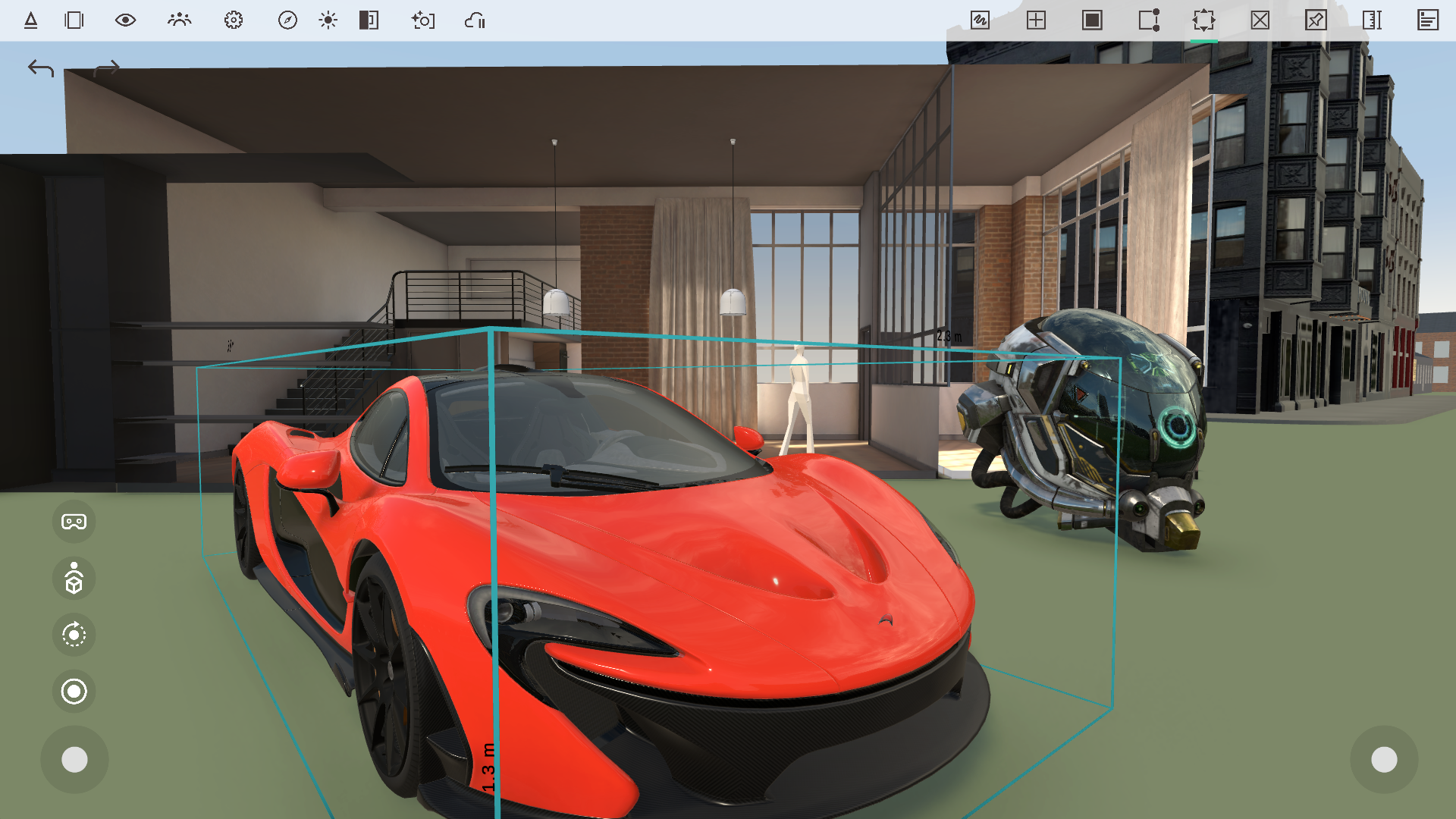
Movable elements and props can now collide with imported mesh surfaces, making it easier to place and align objects directly on imported geometry such as floors, walls, tables, and shelves from your other 3D modeling tools.
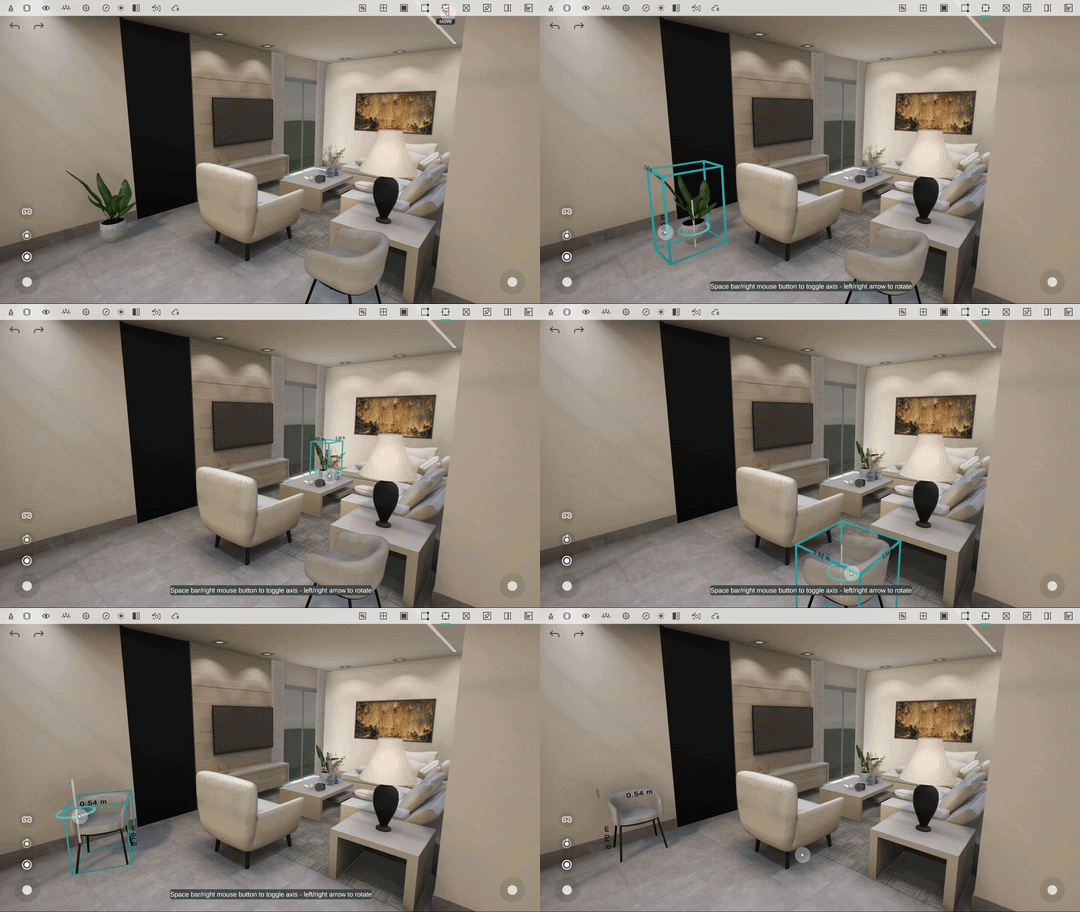
This makes movable objects imported into Arkio behave more like Arkio’s native solid geometry. They can be picked up, aligned, and placed against other geometry using the Move tool or simply grabbed with your hands or controllers in VR.
Editing imported buildings with movable elements now feels more natural, as objects can glide along imported floors and walls and snap into place against surrounding geometry.
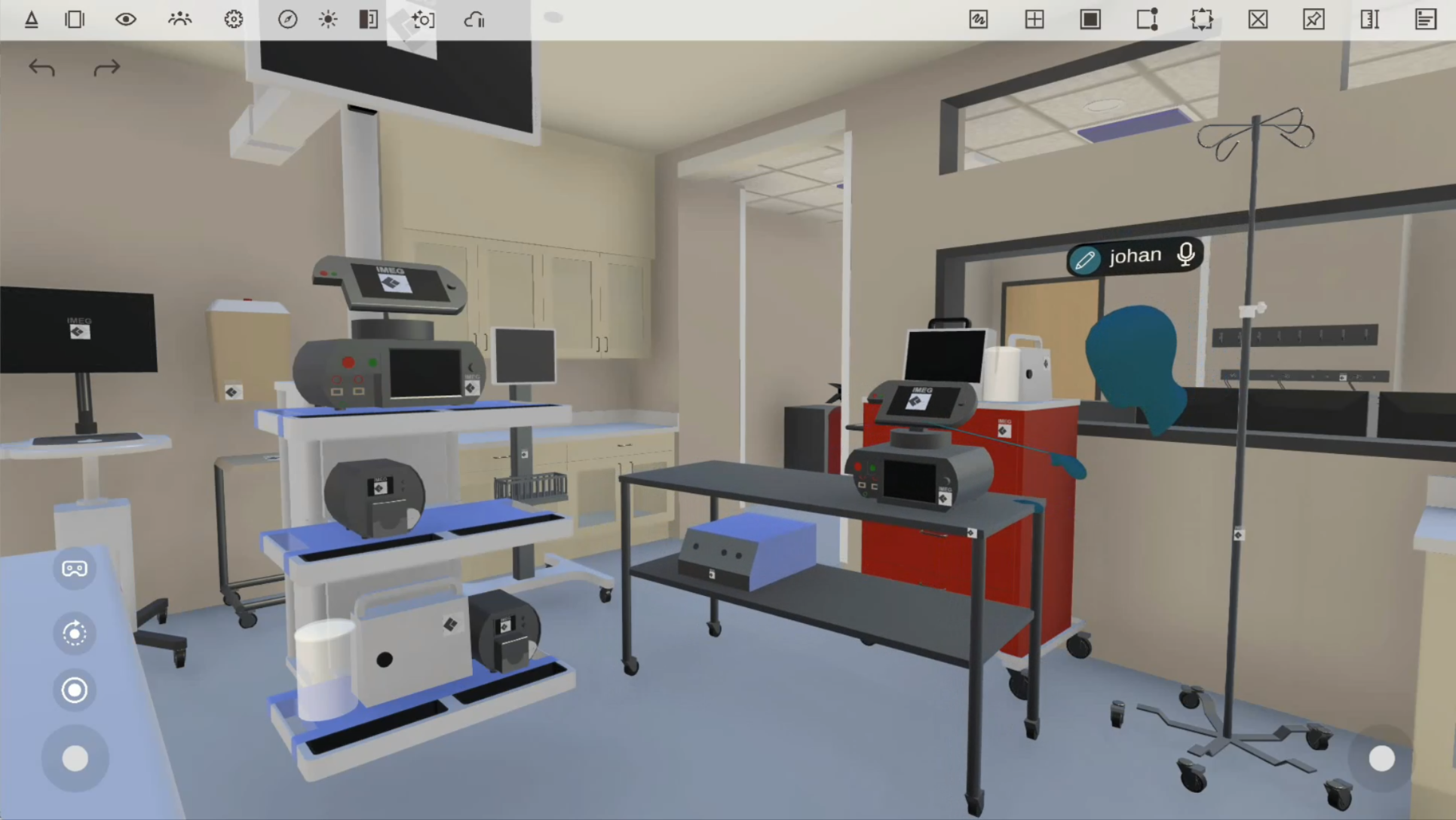
In VR, you can temporarily disable mesh surface alignment by holding down the controller thumbstick to disable snapping while moving an object.
Archicad improvements
Our Archicad plugins now include additional export options:
Automatic model placement
Selecting elements to import as movable objects
Archicad 29 plugin support on Mac
PBR material export to Arkio
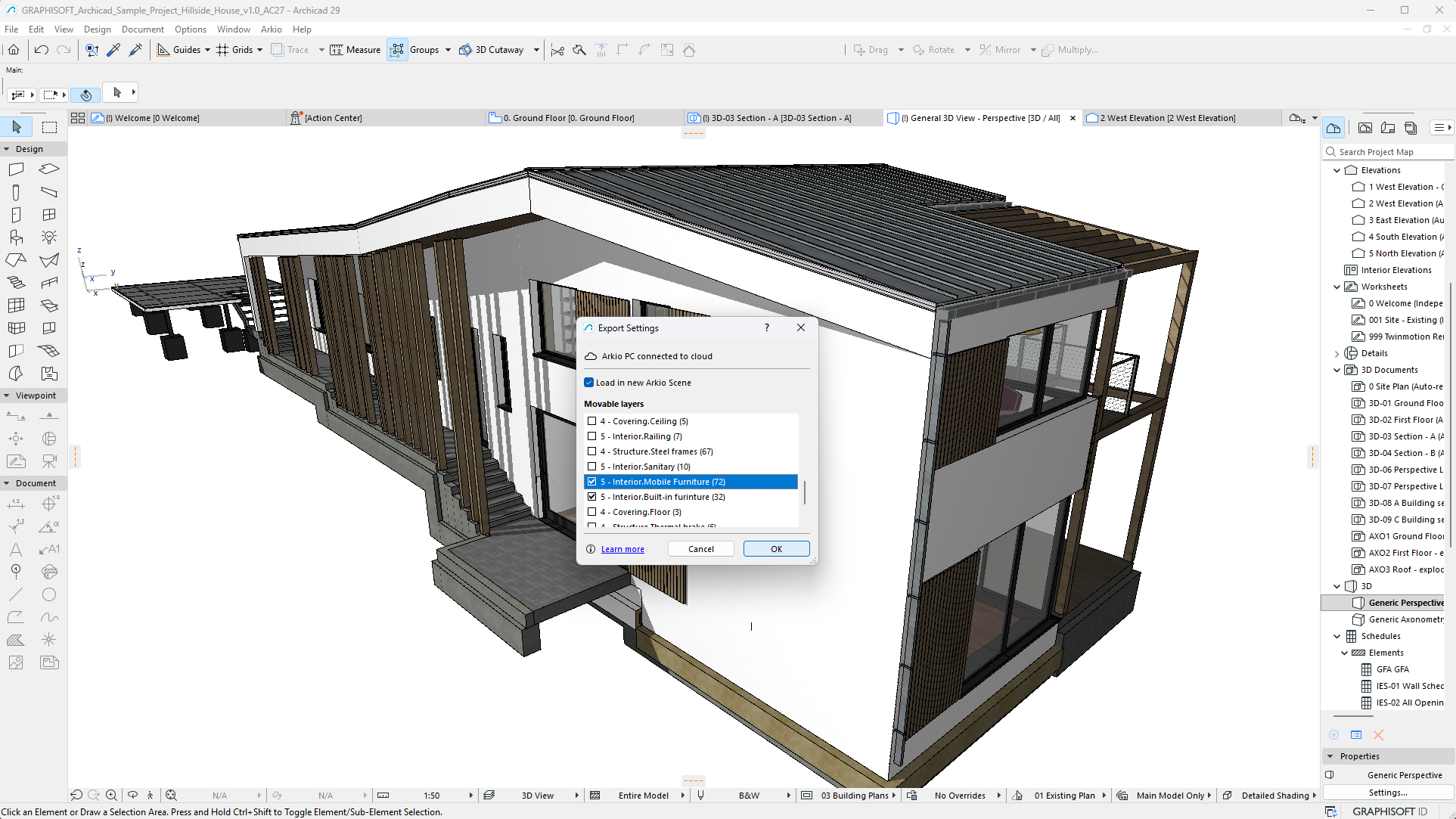
These improvements bring the Archicad export workflow in line with our Revit, Rhino, and SketchUp plugins. With movable elements and PBR materials, more of your original Archicad model can now be brought into Arkio for interactive editing and realistic visualization across devices.
Underground geometry
Imported geometry modeled below the origin will now automatically cut a hole in the Arkio table when the model is placed at the origin, revealing geometry that would otherwise be hidden below the table.
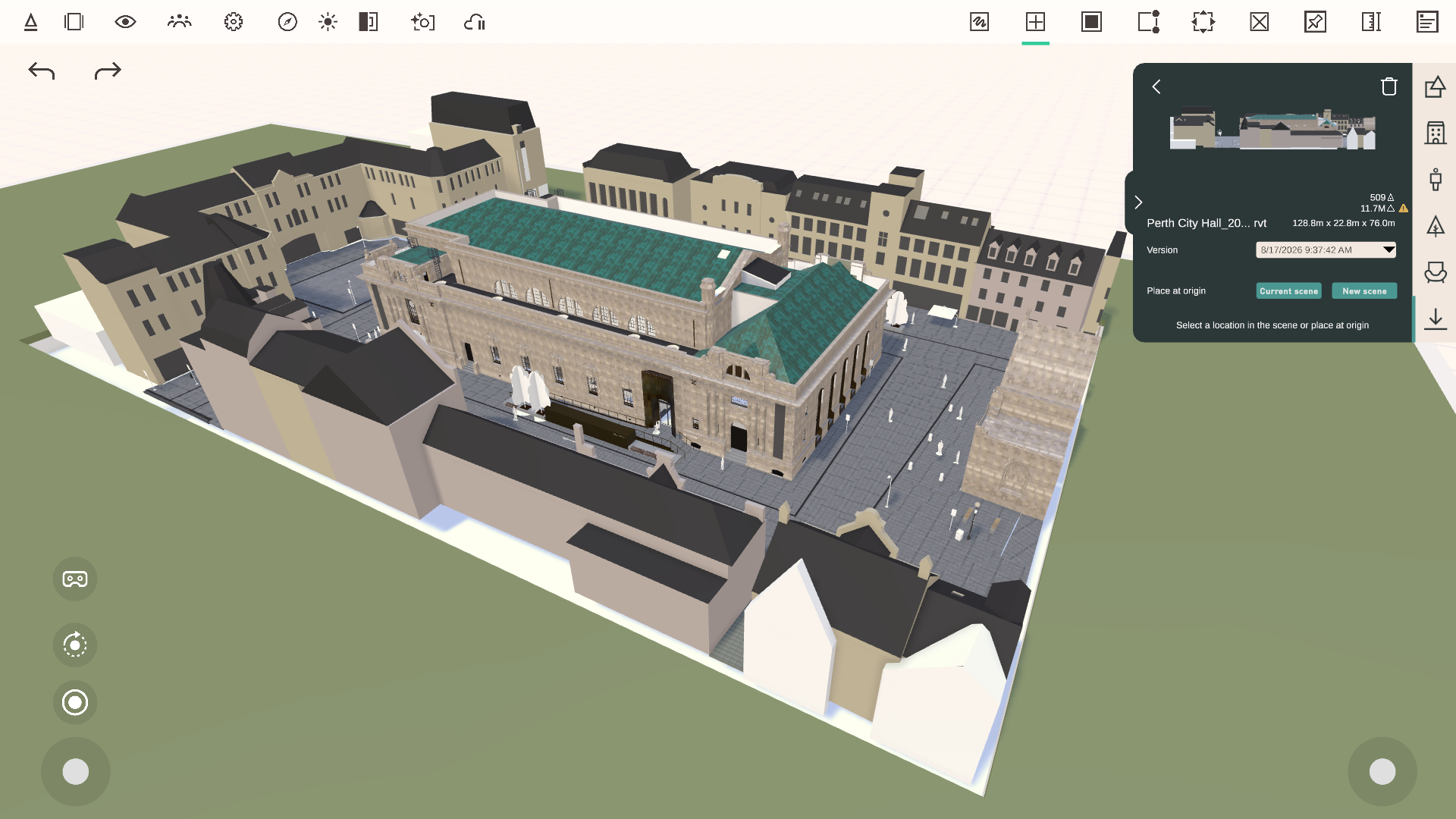
This makes it easier to work with underground structures and projects on sloping terrain while keeping models at their original coordinates for round trips between Arkio and supported design tools.
🖥️ Navigation & Workflow Improvements
Navigation and editing in non-VR mode have been refined for smoother desktop and touchscreen workflows.
Improved navigation
Smoother zooming
Improved panning
Improved orbiting
Improved Move tool interactions
View reset button in 3D and AR mode
Colocation stability improvements
Some of our users reported issues with colocation since version 2.2; this release will address those issues across different workflows and tracking conditions. We’ve improved colocation stability after restarts, during recentering, and model-position updates, resulting in more stable alignments on all Meta Quest devices.
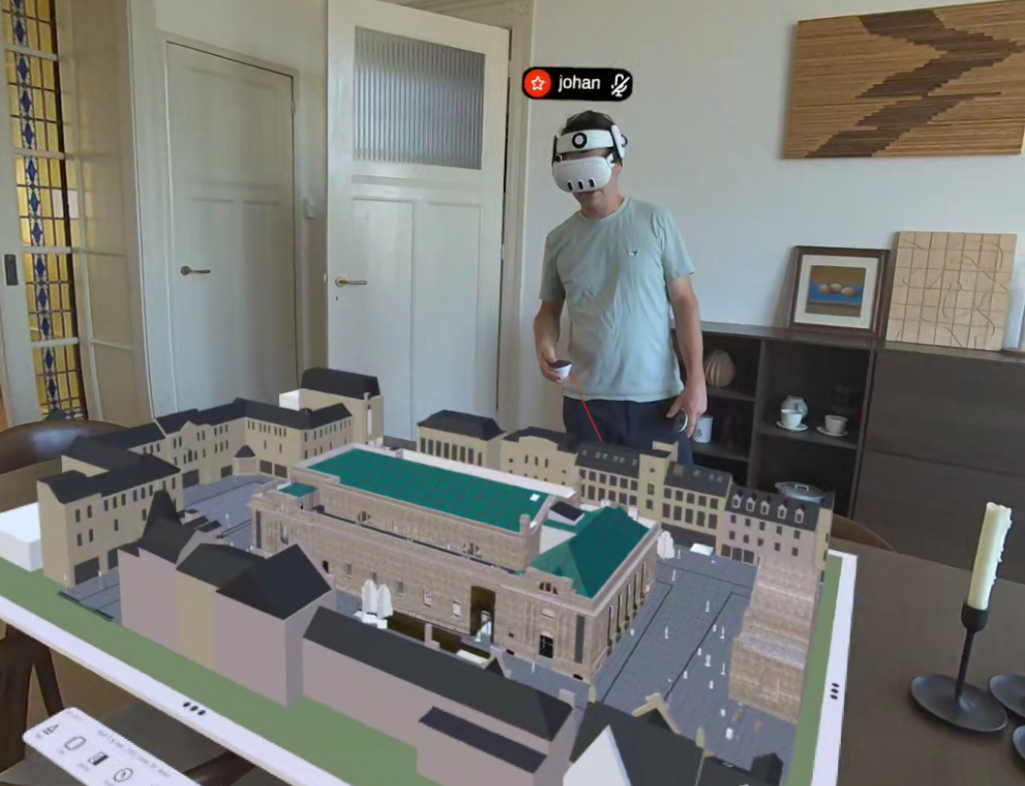
When users are co-located and the scene is locked, avatars are now hidden to create a cleaner mixed reality experience. Only each user’s nametag remains visible.
Better support & diagnostics
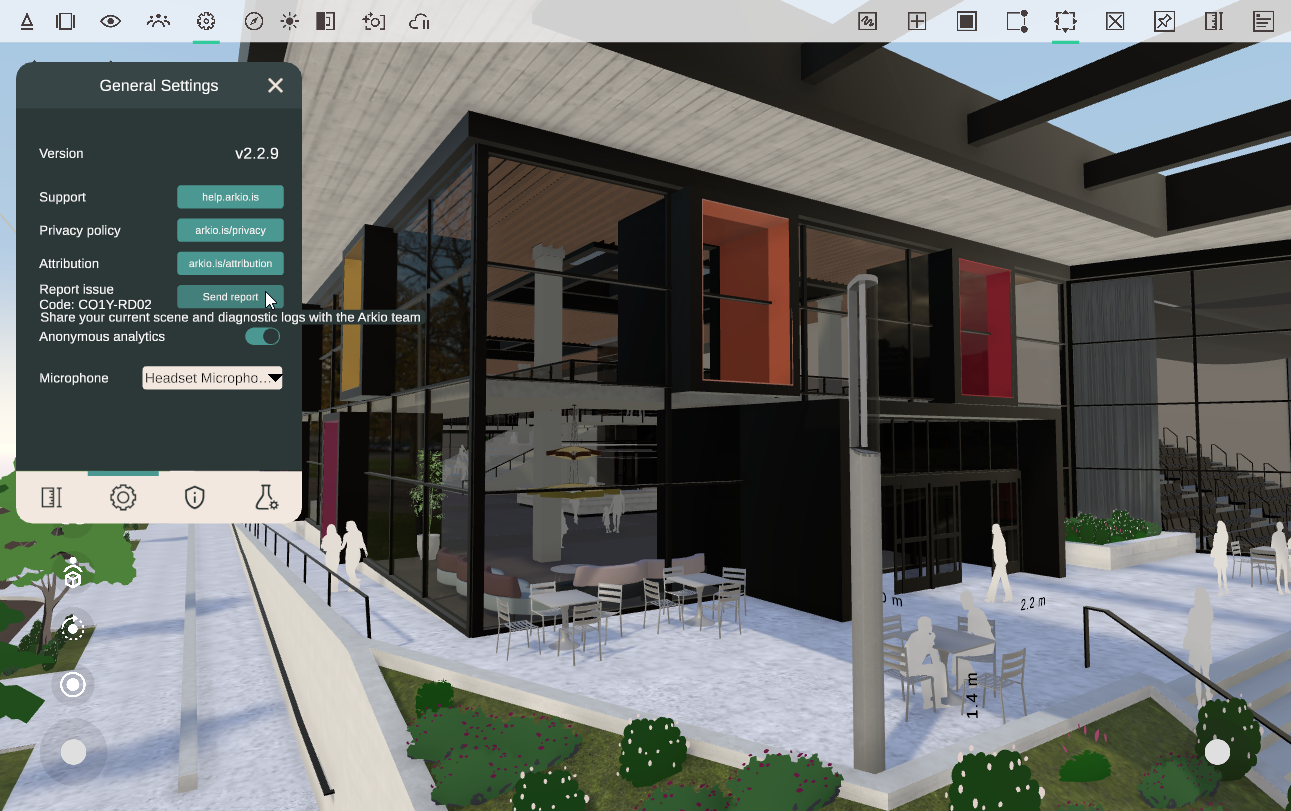
If you run into issues with Arkio, you can use the new report issue button in the settings panel to share logs and traces, giving the Arkio team more information to diagnose and resolve issues more effectively.
🎨 Rendering & Performance Improvements
Alongside our new PBR materials, this release includes several visual and performance improvements across Arkio:
Increased rendering resolution on Quest 3 and Quest 3S
Improved close-up detail for large models
Improved sky rendering
Improved ambient occlusion
Improved rendering of reflective materials
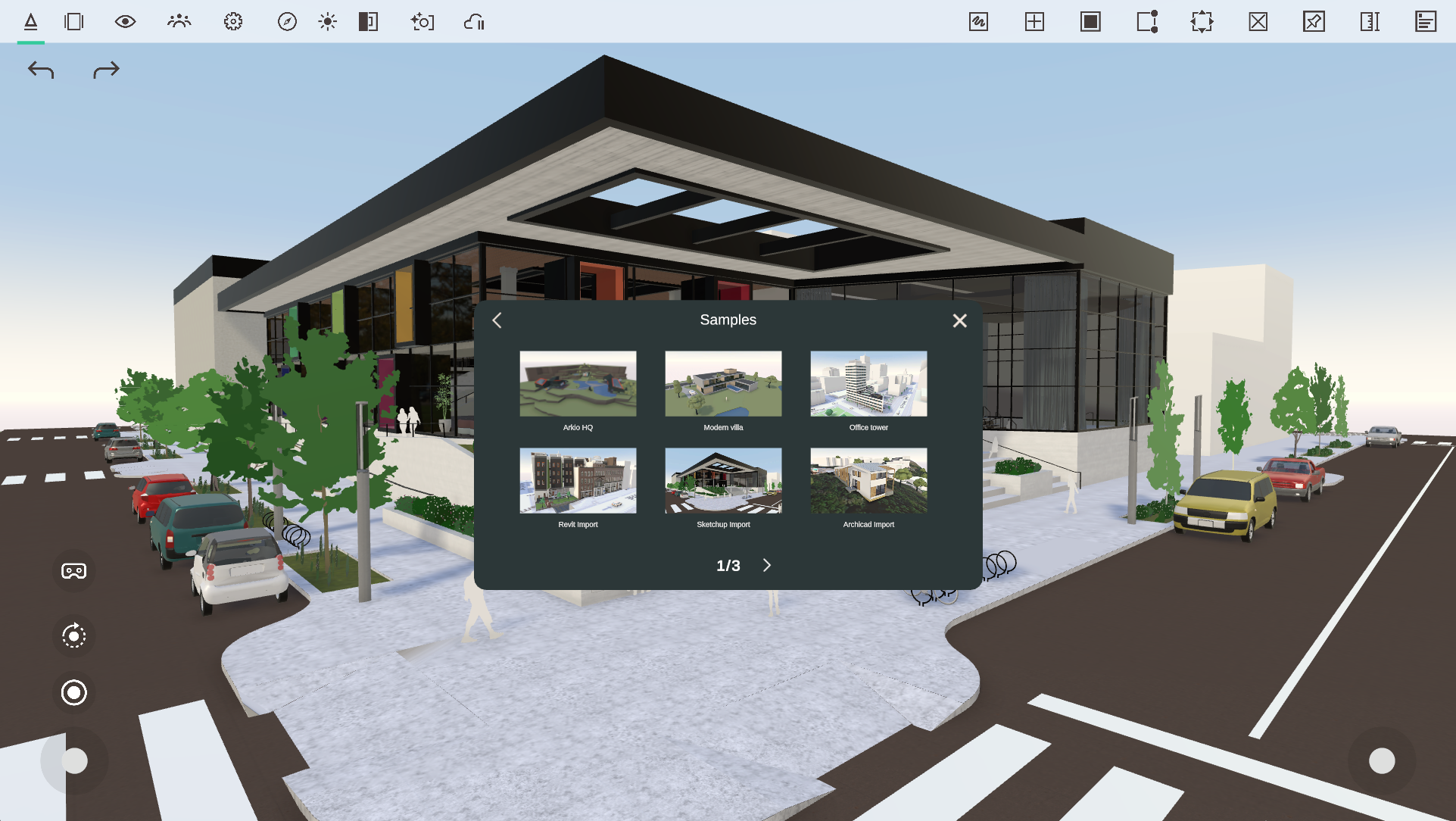
We’ve also included more sample scenes in the start panel showcasing the new PBR materials and movable-element workflows for Revit, SketchUp, and Archicad. These scenes make it easy to explore the latest improvements and see how realistic materials and movable elements can be used in your own Arkio projects.
🔧 Fixes
Prevented the app from becoming unresponsive on poor network connections
Prevented performance issues on Quest caused by invalid spatial anchors
Fixed the white floor briefly appearing during VR startup
Fixed dual joystick navigation on touchscreen devices
AI render settings are disabled when there aren’t enough credits available
Limited plugin exports to a maximum of 3,000 movable elements to prevent performance issues
As always, thank you for your feedback and support. We look forward to seeing how you use these new AR, visualization, and interoperability improvements in Arkio 2.3.