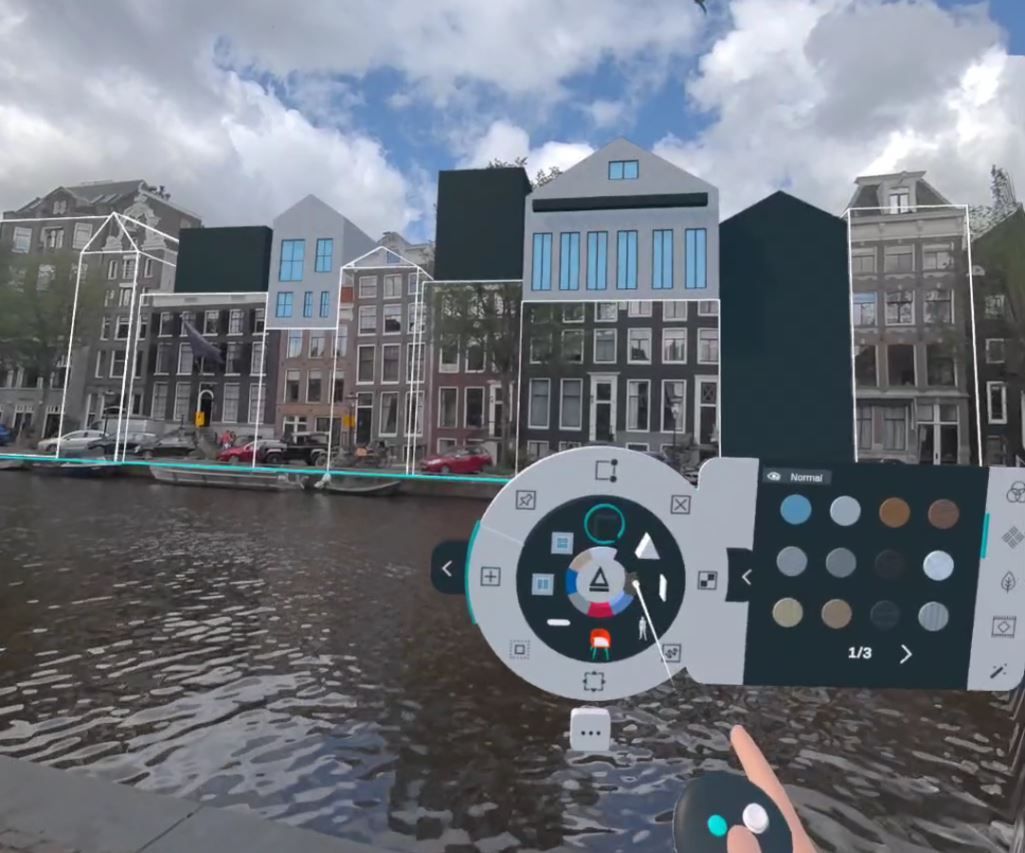
Arkio 3.0 Web
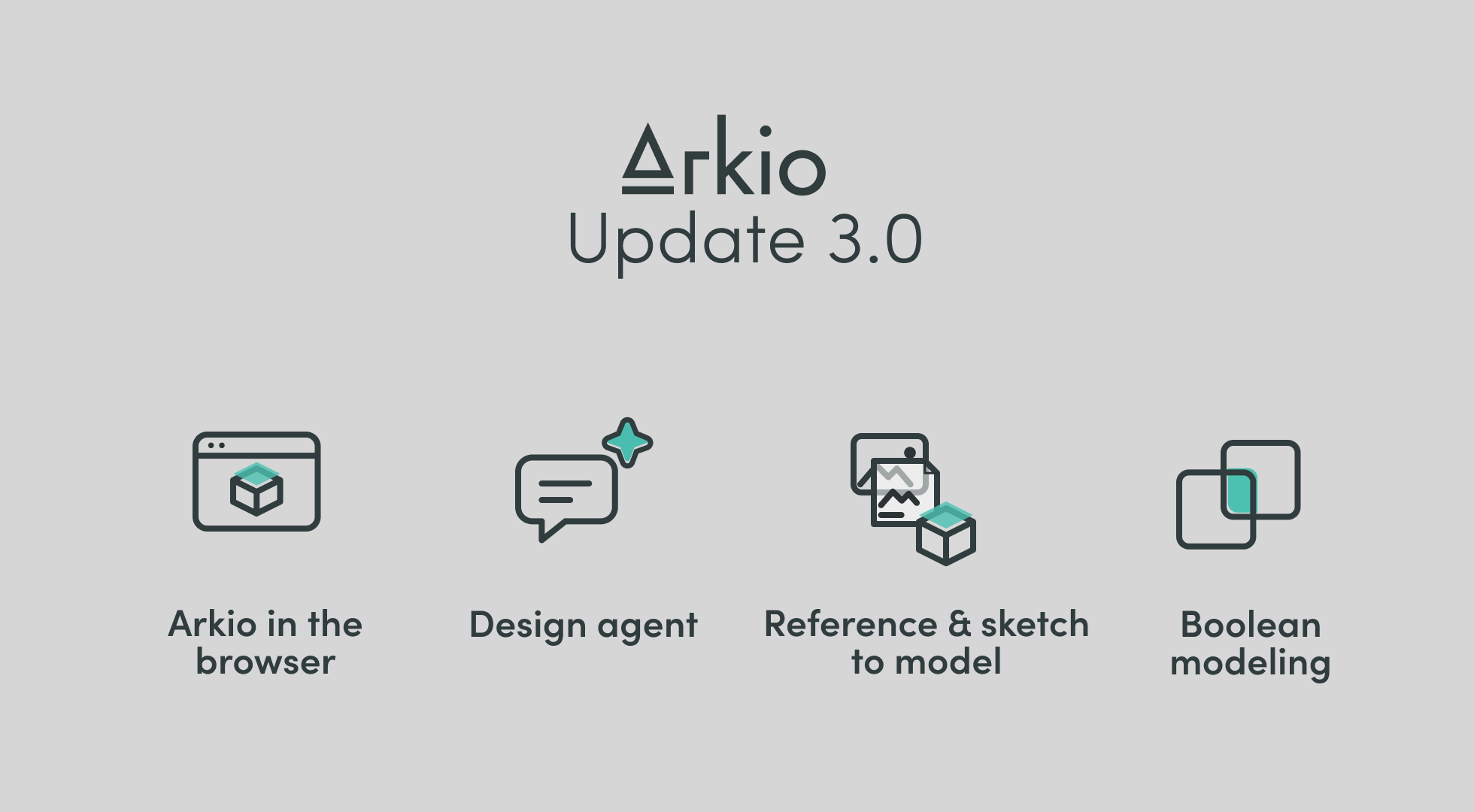
Arkio 3.0 brings AI-assisted 3D design to your browser. Describe an idea, upload a floor plan, or sketch a change, then work with an AI agent to develop your design in an editable 3D scene. Combine conversations with Arkio’s modeling tools, create images and videos, and invite others to explore your work through a shared link.
Open app.arkio.is to get started. No Arkio installation is needed for the browser experience.
Design with an AI agent
Work with an agent that can take actions directly in your Arkio scene. Start with a design brief, watch the model develop, and guide the next steps through follow-up requests.
Create building concepts, interiors, and layouts from written instructions.
Ask for changes to dimensions, geometry, furniture, and materials.
Select objects to show the agent which parts of the design you want to change.
Make changes yourself with Arkio’s modeling tools, then continue the conversation.
You can also queue follow-up instructions while the agent is working, then review or discard requests that have not started yet. This makes it easier to plan several changes without interrupting the current task.
For example, start with a garden studio, ask the agent to adjust its roof and openings, then explore furniture layouts inside it. You can inspect and edit the resulting geometry as the design develops.
Learn more about working with the AI agent.
Design from images, documents, and reference files
Bring your project references into the agent conversation to guide layouts, geometry, materials, and design requirements. Use the paperclip, drag supported files into the chat, or paste a copied image, then explain what you want the agent to use from each reference.
Images and drawings: Upload floor plans, photographs, hand sketches, mood boards, and material references as PNG, JPG/JPEG, WebP, or GIF.
PDFs: Share drawings, project briefs, specifications, and other reference documents.
Word documents: Use DOC or DOCX files to provide project descriptions, requirements, and written design guidance.
Spreadsheets: Add room schedules, target areas, dimensions, and quantities in XLS, XLSX, or CSV format.
Presentations: Upload PPTX files containing project context, design directions, or visual references.
Text and structured data: Supply instructions and project information as TXT, Markdown (MD), or JSON files.
Combine references in one request: use a floor plan for the layout, photographs to explain the existing space, and a brief or spreadsheet for the requirements. Include important dimensions and tell the agent which elements to preserve.
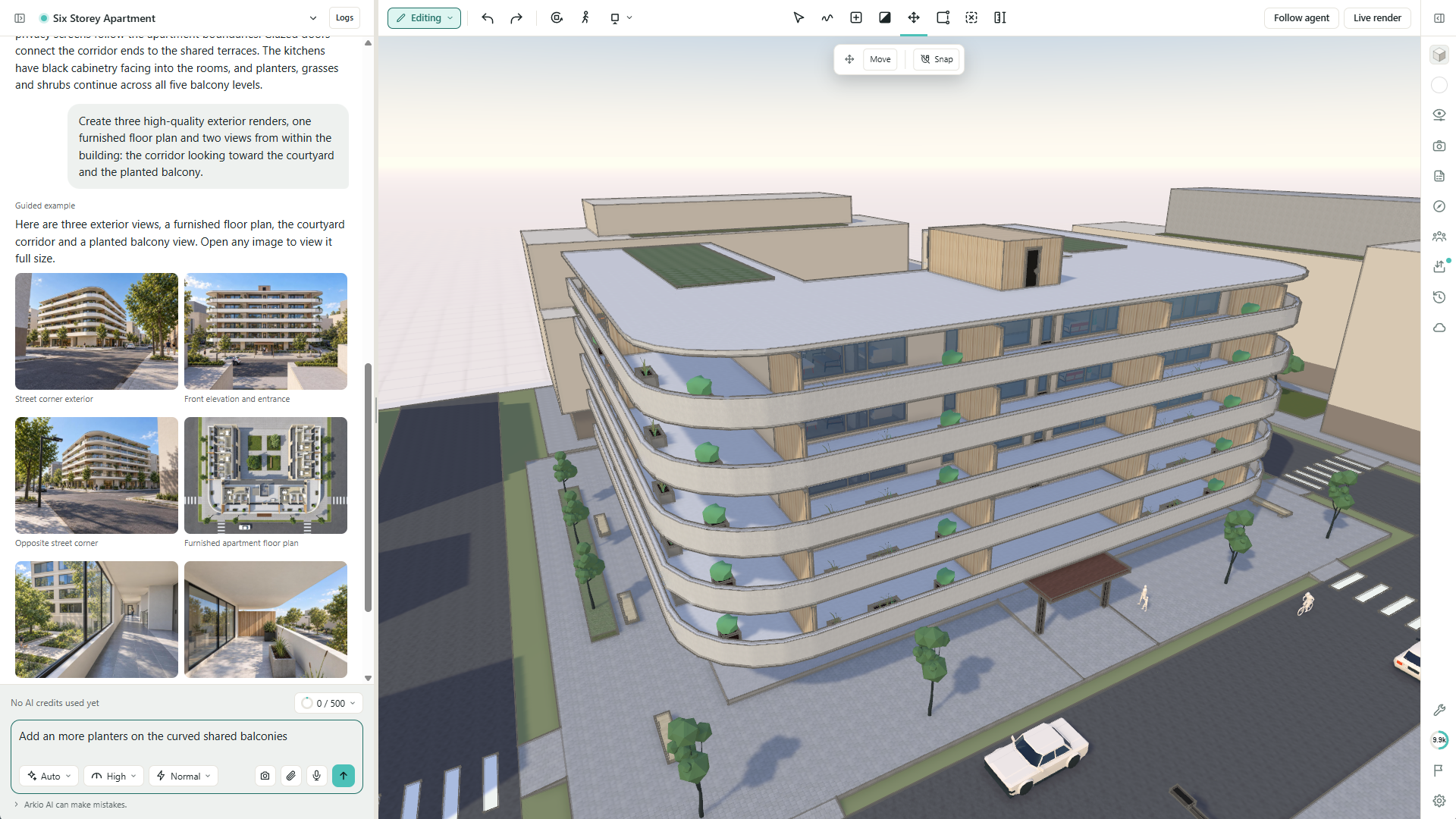
The kitchen example below uses photographs of the existing kitchen and a floor plan to develop a renovation concept in an editable 3D scene. For example:
Use the floor plan and kitchen photos to explore a more open layout with a freestanding island. Keep the existing window positions and use the attached material references for the cabinetry and worktops.
You can attach up to 100 files, totaling 50 MB per message. 3D models such as GLB, glTF, and OBJ use the model import workflow described below.
Guide the agent with sketch instructions
Draw directly over your view to show the agent where you want something added or changed. Sketch instructions combine visual marks with a written request, making it easier to communicate ideas that are difficult to describe with words alone.
Show where to work: Circle an area, trace an outline, or mark the position of a new object.
Explain different changes: Use different colors for separate instructions, such as adding a feature in one area while keeping another clear.
Guide a focused edit: Combine your sketch with object selections and describe which parts of the existing design should stay unchanged.
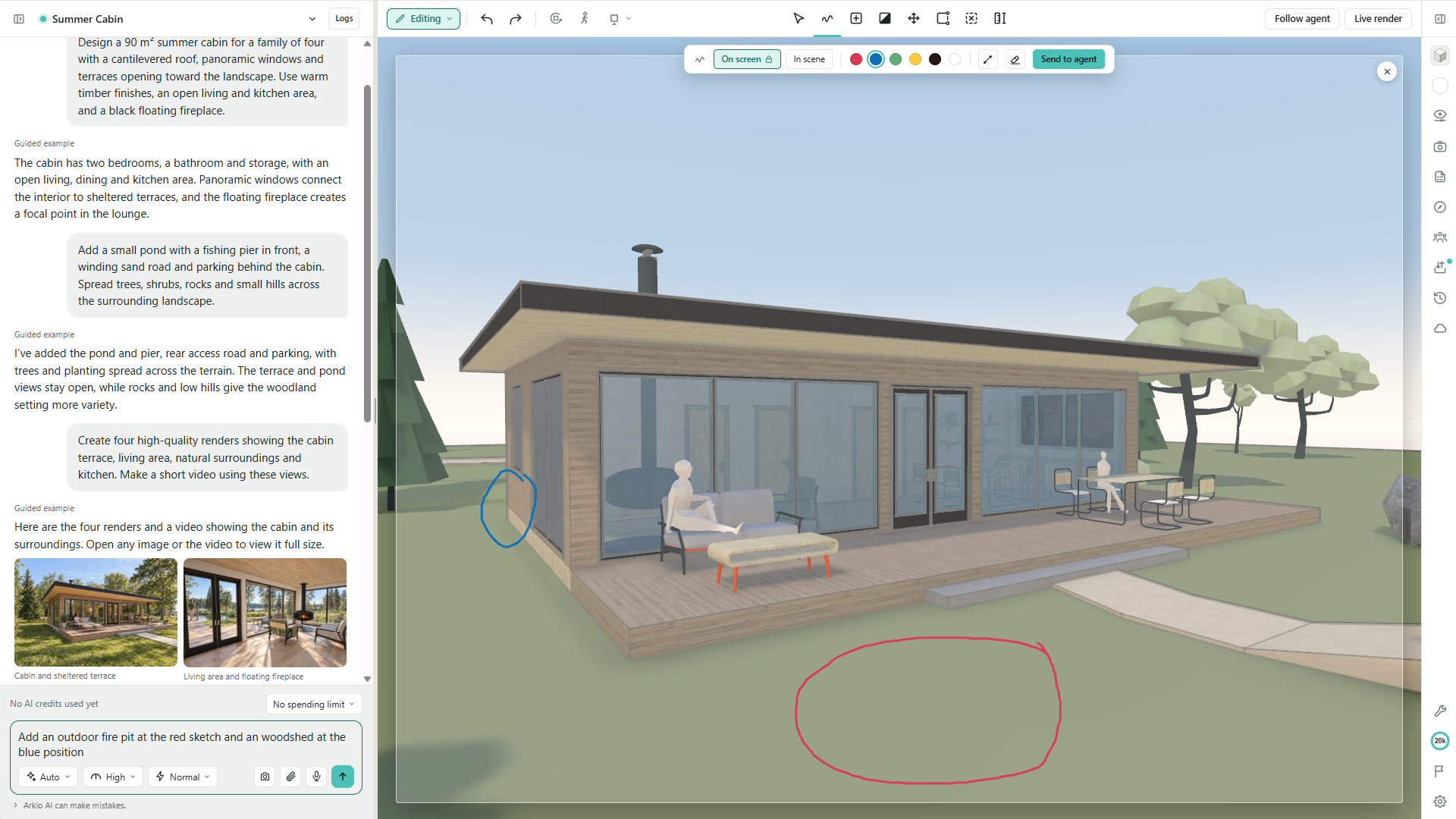
Choose Sketch > On screen to draw over the current view, then use Send to agent to include the marked-up view with your instructions. You can also choose In scene to sketch within the 3D scene.
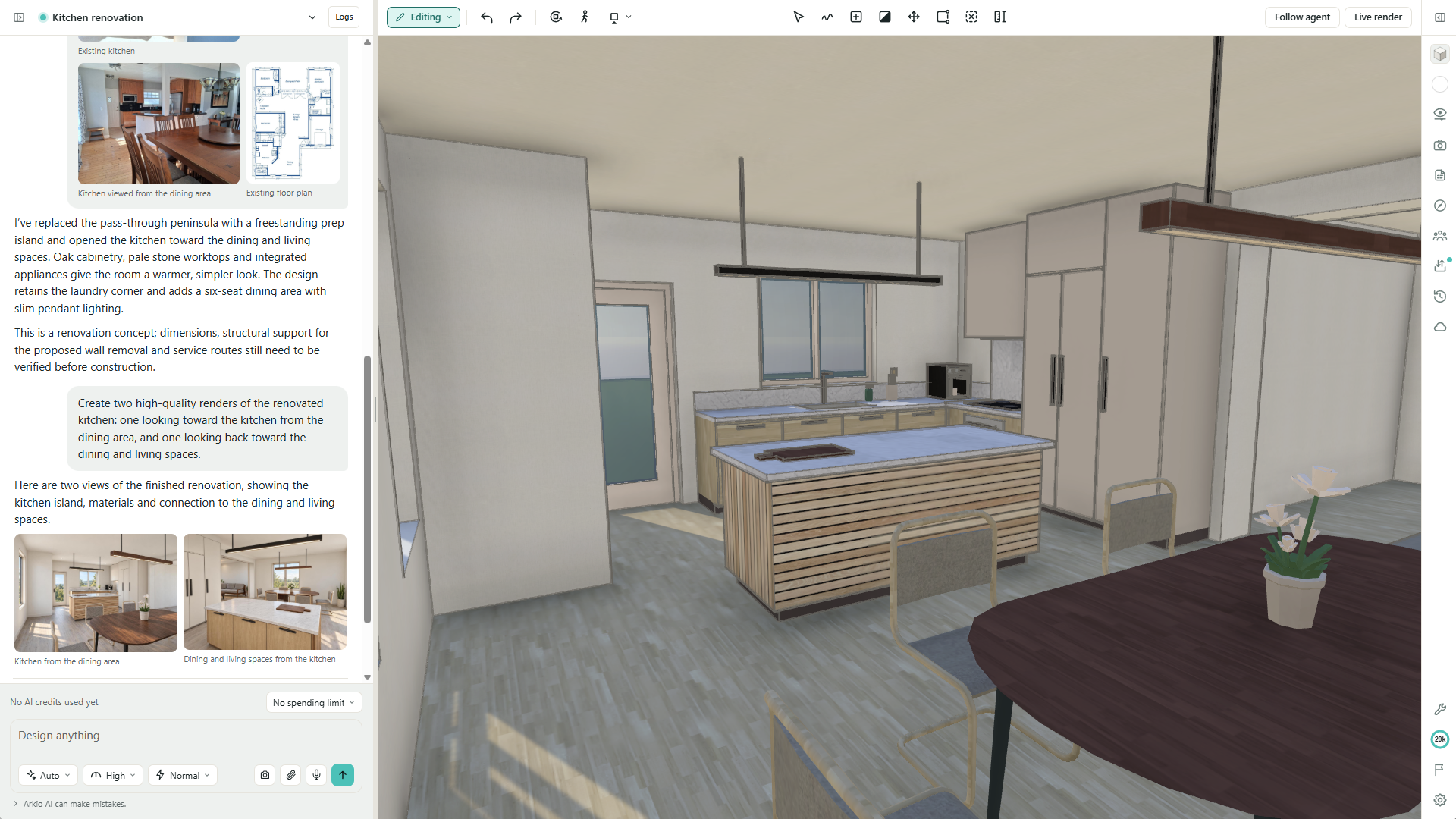
In the cabin example below, the sketch identifies two locations for the agent:
Add an outdoor fire pit in the red circle and a woodshed at the blue mark.
You can also use AI voice mode to talk through your ideas and discuss follow-up changes while exploring the scene.
Create images and videos from your design
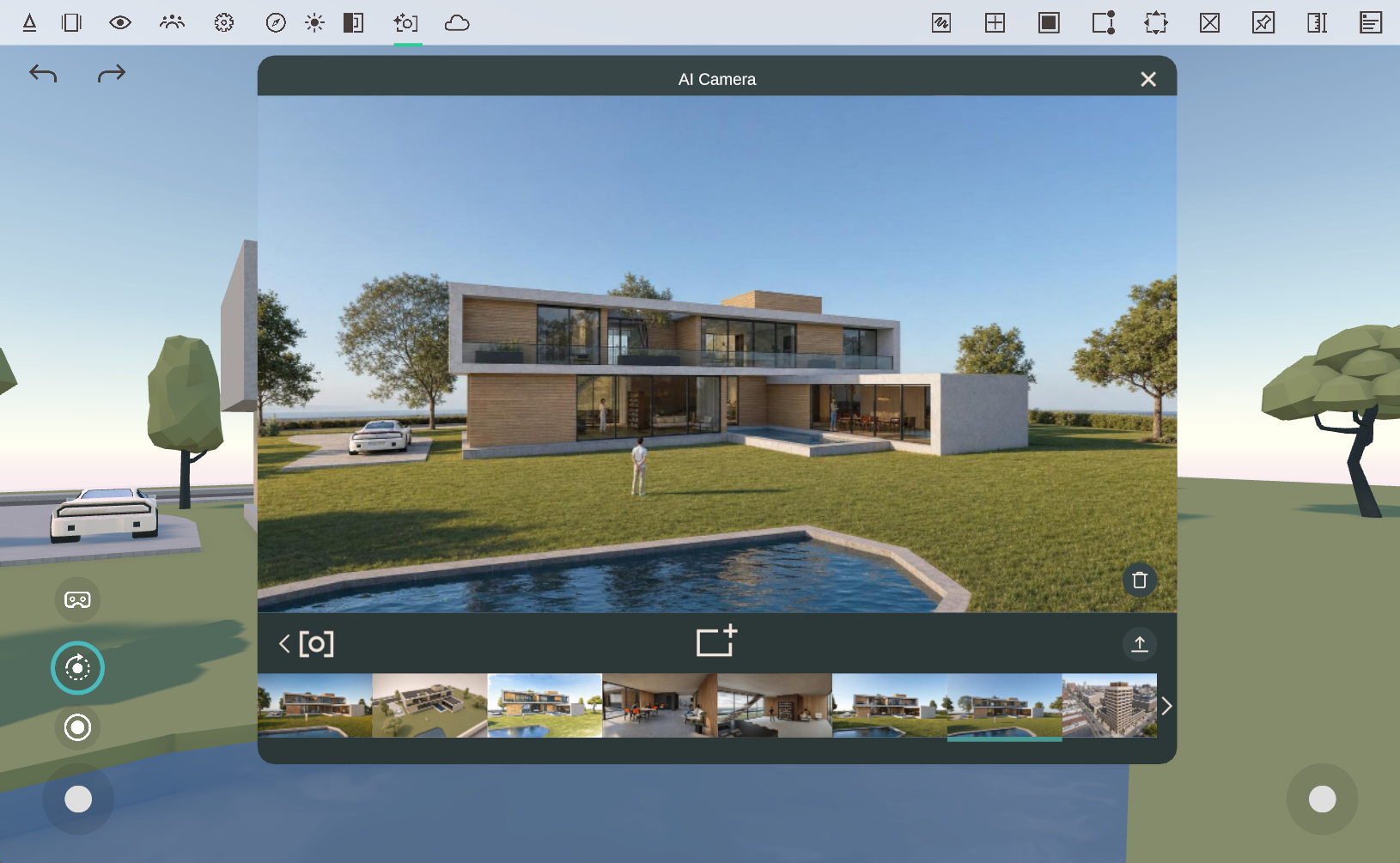
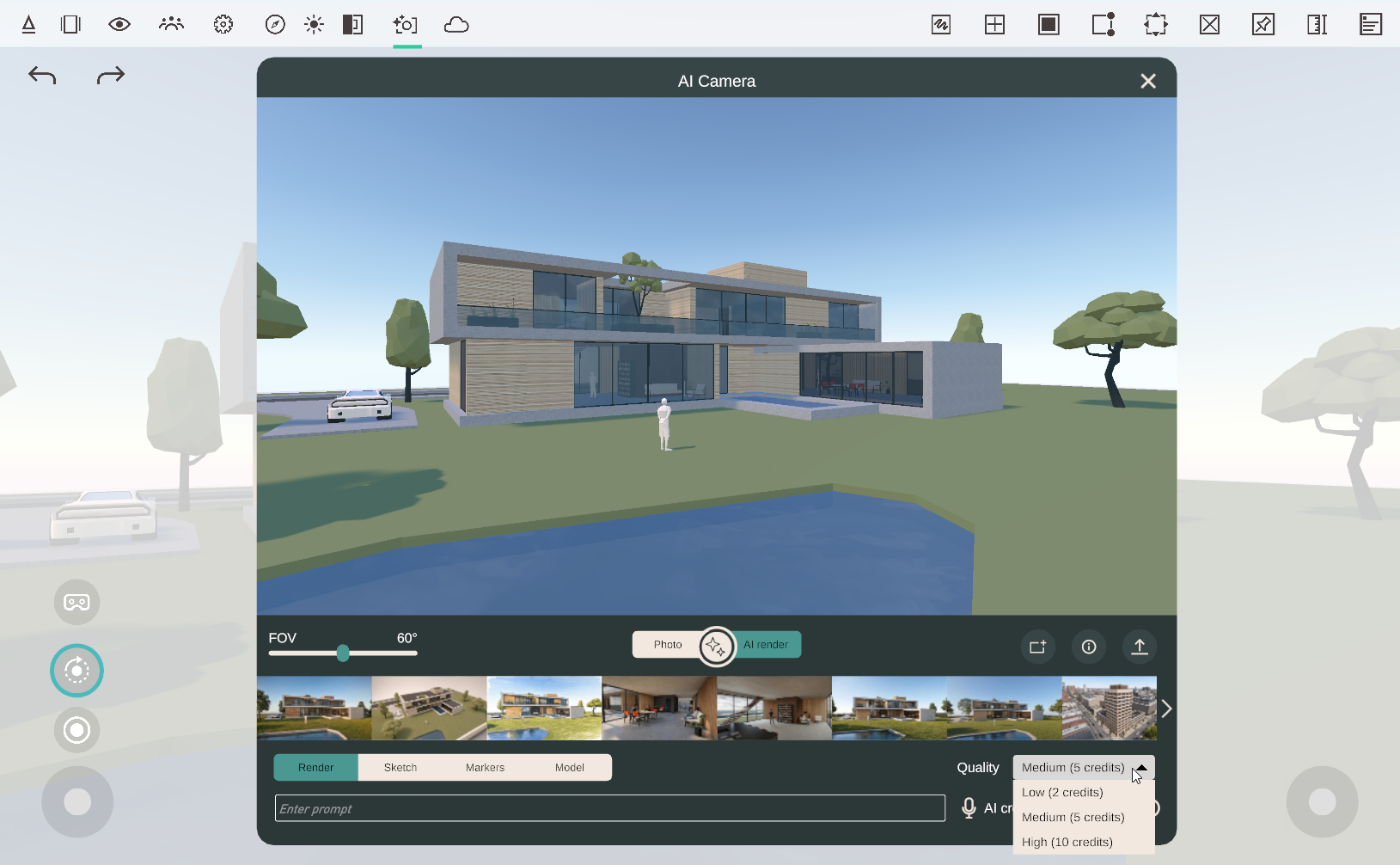
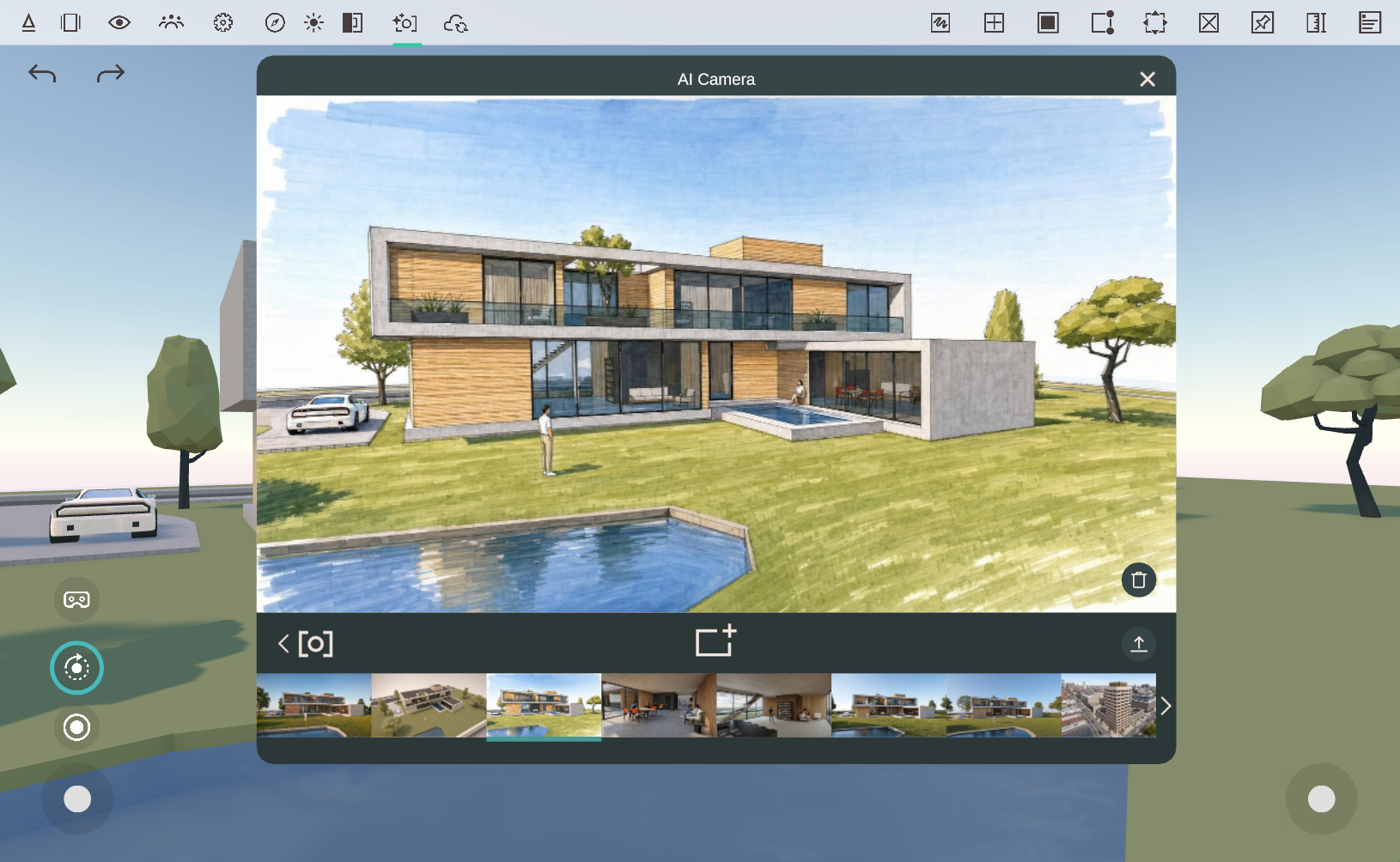
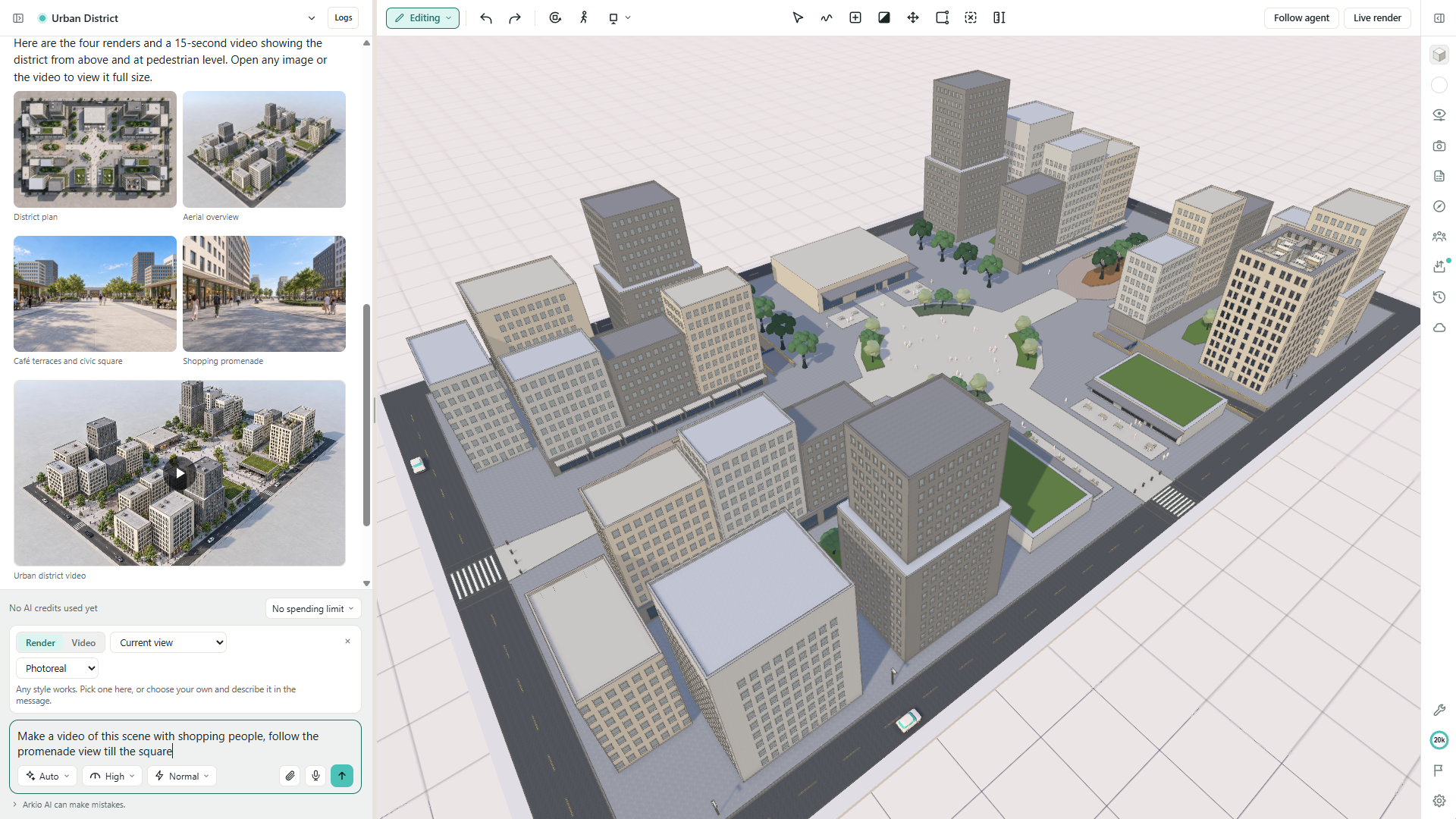
Explore how your design could look with AI-generated renders and videos, directly from the conversation.
Render your current view, saved viewpoints, or views chosen by the agent.
Choose photorealistic, pencil sketch, marker, or scale-model styles, or describe your own look.
Create short videos, including sequences based on renders you have already generated.
Share generated images and videos with collaborators in the group chat.
The Media library brings completed renders and videos from your chats together. Browse the results, download an image or video, or open its original conversation to continue developing the design.
AI generation uses credits. Review the results alongside your 3D model as you refine the design.
Shape your designs with Boolean modeling
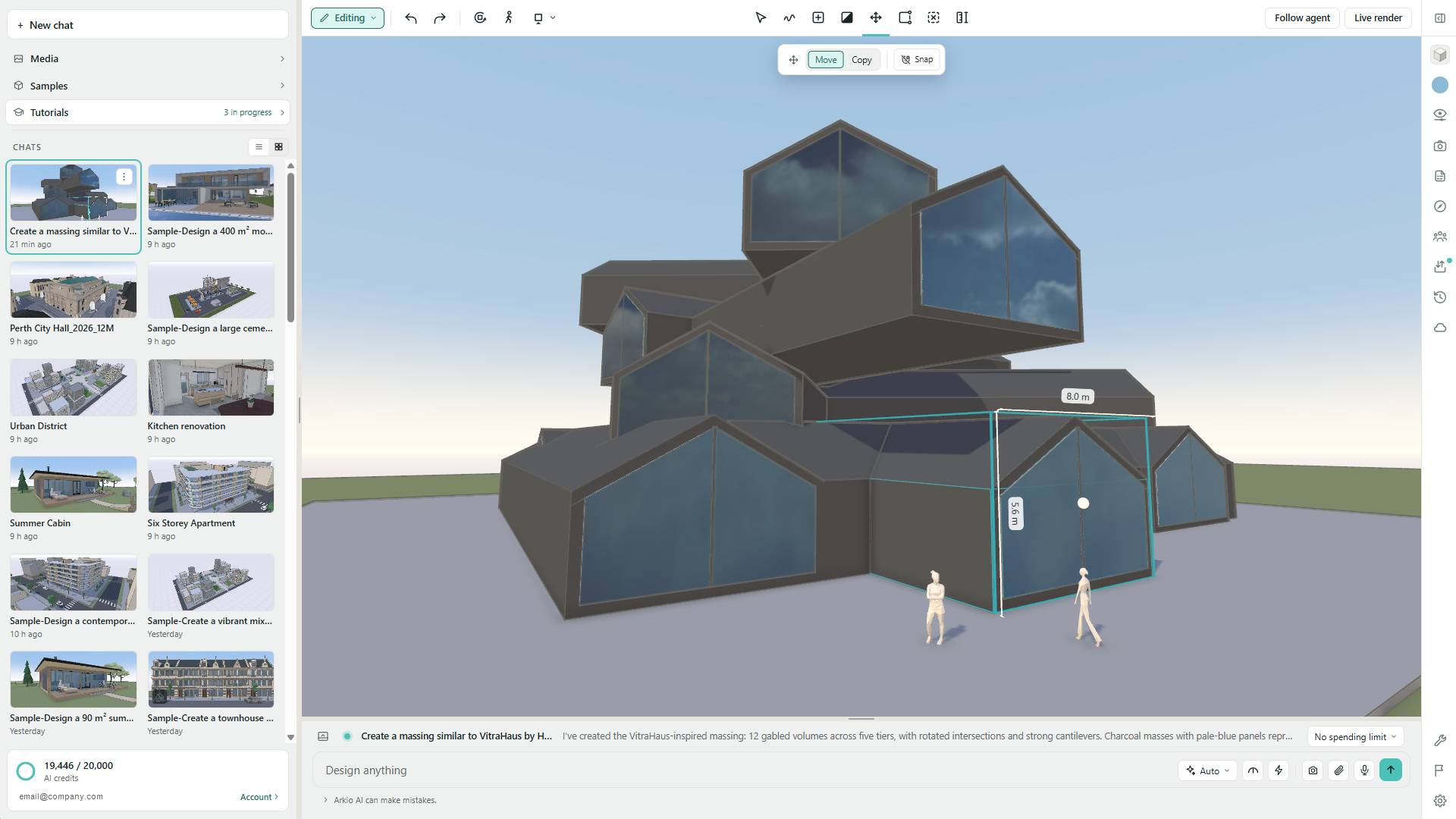
Arkio 3.0 introduces a new Boolean modeling system for working with overlapping solid shapes and voids. Build up a design from solids and use voids to carve out openings, recesses, and interior spaces.
Explore intersecting forms: Overlap building volumes to develop more complex shapes.
Carve out space: Use voids to create doorways, windows, courtyards, and other cutouts in Arkio geometry.
Keep refining: Move or reshape the solids and voids as your design evolves, with the resulting geometry updating to reflect the changes.
The same modeling system supports your manual edits and the AI agent’s work, so you can continue developing an agent-generated design with Arkio’s tools.
Share scenes and review designs together
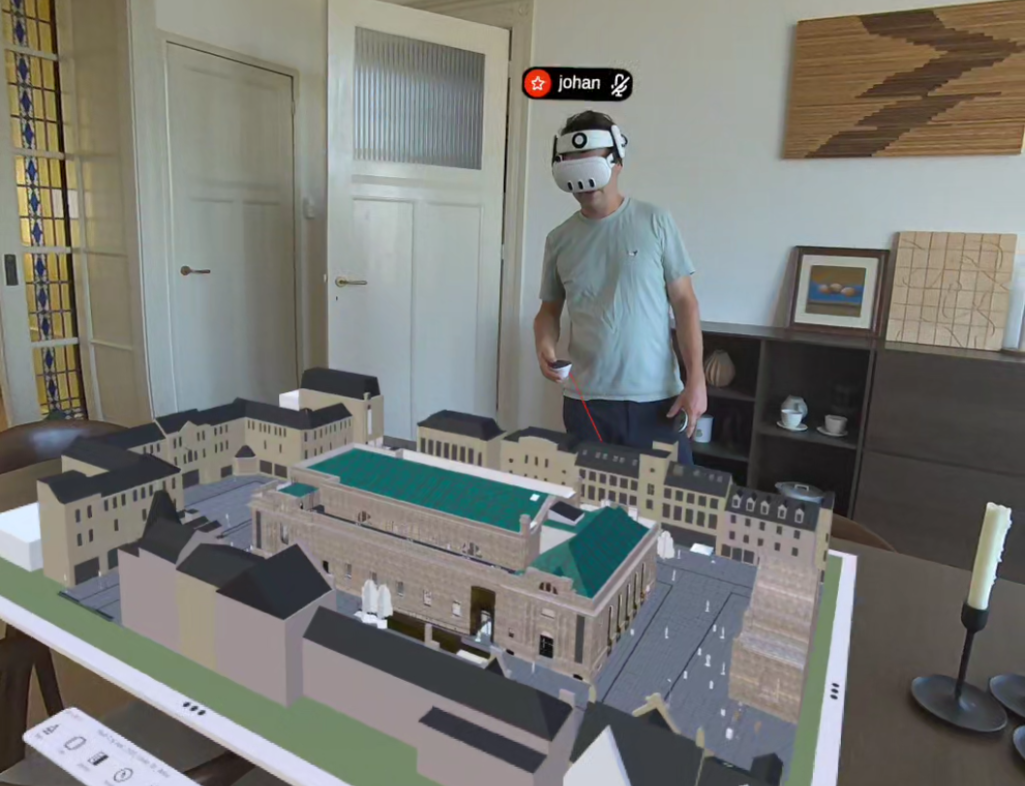
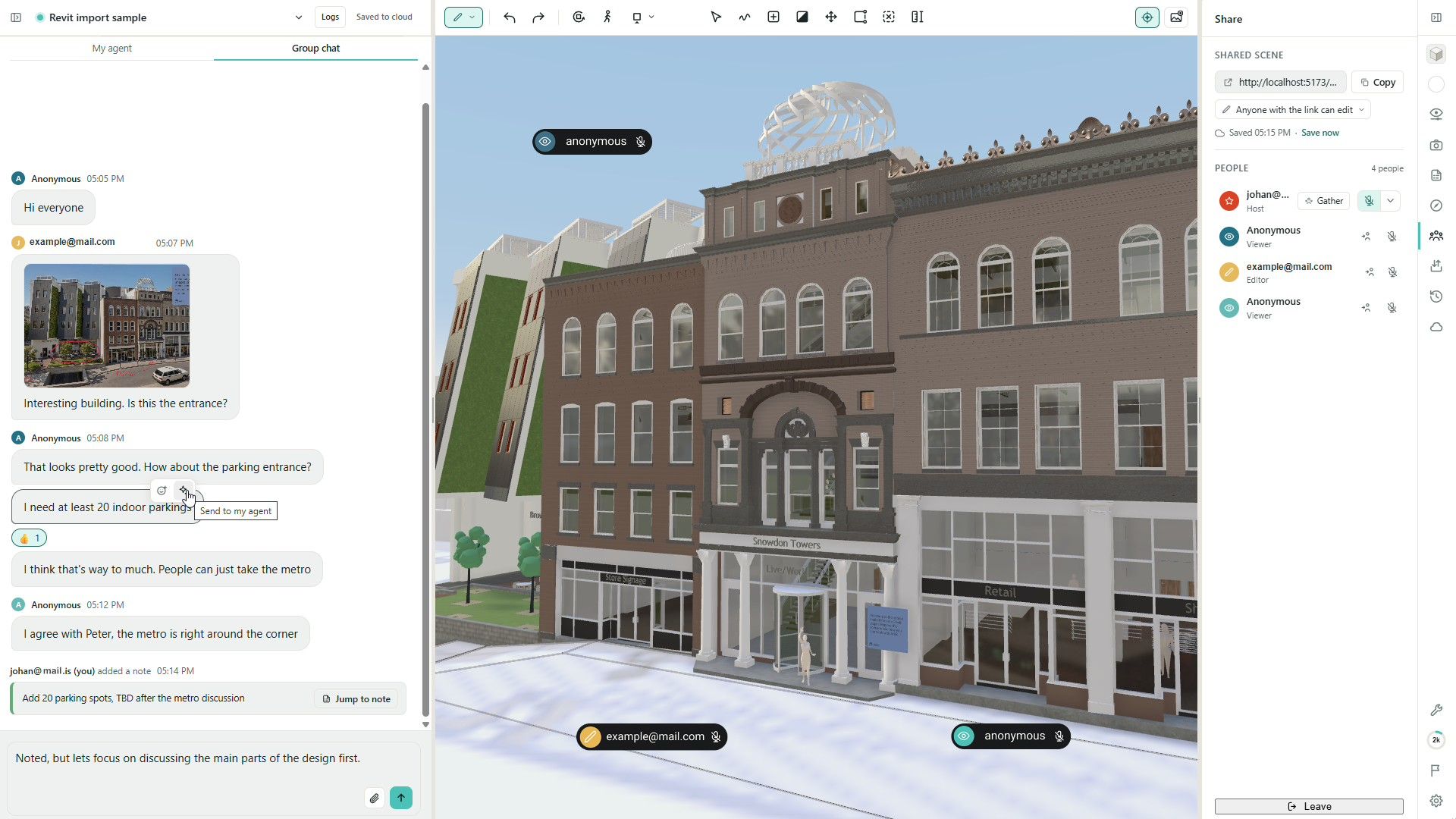
Invite someone into your scene with a browser link. Share view access for presentations and reviews, or edit access for signed-in collaborators with the required account permissions.
Let viewers explore a shared scene without creating an account.
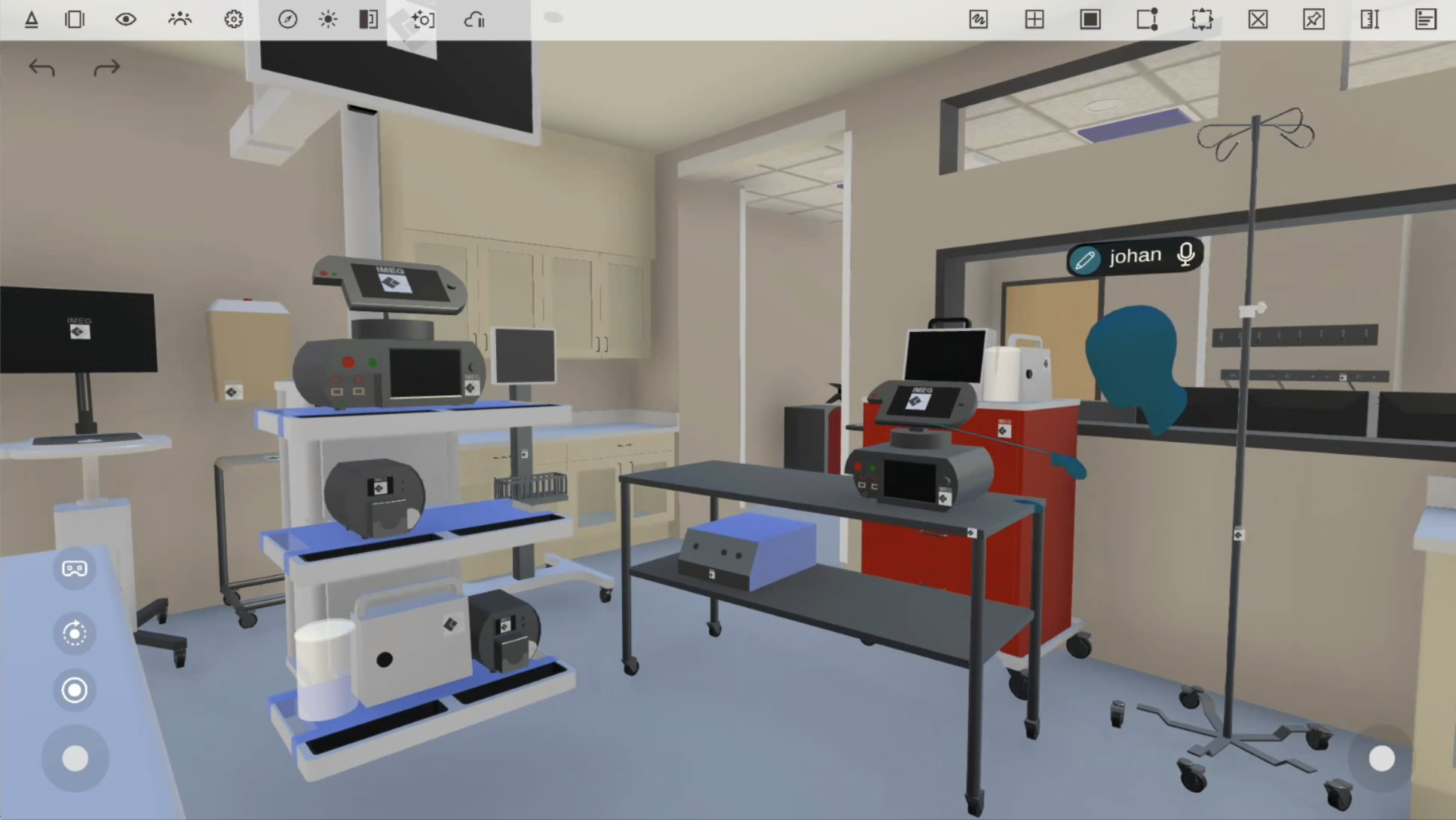
Use Jump and Gather everyone to focus a discussion on the same part of the model.
Discuss changes and share files, images, and agent results in the group chat.
Keep feedback connected to the design with scene notes and comment threads.
Use meeting audio in supported browsers while reviewing together.
Your agent conversation stays private unless you choose to share it. Changes your agent makes to the shared scene are visible to the other participants.
Live collaboration between multiple users and AI agents is still experimental. Coordinate changes and avoid editing the same objects at the same time. Learn more about collaborating and sharing scenes in Arkio Web.
Keep review feedback connected to the model
Scene notes give your team a place to record questions, decisions, and changes in the context of the design.
Place a note on an object or at a location in the scene, and return to its saved view.
Assign notes, mark them resolved, and reopen them when more work is needed.
Discuss notes in comment threads in a shared scene, with replies also connected to the group chat.
Search and filter notes, or collapse them in the scene for a clearer view.
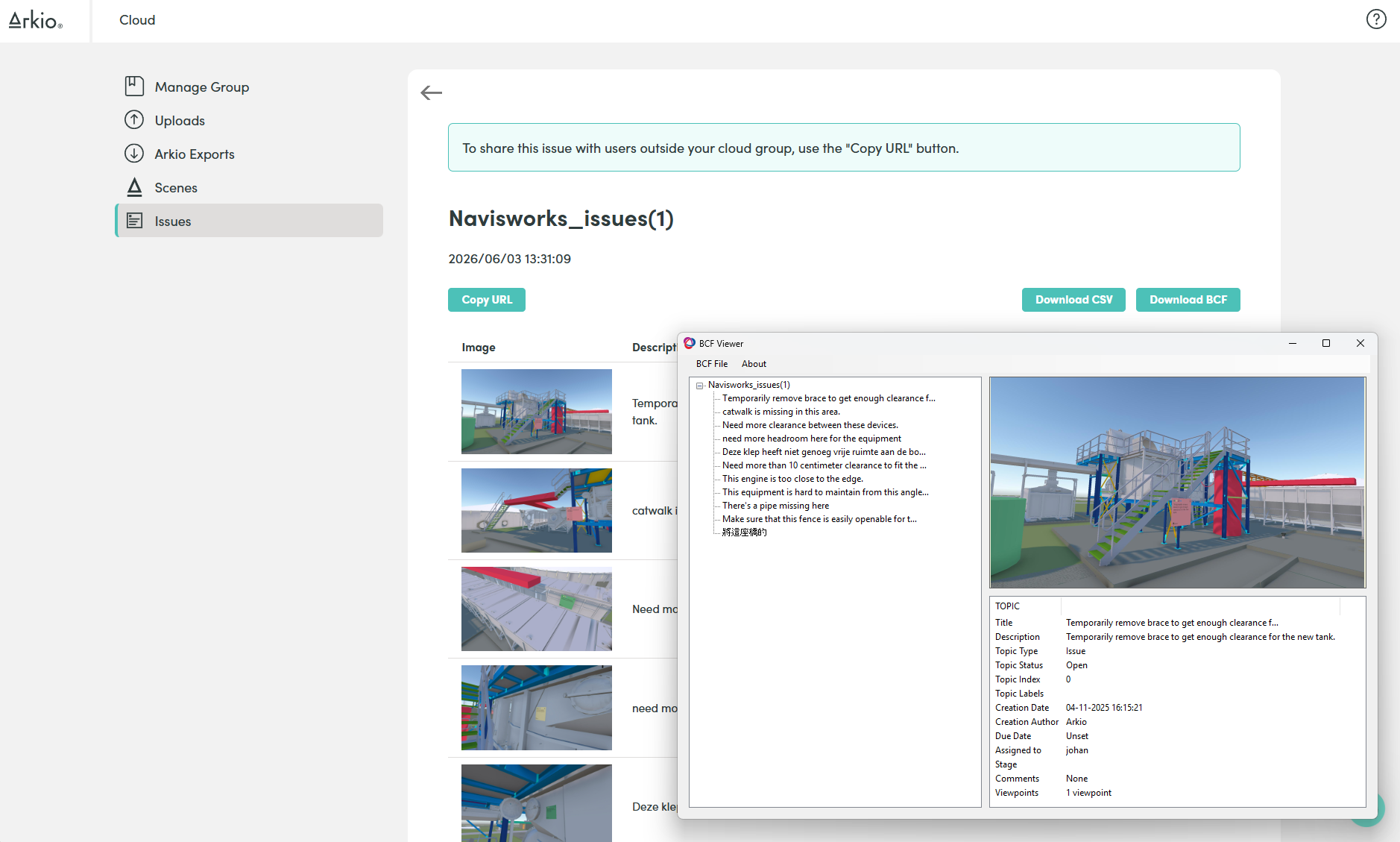
Export notes as CSV for a spreadsheet or BCF for compatible BIM review workflows.
For supported BIM imports, you can inspect element properties and control the visibility of imported models and layers with the required plan. Notes can stay linked to the imported elements they refer to, making feedback easier to locate.
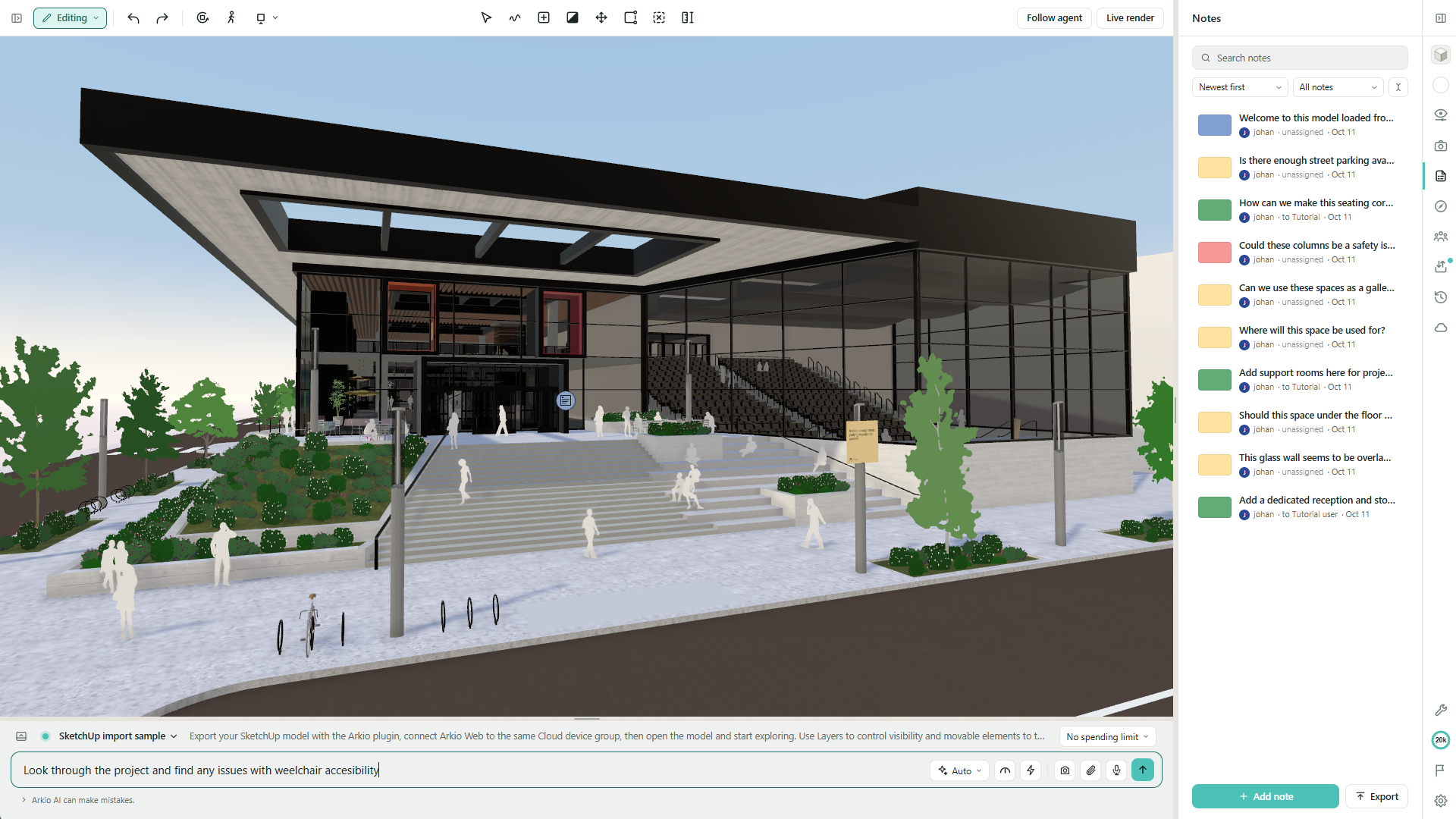
Bring your existing models into the browser
Use an existing project as the starting point for your next design conversation.
Direct imports: Bring in GLB, glTF, and OBJ models, including folders or ZIPs with their supporting files.
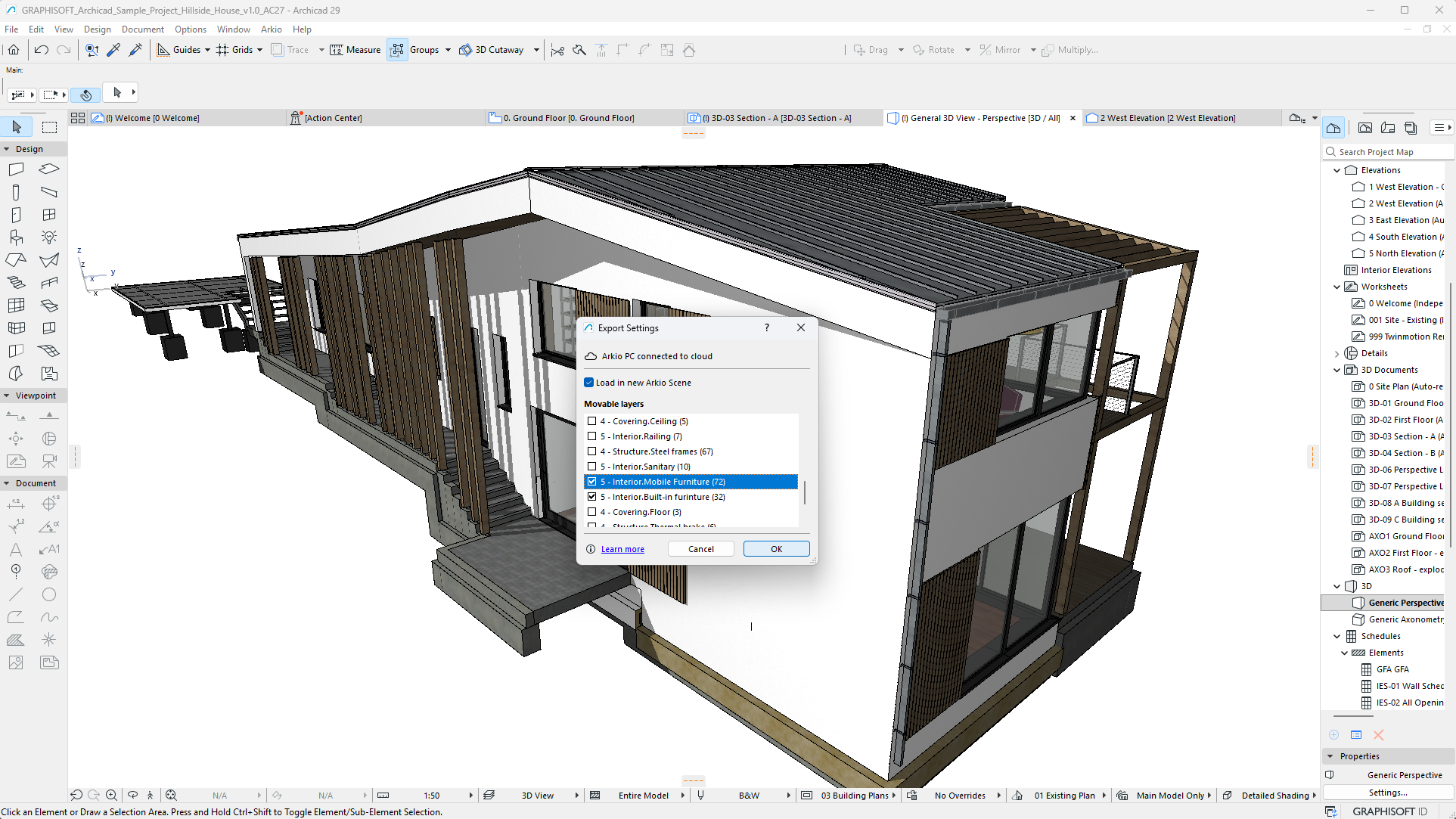
Plugin workflows: Use Arkio 2.3.3 for Windows and the updated plugins to bring exports from Revit, Rhino, and SketchUp into Arkio Web through a shared Arkio Cloud device group.
Return to your design tools: Download exports for Revit, Rhino, and SketchUp and import them with the corresponding Arkio plugin. GLB, OBJ, and IFC exports are also available, depending on your account and workflow.
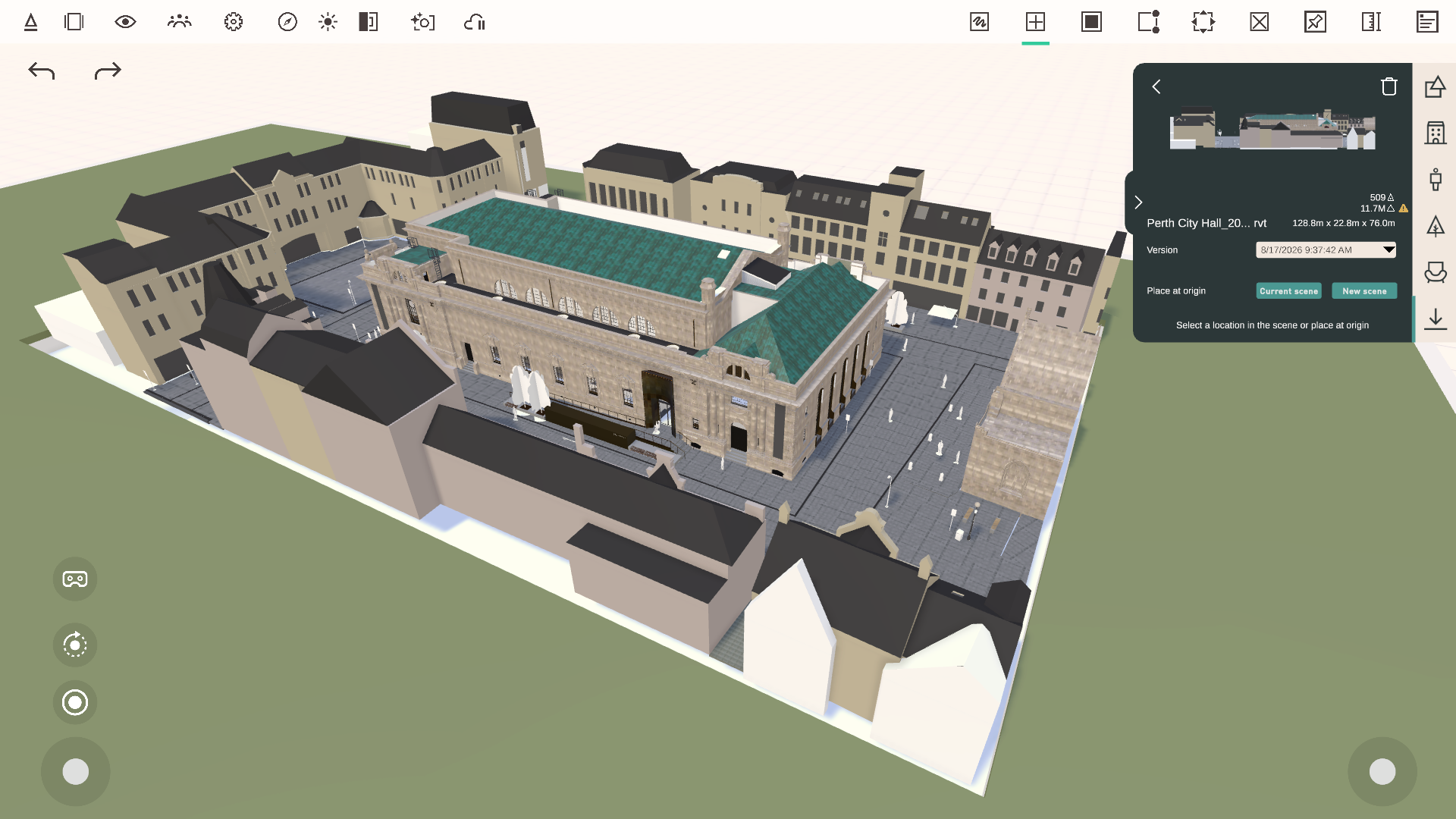
The import panel lets you search your files, preview their details, choose an imported version, and update models already placed in the scene. Adjust units and the up axis for generic 3D models, or place a model at its original coordinates. You can also import JPG and PNG images as references inside the scene.
Exports back to your design application require a manual download. Imported reference models and export formats have content and size limitations; see Import models into Arkio Web for the complete workflow.
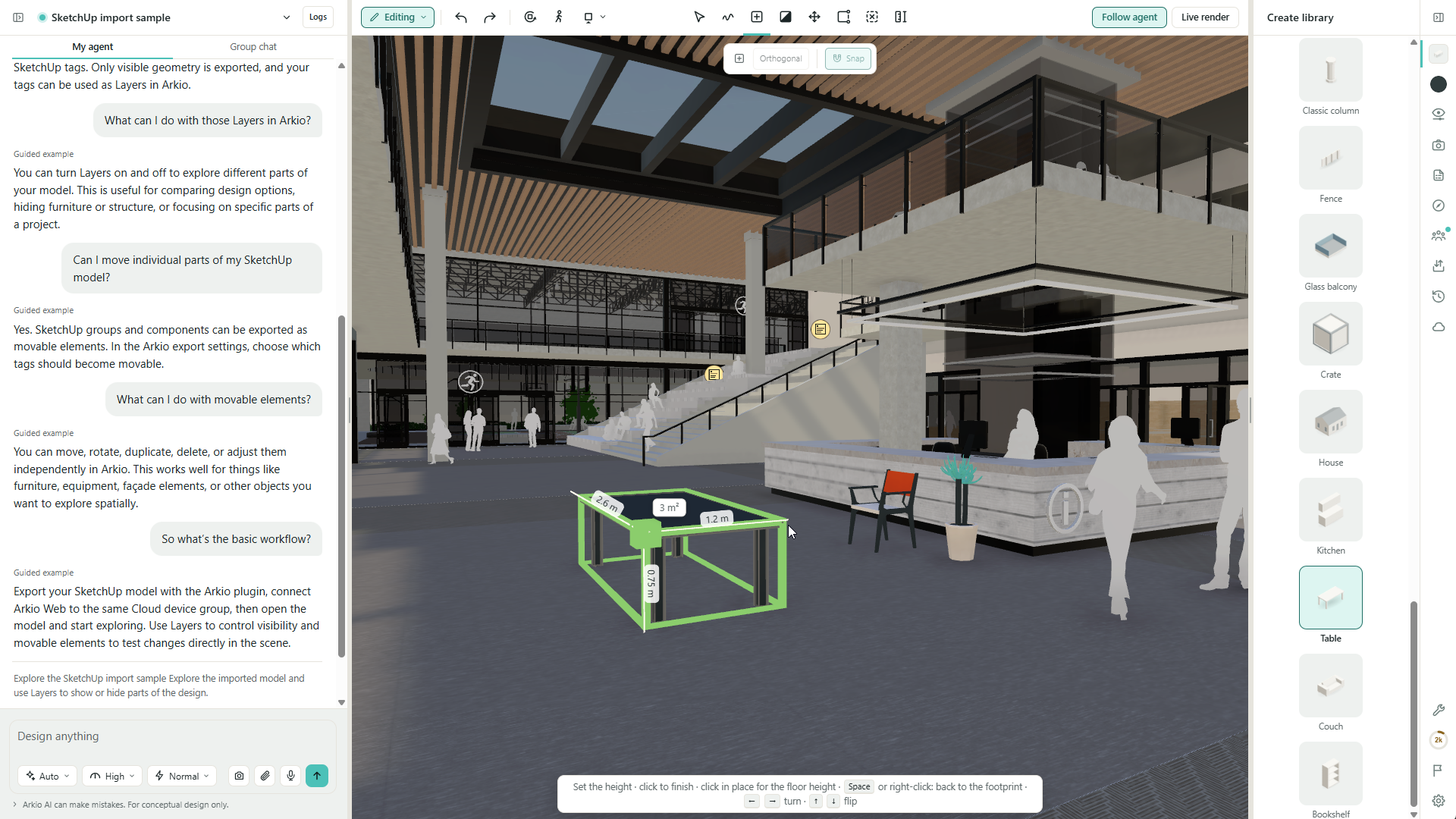
Return to your chats and scenes
Sign in to save your chats and scenes to your new Arkio account and access them from another supported device or browser. Your Arkio scenes are now persistent and will be available on all browsers and devices that you log into. Use scene history to revisit earlier versions of your work.
Scene history lets you preview earlier saved versions before deciding what to do next. Restore a previous scene, or open an earlier version of a private cloud scene in a new chat to explore an alternative. Restoring keeps the current scene in history first, so you can return to it later.
Check that your latest changes show Saved to cloud before switching devices. You can work on different chats in separate browser tabs; simultaneous use of the same private chat and scene across devices is not supported.
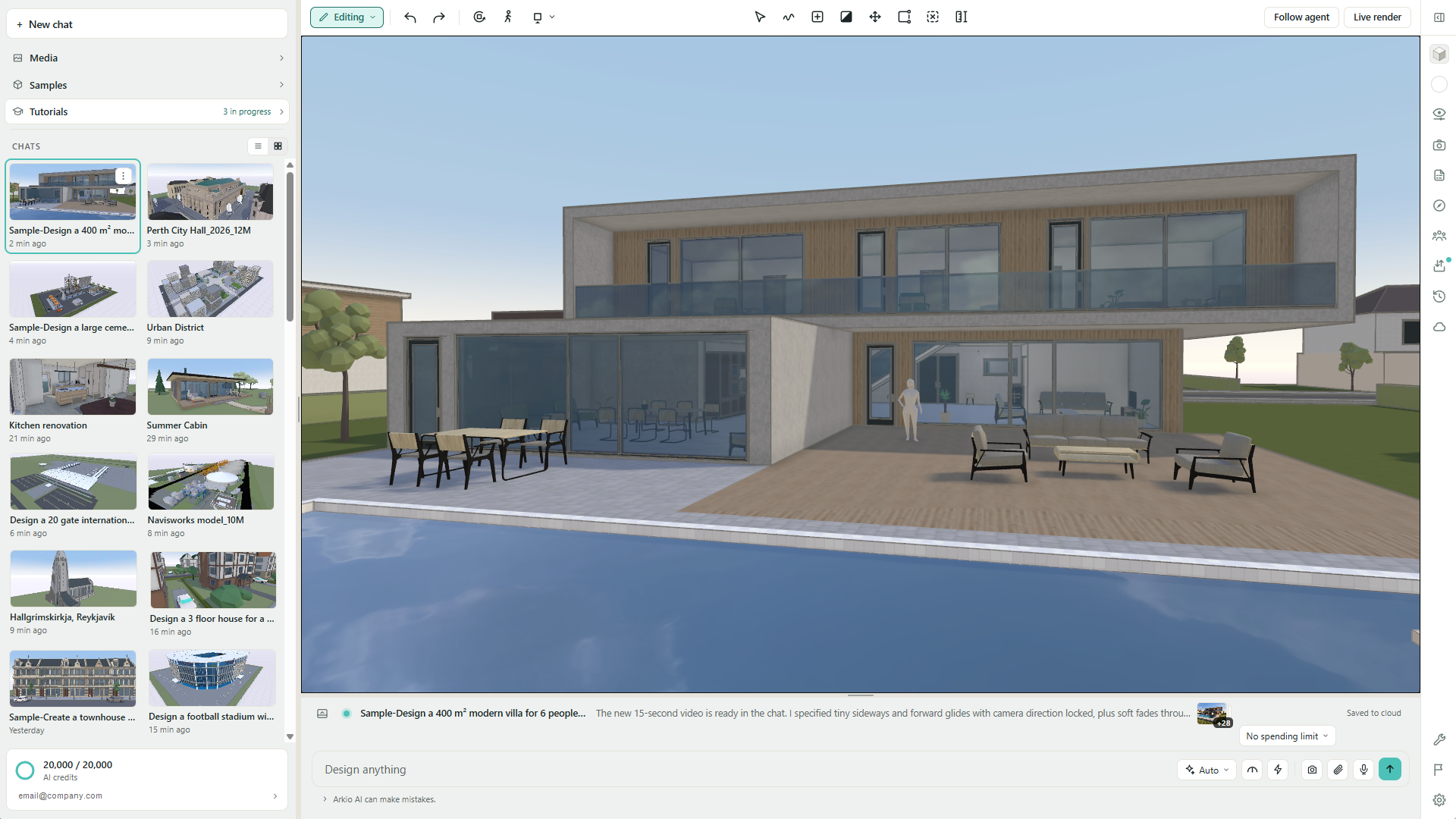
AI credits for individual and team workflows
Manage your plan and AI credits from your account. Plus and Pro provide individual monthly allowances, while Team combines credits from paid seats into a shared pool.
Review included and purchased credits, with their refresh and expiry dates.
Buy additional credit packs when you need more capacity.
Invite colleagues to a Team account using their own email addresses.
Manage paid seats and set a shared spending-limit percentage for members.
See AI credits and your work, and manage your organization and share AI credits for details.
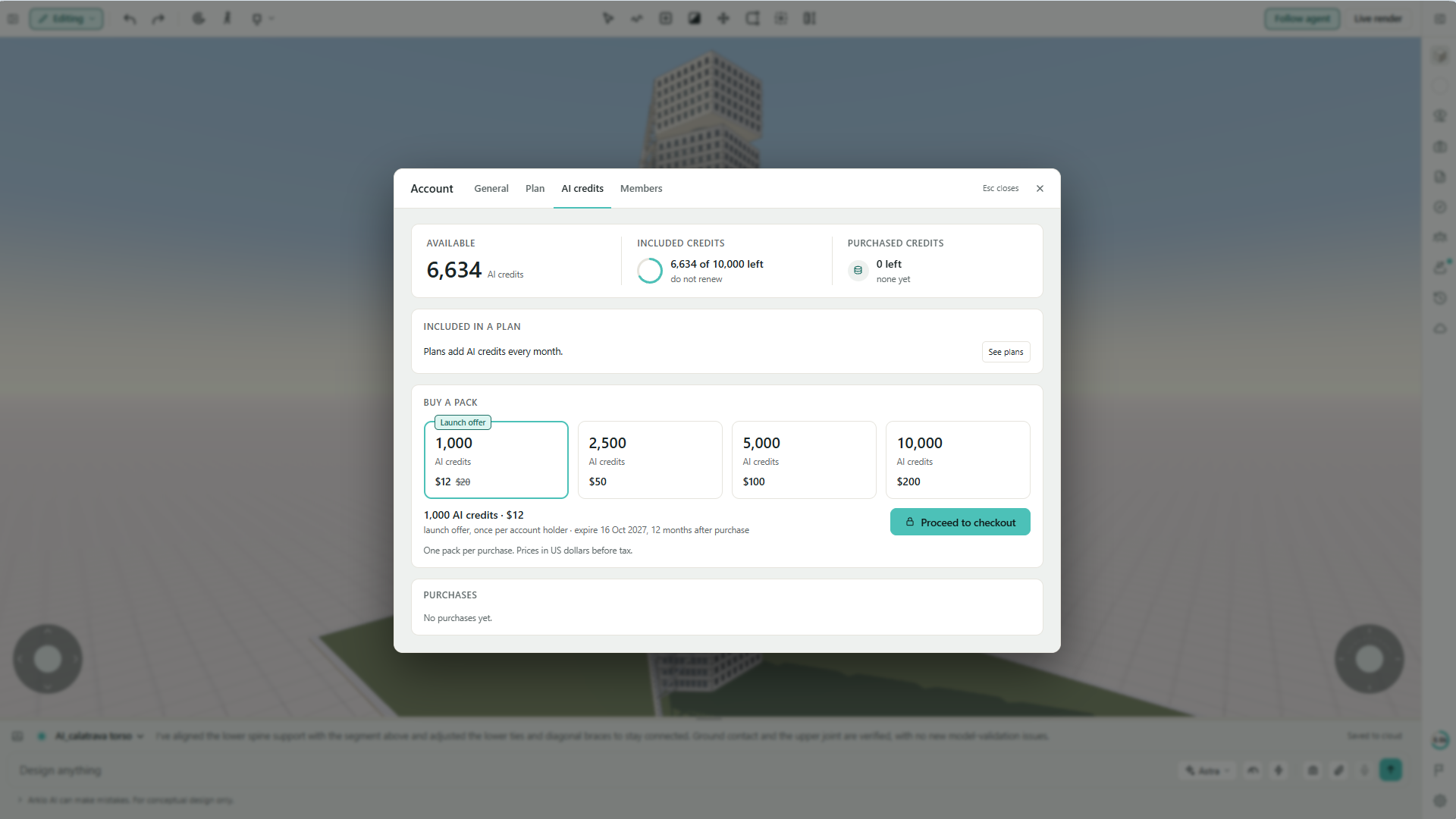
Model and refine directly in your browser
The browser interface brings Arkio’s modeling and review tools alongside your AI conversation. Move between agent-assisted design and hands-on editing as your project develops.
Build and reshape: Create geometry, move objects, edit shapes, paint materials, and measure your design.
Work with precise dimensions: Use on-screen dimension controls to enter sizes and distances while modeling.
Organize your design: Select multiple objects, group related parts, and pin objects to keep them in place.
Add detail: Search the libraries for furniture, people, trees, building components, colors, and materials.
Explore from different angles: Switch between orbiting and walking through your scene, use standard views, and save viewpoints for later.
Clearer modeling controls and widgets
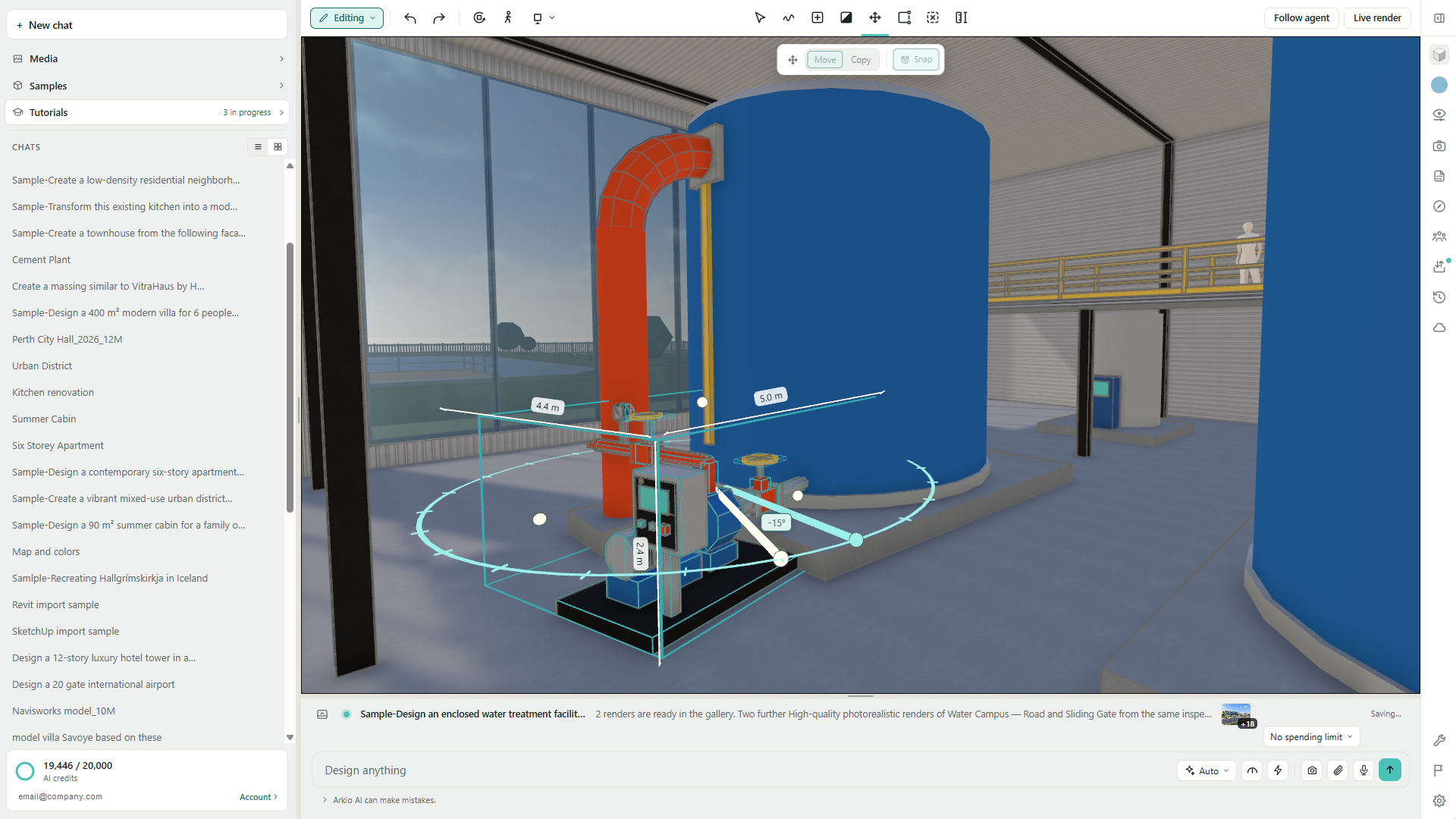
Redesigned on-screen widgets make it easier to see what you are moving, rotating, or reshaping. Handles highlight as you interact with them, while consistent outlines and grips stay readable as you zoom.
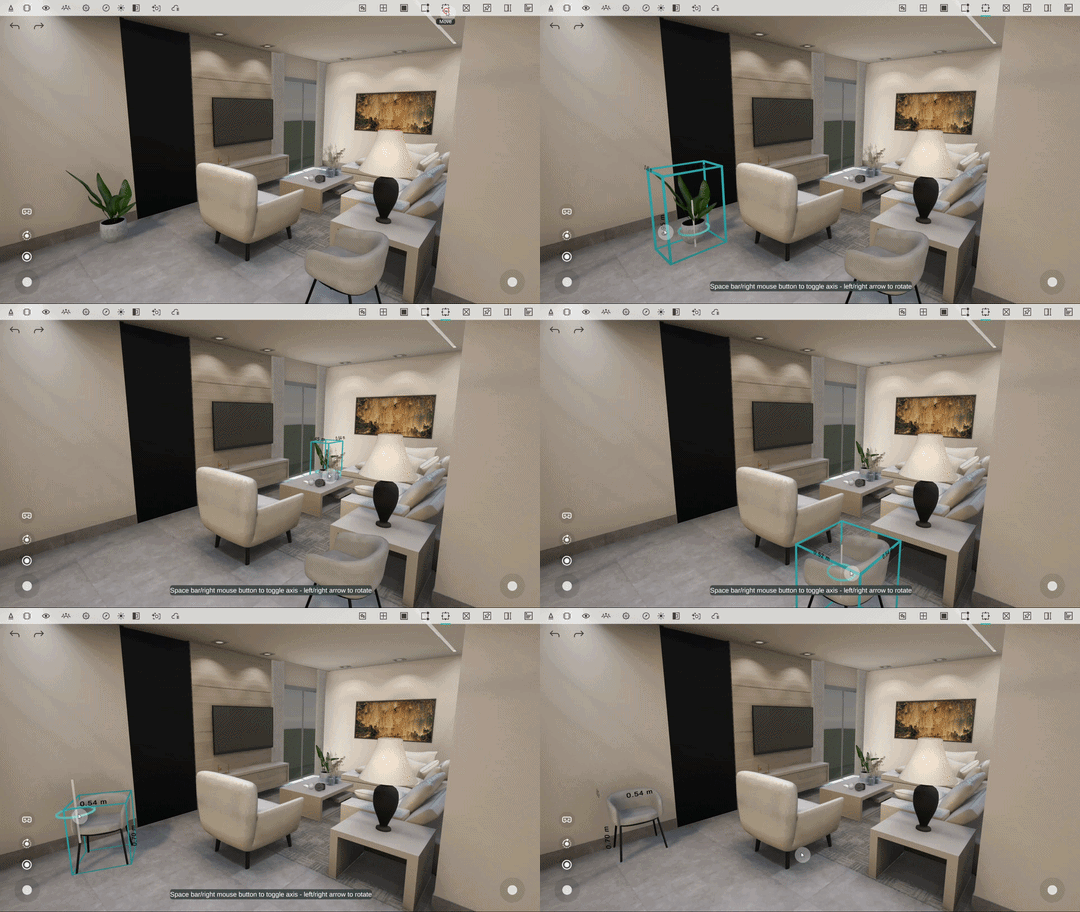
Move and rotate with more control: Use object handles and rotation rings, with visual guides showing the direction of your adjustment. Hold Alt while dragging to place an object onto another surface.
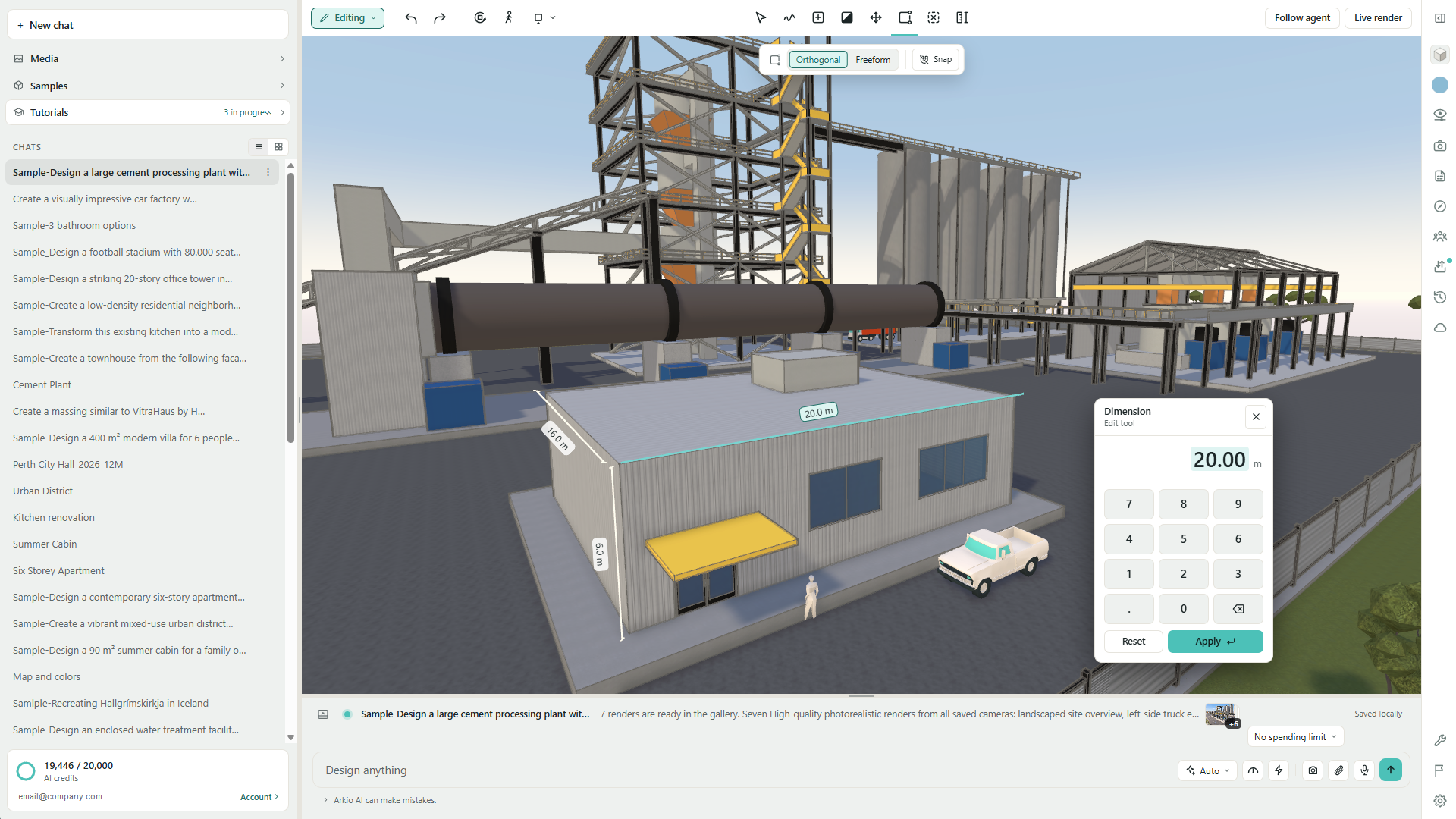
Enter exact measurements: Click an editable dimension to open the floating number pad. Dimension lines, distance labels, and footprint areas help you judge sizes as you work.
Choose how you model: Use the tool controls to switch between Move and Copy, Orthogonal and Freeform editing, or painting a whole shape and painting individual faces.
Create with clearer steps: Define a shape’s footprint and height separately, draw connected wall segments, and size hosted door and window openings on their supporting face.
Get guidance as you work: Contextual hints explain the current action and available shortcuts.
More control over section views
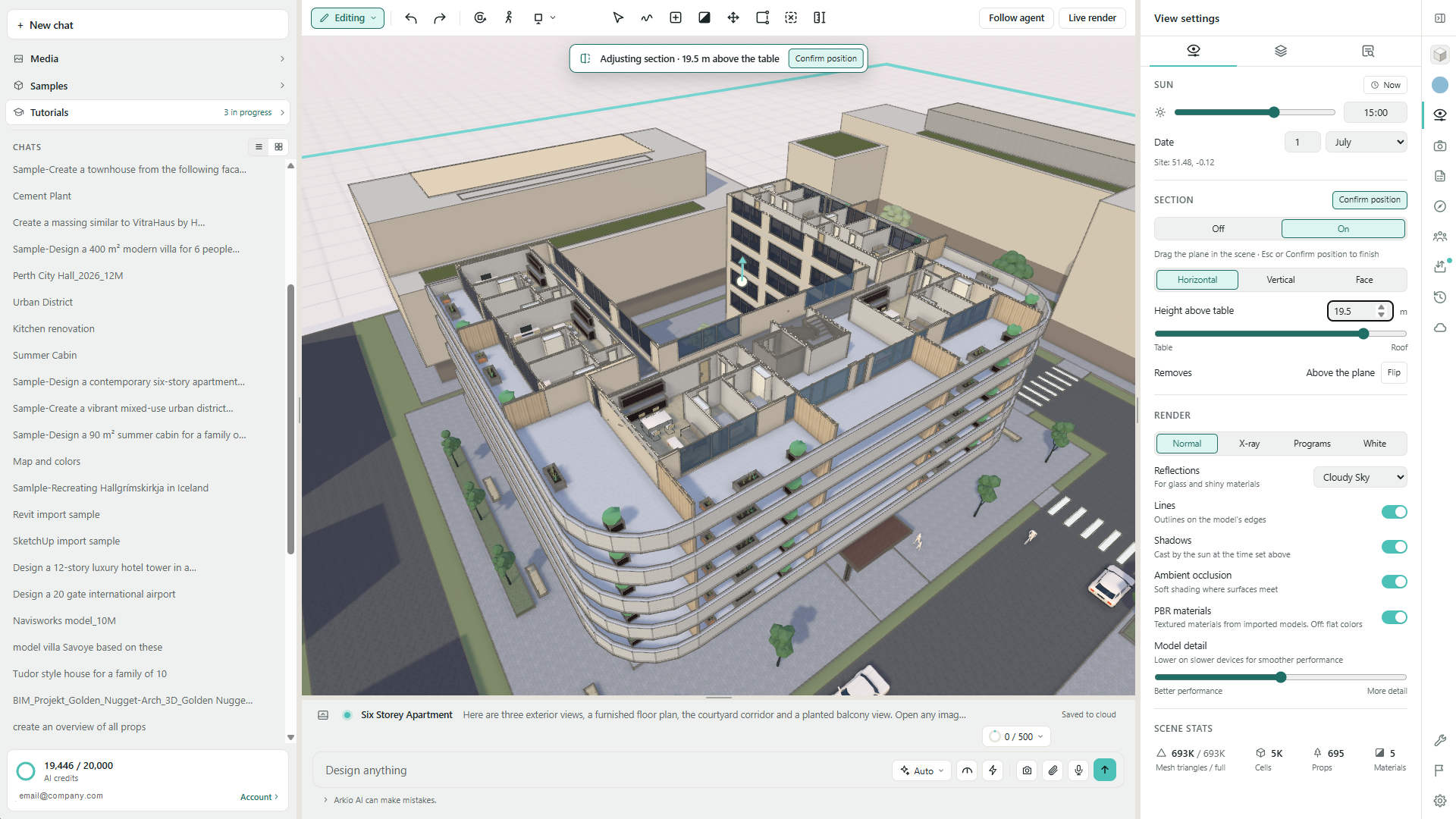
The updated section tool makes it easier to reveal interiors, inspect a floor plan, or present a cut through your design.
Choose the cut: Start with a horizontal or vertical section, or align it to a face of Arkio geometry.
Adjust in the scene: Drag the section widget to move the cut through your model. Use the rotation ring to turn a vertical section, with snapping for controlled angles.
Fine-tune the position: Use the section slider, or enter a height or offset for horizontal and face-aligned cuts.
Flip the visible side: Reverse which side of the section is removed without repositioning the plane.
Present a clean view: Confirm the position to hide the adjustment widget while keeping the cut visible. Turn the section off and back on to return to the same placement.
Get started with tutorials and sample scenes
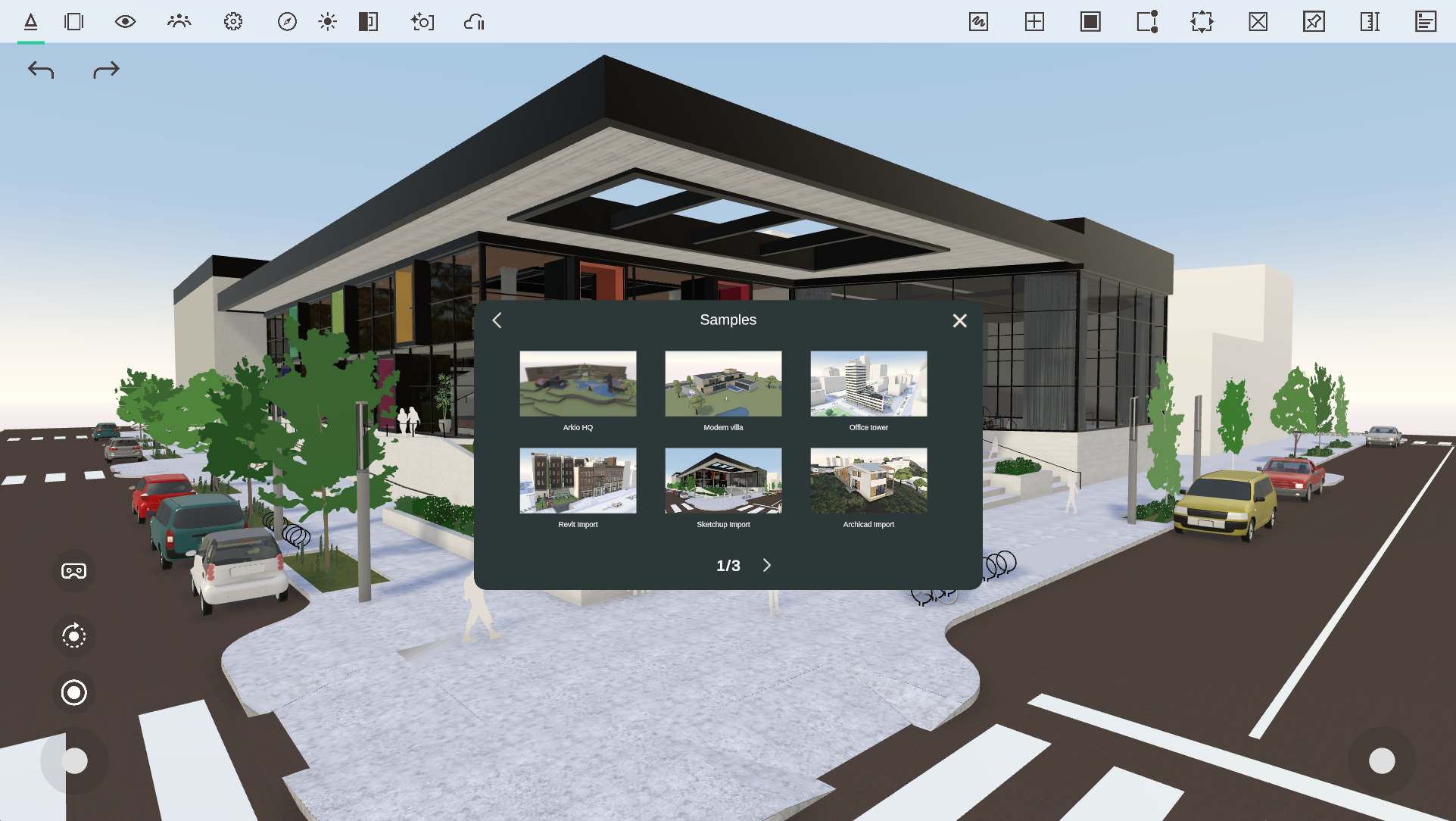
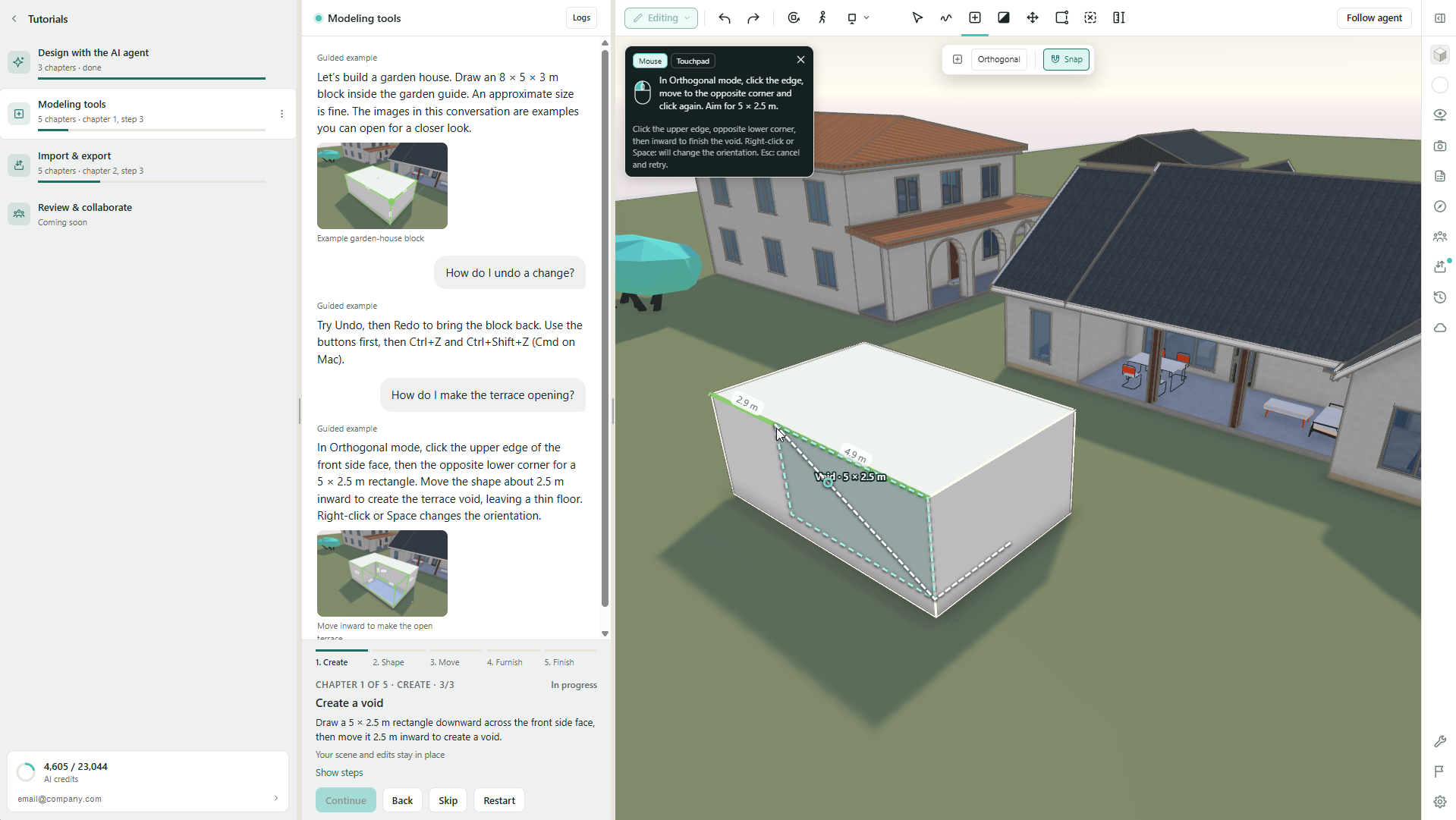
Try Design with the AI agent to explore a prepared design conversation, or practice with the Modeling tools and Import & export tutorials. Sample scenes give you starting points for exploring Arkio and developing your own ideas.
The prepared guided examples do not use AI credits. Your own live AI requests do.
Follow Getting started with Arkio 3.0 for web for your first steps.
Help us improve Arkio
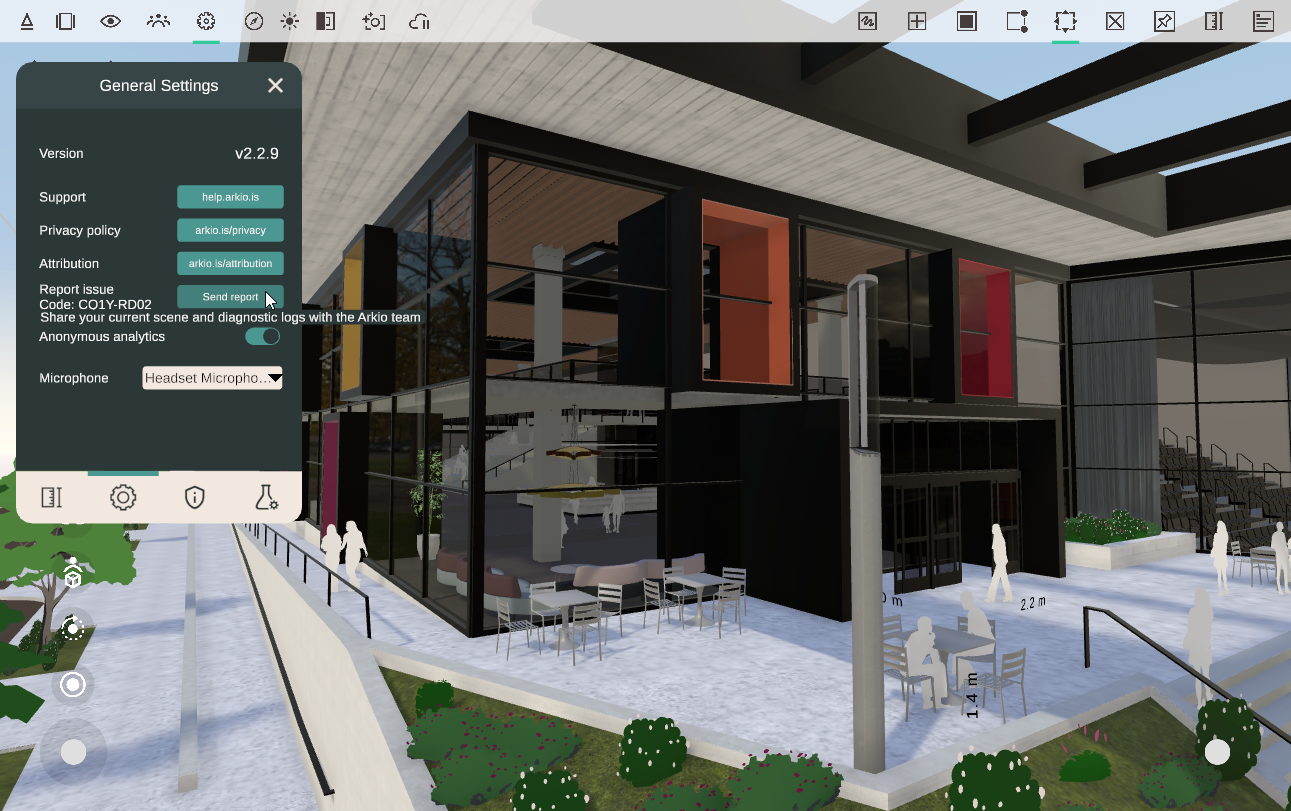
Use Report an issue in Arkio to send a problem report with relevant diagnostics. Visit our feedback board to suggest improvements, discuss and vote on ideas, and follow our public roadmap.
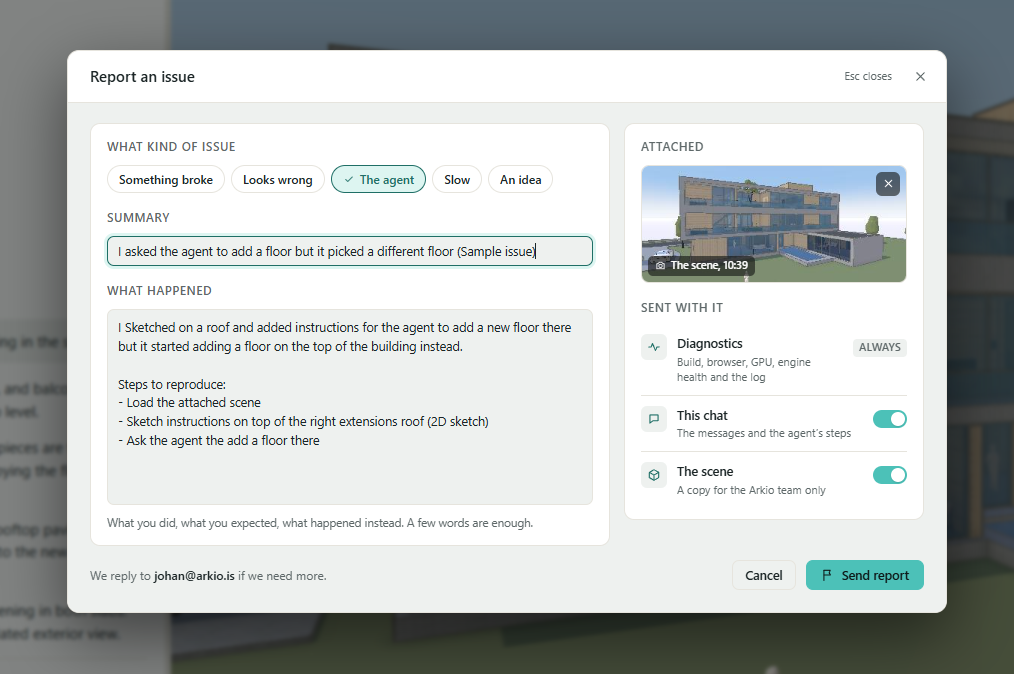
For current restrictions and workarounds, see Known issues and limitations.
Thank you to everyone who shared feedback and helped shape this release. We look forward to seeing what you create with Arkio 3.0.