Collaborate and share scenes in Arkio Web
Written By Johan Hanegraaf
Last updated 8 days ago
Share a scene in Arkio Web to review a design together, invite others to make changes, and collaborate with people and their AI agents. Participants open the same scene through a browser link.
Scene sharing is separate from an Arkio Cloud device group, which transfers files between applications and devices. Collaborators do not need to join your Cloud group to open a shared-scene link.
Share your scene
Open the scene you want to share.
Click the Share icon in the right-hand toolbar to open the Meeting panel.
Select Share this scene.
Choose Can view or Can edit.
Select Create link and wait for the scene to finish uploading.
Copy the link and send it to your collaborators.
You must be signed in to create a sharing link.
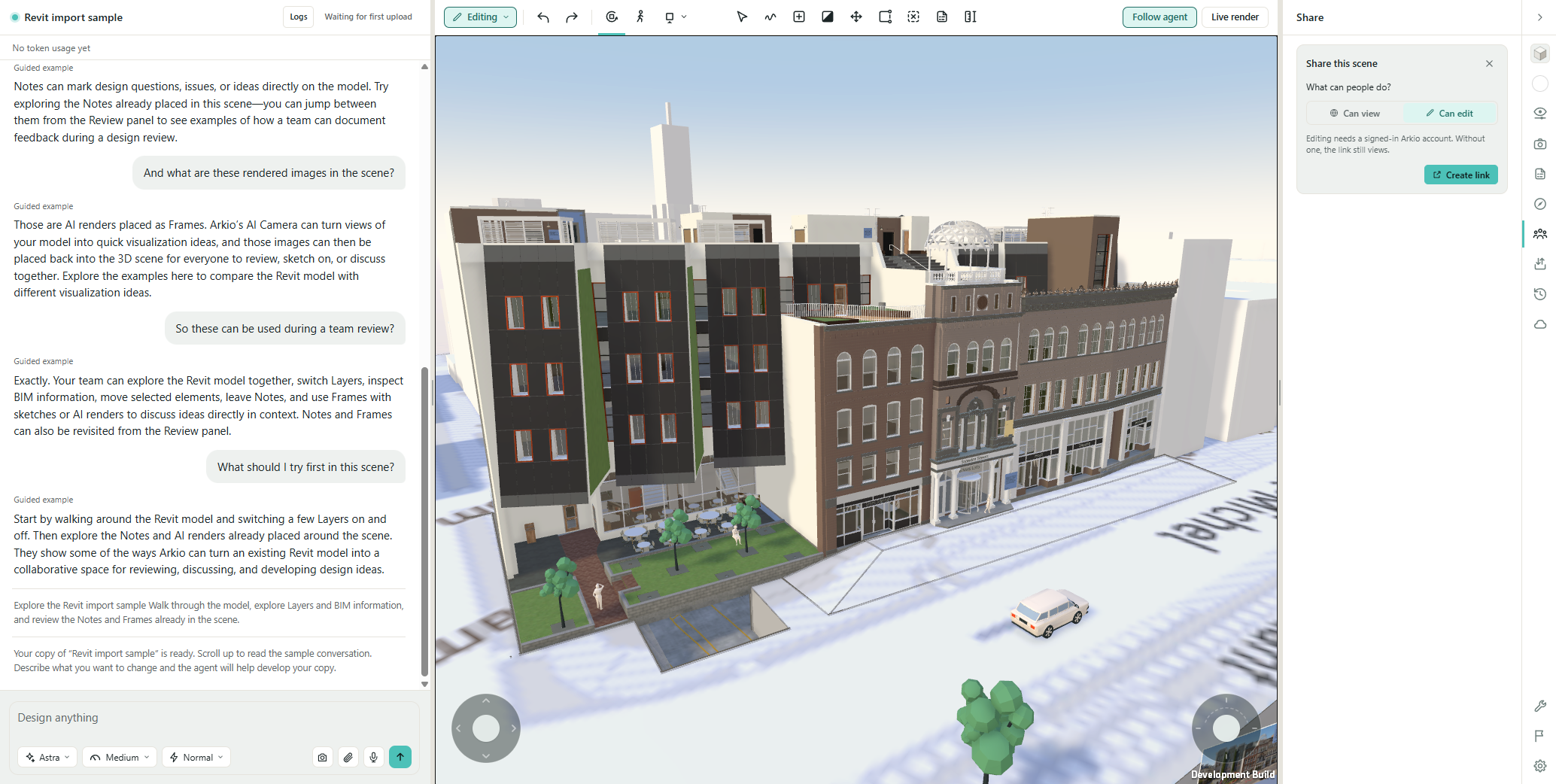
Choose who can edit
Use Can view for presentations and design reviews. Choose Can edit when you want collaborators to make changes.
In the Meeting panel, select the link access setting to choose the viewing or editing link, then copy it. Anyone who receives that link can use the access it provides, subject to sign-in and account permissions.
Changing the link setting does not revoke an edit link you have already shared. Send editing links only to people you want to give editing access to.
Join a shared scene
Open the invitation link in a supported browser and wait for the scene to load and connect. If Arkio asks you to update or reload, follow the on-screen instructions.
If you opened an editing link while signed out, choose Sign in to edit. A viewing link remains view-only even after you sign in.
The participant list shows who is connected and their role: Host, Editor, or Viewer.
Present your design
For a design review, share a Can view link so participants can explore without changing the model.
Use the participant controls to bring people together:
Jump: Move to another participant’s location.
Gather everyone: Bring participants to your location. This is available to the host and editors.
Gathering everyone helps you focus a discussion on a room, detail or design option. It does not continuously lock everyone to your camera.
If Arkio shows Presentation mode for the session, editing is restricted to the host. For a regular browser-based design review, use a Can view link and the Jump and Gather everyone controls.
Discuss the design in Group chat
In a shared scene, the chat area has two tabs:
My agent: Your own conversation with the AI.
Group chat: Messages shared with the people in the scene.
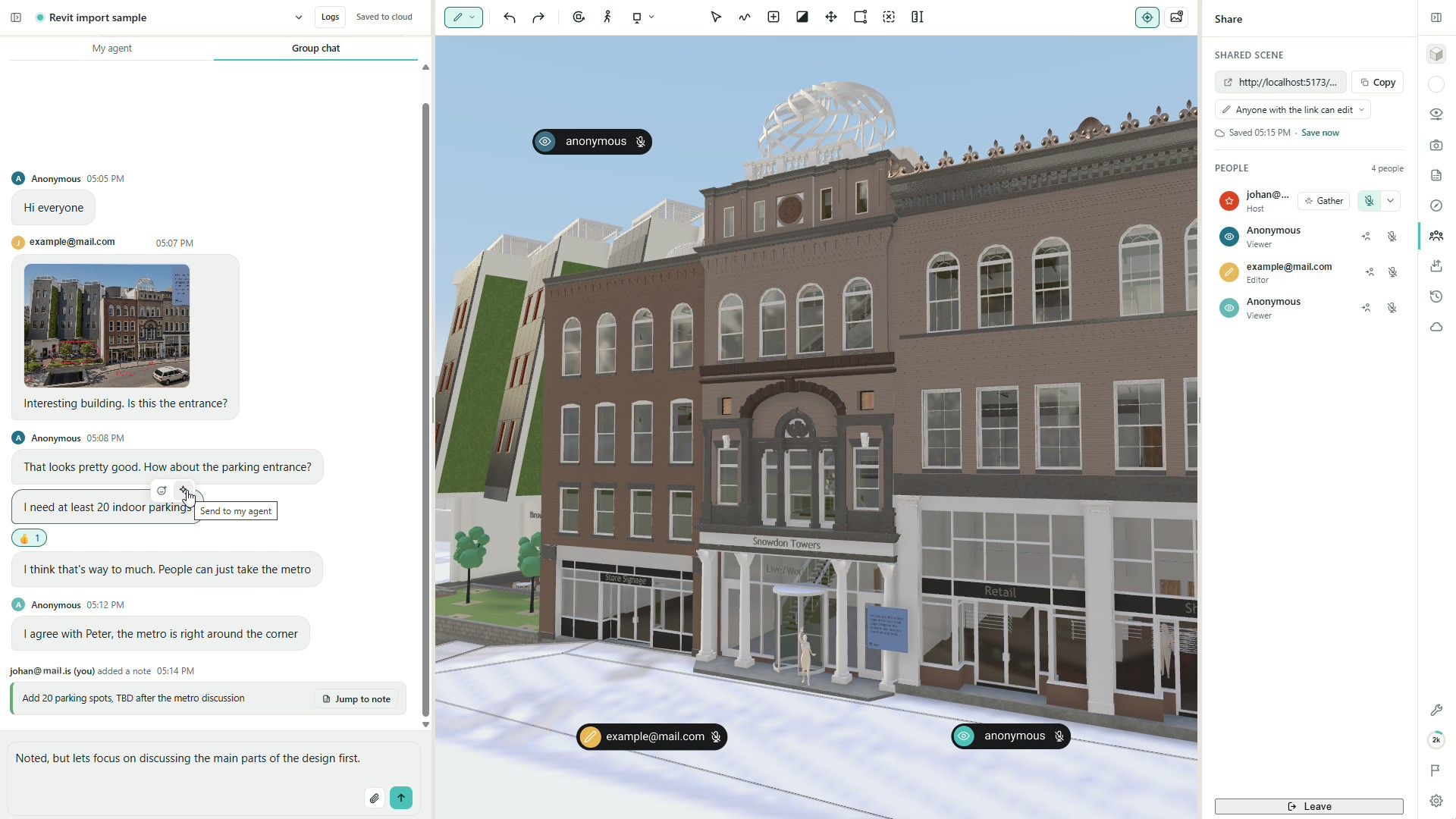
Use Group chat to discuss changes, attach files and images, and react to messages. Add attachments with the paperclip, drag and drop, or paste. You can edit or unsend your own messages.
To share an agent response, generated image, or video, use its share control. It is prepared in Group chat so you can add a message before sending.
Your My agent conversation stays private; it is not automatically posted to Group chat. Changes your agent makes to the shared scene are visible to the other participants.
To use something a colleague shared, choose Send to my agent. This prepares the message and attachments in your own agent chat. Review them, add your instructions, and send the request when ready; forwarding does not start AI work automatically.
Use scene notes and their comment threads to keep feedback connected to a particular part of the design. These discussions also appear in Group chat, where participants can jump to the note.
Talk with other participants
In the Meeting panel, use the microphone control beside your name to unmute. Allow microphone access when your browser asks.
You join muted. Use the microphone menu to choose an input device. The host can mute participants, but each person must unmute their own microphone.
Meeting audio connects you to other people. The microphone in My agent starts a separate AI voice conversation. If Arkio says the microphone is already in use, mute meeting audio before starting AI voice, or end AI voice before unmuting in the meeting.
Meeting audio is not currently supported in Safari. If meeting audio is unavailable in your browser, use Group chat or a separate call. See Browsers and devices for compatibility guidance.
Work together with AI agents
Participants with editing rights and available AI credits can ask their agents to change the shared scene. Those changes are visible to other participants.
An editing link does not provide AI credits or share the host’s allowance. Each person uses the credits available through their own account, including a shared Team pool if they belong to one.
Use Group chat to agree on the intended changes before starting a task. See Working with the AI agent for guidance on instructions, references, and voice.
Live collaboration between multiple users and agents is still experimental. Agree on who is editing each area and avoid asking multiple agents to change the same objects at once.
Connection and saving
Check the Meeting panel for connection status and the last confirmed save. The host handles cloud saving; Save now is available when the host can save.
Shared editing, including AI changes, pauses when the meeting connection is lost or cloud saving fails. Wait for reconnection and synchronization, or use Retry if a save error is shown. Offline editing of shared scenes is not supported.
Before leaving, check that recent changes have finished saving. Coordinate with other participants before restoring an earlier scene version, since restoring changes the shared scene.
To leave a shared scene, open another scene or chat. Other participants remain in the shared scene. You can return using its sharing link.
For current restrictions and workarounds, see Known issues and limitations. If you encounter a synchronization problem, report an issue and describe what each participant was doing.
Was this helpful?
Still need help? Ask the team