Manage your organization and share AI credits
Written By Johan Hanegraaf
Last updated 3 days ago
Invite colleagues to your Arkio organization so everyone can use a shared pool of AI credits while signing in with their own email address.
Team subscriptions include member management and a shared AI credit pool. Team starts at two paid seats, including the owner. Plus and Pro are individual plans.
The base Team plan includes 3,500 AI credits per paid seat each month. For example, two seats provide 7,000 shared credits per month. Higher credit levels are available; the selected level applies to every paid seat. Check your account for your current plan, seats, and allowance.
Open your account
Sign in to Arkio Web, then click your email address or credit balance at the bottom of the left-hand sidebar.
Under General, you can view your organization and account details. The owner can rename the organization using the pencil icon beside its name. Each person can also edit their own display name.
Use Plan to review your subscription, AI credits to check balances and refresh or expiry dates, and Members to manage your team. The available controls depend on your plan and role.
Invite someone to your organization
As the organization owner:
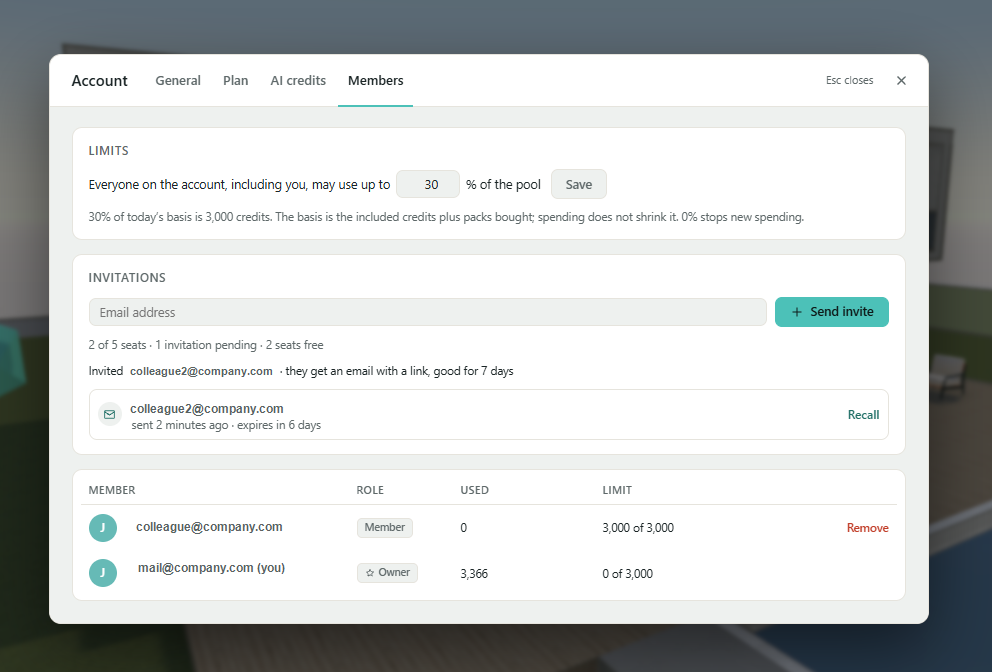
Open Account → Members.
Enter the person’s email address.
Click Send invite.
Ask them to open the invitation and sign in using that exact email address.
If they are already signed in to Arkio, they should sign out and sign back in with the invited email to join your organization.
Invitations expire after seven days. Each pending invitation reserves a seat until it is accepted, recalled or expires.
How shared credits work
Everyone in your organization draws from the same credit pool. Inviting someone into an available seat does not purchase another seat or add credits. Your monthly allowance depends on your paid seats and selected credit level, rather than how many invitations have been accepted.
Included credits refresh each month, and unused monthly credits do not roll over. Annual subscriptions are billed yearly but still receive credits monthly.
The owner can review the shared balance under AI credits and each person’s usage under Members. Members can check their own available allowance in Account.
Joining an organization shares access to its credit pool. To give someone access to a scene, use the scene’s sharing controls. See Collaborate and share scenes in Arkio Web.
Set a spending limit
Under Members → Limits, the owner can set the maximum percentage of the organization’s credit allowance that each person may use.
The same percentage applies to everyone, including the owner. Individual limits cannot currently be set separately.
Enter a percentage from 0 to 100 and click Save. A limit of 0% prevents everyone, including the owner, from starting new paid AI work.
The percentage applies to the credit allowance shown under Limits, not just the remaining balance. Spending credits does not shrink this calculation basis.
A limit is a maximum, not a reserved allocation. Someone may have allowance remaining but be unable to start another AI request if the shared pool is empty.
Usage already incurred and credits reserved for work in progress count toward the limit. Lowering it does not undo completed work or reset anyone’s usage.
Manage invitations and members
In Members, the owner can:
Choose Recall to cancel a pending invitation and free its seat.
Choose Remove to remove an existing member.
Review available seats, pending invitations, and member usage.
The owner cannot remove themselves. Removing and reinviting someone does not reset their recorded usage for the current spending period.
Manage paid seats
To change your Team subscription’s capacity, open Account → Members → Seats, adjust Paid seats, then select Review change. Review the price, credit allowance, and effective date before confirming.
Adding seats: An increase takes effect after the required payment is confirmed. The credit increase for the current month is adjusted for the time remaining; it does not refill credits already spent.
Reducing seats: A reduction takes effect at your next billing renewal. First remove members or recall pending invitations that would exceed the new capacity. Leave room for the owner and the minimum of two Team seats.
Unused seats: You pay for the selected number of seats even if they are empty. Removing a member or recalling an invitation frees a seat but does not reduce your subscription’s paid seat count.
Top up your AI credits
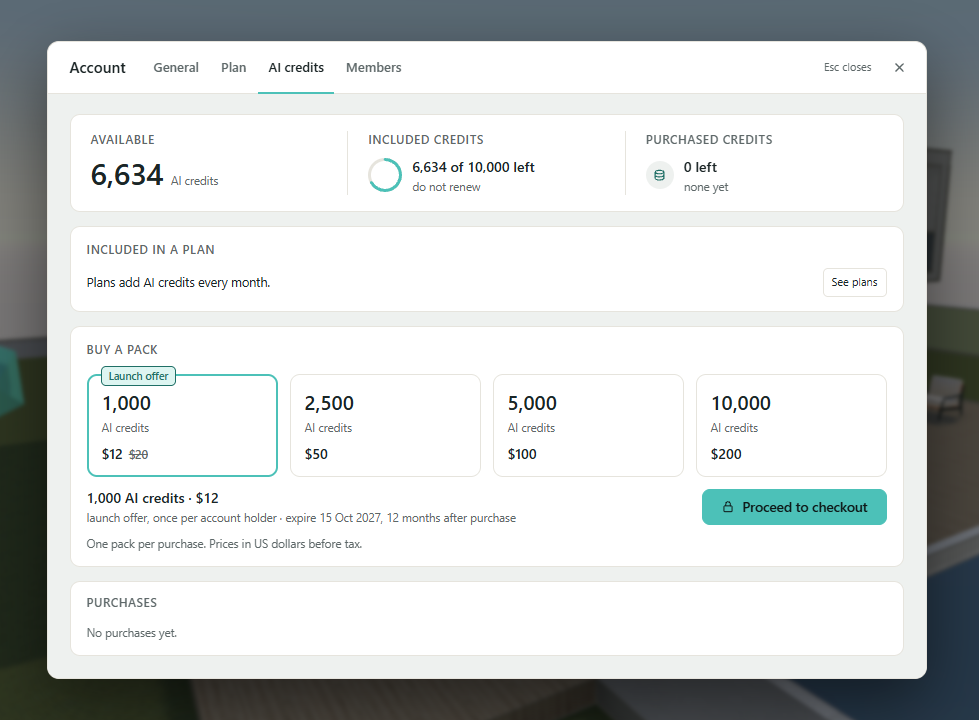
The organization owner can purchase additional AI credits for everyone in the organization to use.
How to buy credits
Open Account → AI credits.
Select Buy AI credits.
Choose a credit pack.
Review the price, expiry terms, and payment details, then complete checkout.
Wait for confirmation that the credits have been added to your organization.
If confirmation is delayed, check your balance and purchase history before starting another purchase.
How additional credits are used
Purchased credits join your organization’s shared pool.
New credit packs expire 12 months after purchase. Each pack keeps its own expiry date, which you can check in Account.
Arkio uses the available credits that expire soonest first.
Purchased credits remain available after subscription cancellation until their original expiry date. Older purchases keep the expiry terms shown in your account.
Buying credits does not add member seats or reset previous usage.
What happens to spending limits?
Your organization’s percentage limit stays the same, but it applies to the increased credit allowance.
For example, if the allowance shown under Limits is 8,000 credits and everyone has a 50% limit, each person can use up to 4,000 credits. Buying a 1,000-credit pack increases that basis to 9,000 and the limit to 4,500 per person. Usage already recorded for the current spending period still counts.
These limits do not reserve credits for individuals. Everyone continues to draw from the available shared balance.
Can any member buy credits?
Only the organization owner can top up. If you’re a member and need more credits, contact your owner.
Need help?
If payment completes but your credits do not appear, contact support@arkio.is with your purchase reference.
Troubleshooting
The invitation hasn’t arrived: Check the email address and spam folder. The owner can recall the invitation and send a new one.
You still see your previous account: Sign out, then sign in again with the invited email address.
All seats are taken: Recall an unused invitation, remove a member, or purchase more Team seats before inviting someone else.
You cannot manage members: Invitation, removal, and spending-limit controls are available to the organization owner.
AI requests are blocked: Check both your personal spending limit and the organization’s remaining credits.
Members or billing controls aren’t visible: Check that you are signed in to the correct account and that it has a Team plan. Ordinary members do not have the owner’s management and purchase controls. Contact support@arkio.is if the available controls do not match your account.
For more about what uses credits and how to manage your balance, see AI credits and your work.
Was this helpful?
Still need help? Ask the team