Report an issue from Arkio Web
Written By Johan Hanegraaf
Last updated 10 days ago
If something goes wrong, use Report an issue in Arkio Web to send our team a description and supporting information. This is the best place to report unexpected behavior, AI problems, and performance issues. In-app reports go to the Arkio team; they are not posted on the public feedback board.
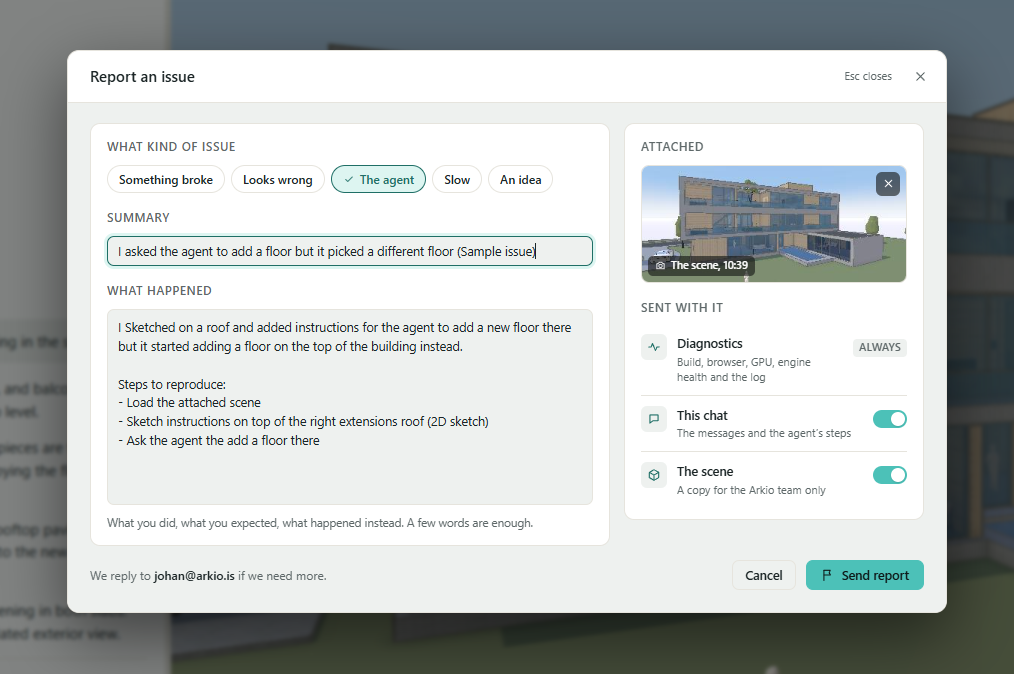
How to report a problem
Click the flag icon near the bottom of the right-hand toolbar.
Choose the category that best describes the problem: Something broke, Looks wrong, The agent, or Slow. You can also choose An idea for a suggestion.
Add a short, specific summary and explain what happened.
Review the screenshot and the information included with your report.
Check the reply email shown, or enter your email if you are not signed in.
Select Send report and wait for the Report sent confirmation.
If an AI request displays Report this, you can use that shortcut to open the form with the error already included.
What should I write?
Tell us:
What you were trying to do.
The steps or exact AI request that led to the problem.
What you expected and what happened instead.
Whether it happens every time or only occasionally.
For an AI issue, explain which objects or parts of the design should have changed and which should have stayed the same. For a performance issue, describe the action that became slow.
For example:
I asked the agent to add a pitched roof to the selected building. It added the roof to the neighboring building instead. I expected only the selected building to change.
What information is included?
Screenshot: Shows your scene. You can remove it or use Take it again to refresh it.
Diagnostics: Included automatically. These contain technical information such as the app version, browser, device details, logs, and performance data. There is no switch to turn diagnostics off.
This chat: Included by default. It contains your conversation and the agent's actions, which help us investigate AI issues. Turn it off if you do not want to share the chat.
The scene: Off by default. Enable it to send a copy of your model when that would help us reproduce the problem.
Review the attachments before sending, especially if your scene or conversation contains confidential project information. Basic app, device, and account identifiers accompany the report.
After sending
Copy or keep the report reference shown in the confirmation. Include it when contacting us about the same issue. We may follow up using the reply email supplied with your report.
Sending a report does not repair or restore your scene. You can use scene history to return to an earlier version if needed.
If your report cannot be sent
If an upload fails, the form shows an error and keeps your entries so you can try again. Failed reports are not automatically queued to send later; keep the tab open while retrying.
If the report exceeds the 10 MB upload limit, try sending the chat and scene separately in individual reports. Mention the related report reference so we can connect them.
If Arkio has stopped after a crash, the form may switch to Email Arkio support. Follow the prompts to download your report and available logs as a ZIP, then attach that file to an email to support@arkio.is. Put the reference in the subject and use Copy the message to include your description.
Downloading the ZIP does not send it to us. You need to send the email yourself. A fresh scene screenshot and scene copy are unavailable when the Arkio player has stopped.
If you see Download logs instead, download the logs and email them with a description of the problem. If the form is unavailable, you can also contact support by email and include a screenshot of any error message.
Ideas and other support questions
To suggest improvements, vote on ideas, or discuss workflows with other users, see How to share feedback.
For help with your Arkio account, licenses, subscriptions, or payments, email support@arkio.is. Include your account email and, when relevant, your order or invoice reference.
Was this helpful?
Still need help? Ask the team