Import models into Arkio Web
Written By Johan Hanegraaf
Last updated 3 days ago
Bring existing models into Arkio Web using Arkio's plugins and an Arkio Cloud device group, or import custom files directly in your browser.
1. Install Arkio for Windows and its plugins
Install Arkio 2.3.3 for Windows with the plugins you need. This version supports exchanging models with Arkio 3.0 Web.
Close your design applications before running the installer. Select the plugins you need, then reopen your design application after installation. Update the plugins as well as Arkio if you already have an older version installed.
2. Connect Arkio on Windows and Arkio Web
Use the same Arkio Cloud device group in both applications. Signing in to your Arkio account does not automatically connect you to a device group.
Open Arkio on your PC and connect it to your Arkio Cloud group. You can manage groups at cloud.arkio.is.
Open Arkio Web and sign in.
Open the Cloud tab, enter an invite code for the same group, and select Join.
Keep Arkio running on your PC while exporting and syncing files.
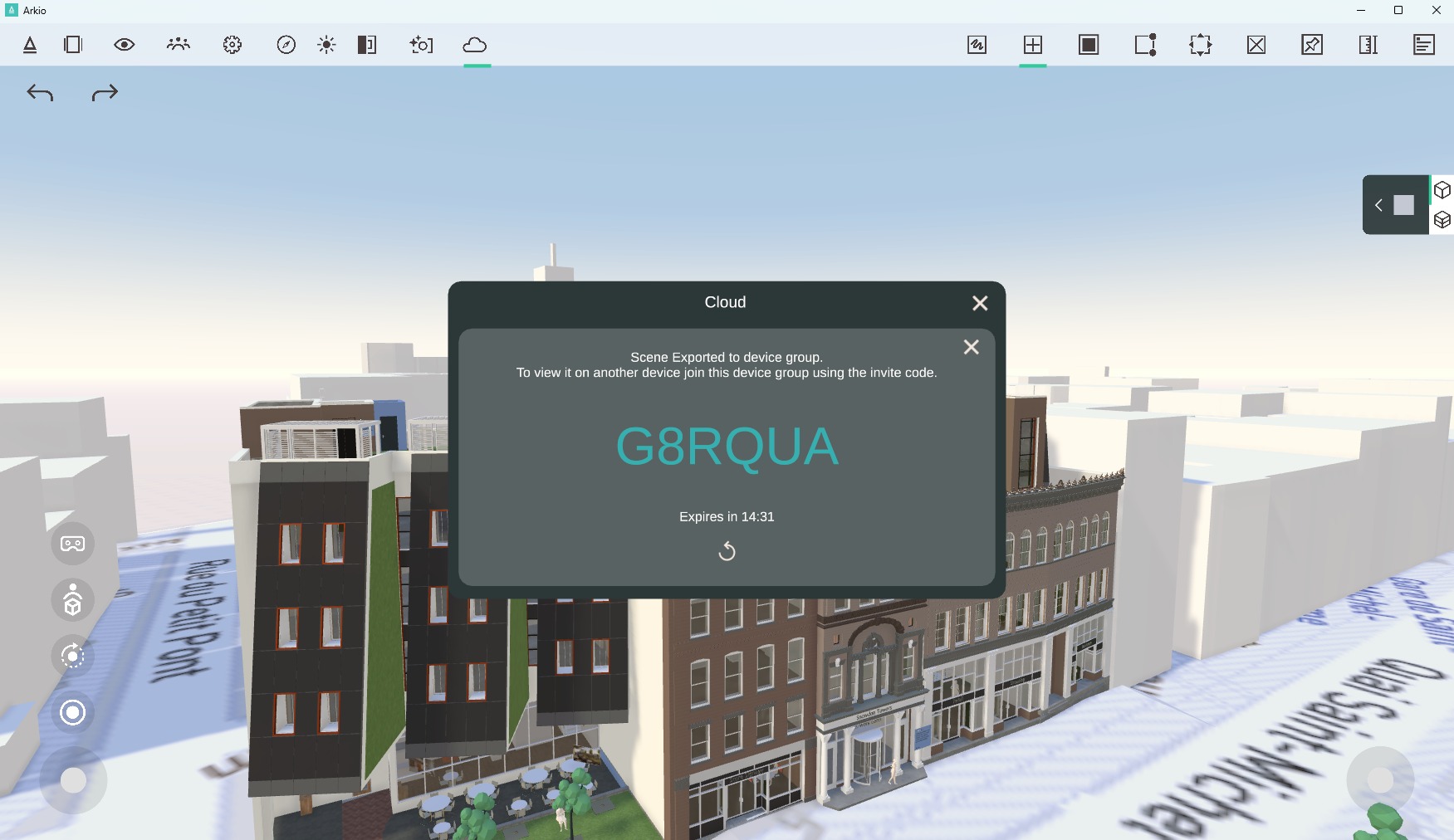
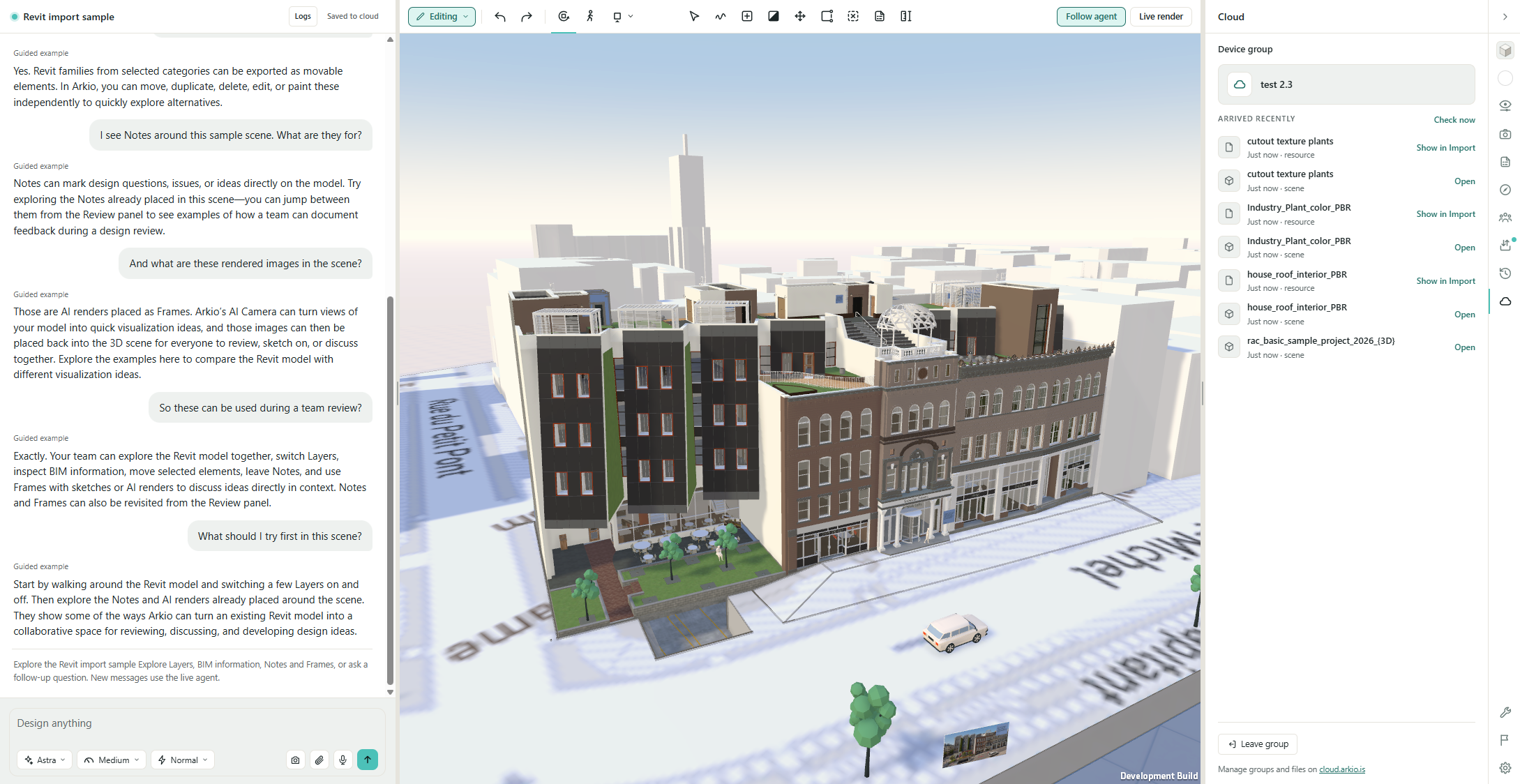
Arkio Web checks the group for new files automatically. You can also select Check now in the Cloud tab.
3. Export from your design application
Open your model and prepare the geometry you want to bring into Arkio. Use your application's Arkio Export command. For application-specific steps, see our guides for Revit, Rhino and SketchUp.
The plugin exports the model to Arkio on your PC, which processes and syncs the files through Arkio Cloud. Once this finishes, the model appears in Import & export → Import in Arkio Web. You can also select Show in Import beside a model that has arrived in the Cloud tab.
4. Place the model
Open the model's details in the Import panel and choose:
Place in scene: Position the model manually. Each click places a copy until you select Done, press Esc, or choose another tool.
Place at origin: Place the model at its original coordinates in the current scene or in a new scene.
Plugin exports include their units and orientation. For generic model files, check Units and Up axis if the model appears at the wrong size or orientation.
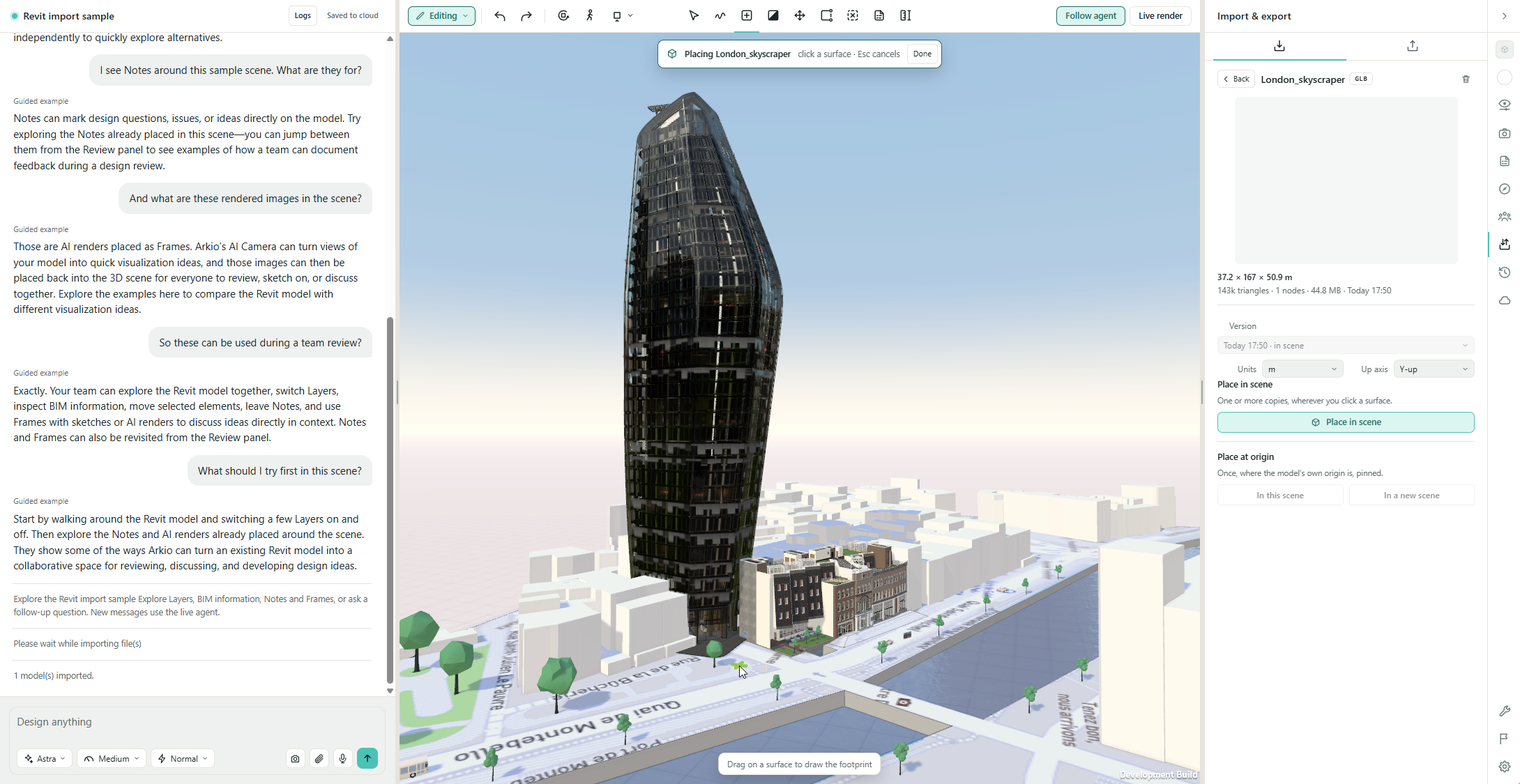
Import custom files with drag and drop
You can import GLB, glTF, and OBJ models directly. Drag them into the agent chat or use the drop area in Import & export → Import.
If your model uses separate textures or supporting files, drag its complete folder or a ZIP containing the files. Keep their names and folder structure intact. Model ZIPs must contain supported 3D files; password-protected ZIPs and ZIPs nested inside other ZIPs are not supported.
Direct uploads through the Import panel are limited to 200 MB per file. For larger models, prepare them in Arkio on your PC and transfer them through an Arkio Cloud group. Large or complex models can still be limited by your device's available memory.
Native project files such as RVT, 3DM, and SKP must first be exported using the corresponding Arkio plugin.
Import images or use them as AI references
To place a JPG or PNG in your scene, add it through the Import panel, set its width, and choose a placement option.
Dragging an image into the agent chat attaches it as a reference for your next request. It does not automatically place the image in the scene. See Working with the AI agent for using images, drawings, and other reference files.
Update an imported model
When a newer version is available, open the file in the Import panel, choose the version you want, and select Update the scene to this version. Check its placement and appearance after updating.
Export from Arkio Web to your design application
Exports back to your desktop application require a manual download. Joining an Arkio Cloud group does not automatically send these exports back to your plugins.
Open Import & export → Export.
Choose Revit, Rhino, or SketchUp, where available for your account.
Download the export ZIP to your PC and extract all its files into the same folder.
Use the updated Arkio plugin's Import command in your design application.
Revit: Select the extracted .arkioexport file and keep its companion files together.
Rhino: Keep all extracted files together, including materials, textures, and companion files, then import through the Arkio Rhino plugin.
SketchUp: Select the extracted GLB file in the Arkio plugin's Import dialog.
GLB, OBJ, and IFC exports are also available for other workflows. Export formats carry different scene content; IFC currently includes Arkio geometry but excludes imported models, props, maps, sketches and textures. Browser export downloads are limited to 256 MB.
If your model does not appear
Check that Arkio on your PC is running and that both applications are connected to the same Cloud group before you import the file again to Arkio on your PC
Wait for export, processing, and Cloud sync to finish, then select Check now.
Check the Import panel for a failed import and use Retry when available.
Check that supporting files and textures are included. For large models, try exporting a smaller selection first.
If the model is listed but not visible, check its units, orientation and placement.
For current restrictions, see Known issues and limitations. If the problem continues, report an issue from Arkio Web and include the source application, file type, approximate size, and any error messages.
Was this helpful?
Still need help? Ask the team