Working with the AI agent
Written By Johan Hanegraaf
Last updated 10 days ago
You can guide Arkio's AI agent with a description of what you'd like to create, then refine your design through follow-up requests.
A useful request explains:
The goal: What you want to create or change.
The constraints: Dimensions, layout, or elements to preserve.
The context: Which part of the scene you want to work on.
For example:
Create a single-storey garden studio, approximately 6 × 4 metres, with a large opening toward the garden.
Then refine your design:
Keep the building footprint and make the roof slope toward the back.
Guide the agent with selections and sketches
Select objects before sending a request to make it clear which parts of your design you want to change. Describe what should happen and what should stay unchanged.
For example:
Move the selected table closer to the window and leave the other furniture unchanged.
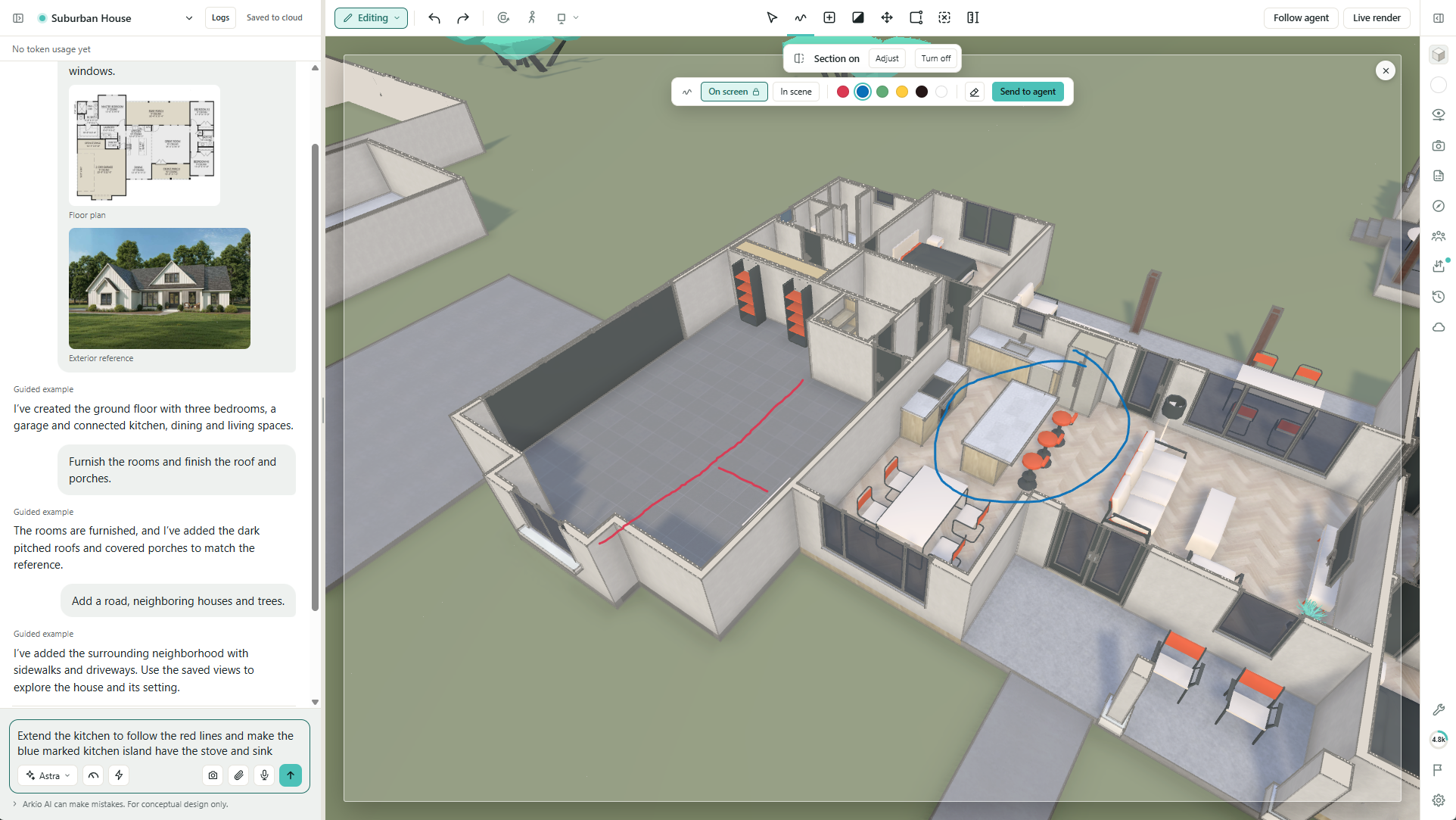
Use the Sketch tool when it is easier to show an idea than describe it:
Position your view so the area you want to change is clearly visible.
Select Sketch and choose On screen to draw over the current view. The camera stays in place while you sketch.
Draw an outline, circle an area, or use different colors to indicate changes.
Select Send to agent to attach the marked-up view to your message.
Add instructions explaining your marks, then send your request.
Add a canopy following the red outline. Keep the entrance circled in blue clear.
Send to agent prepares the image in your message; it does not submit the request automatically. You can also choose In scene to sketch within the 3D scene.
Upload images, documents, and reference files
Attach floor plans, photographs, sketches, inspiration images, design briefs, or schedules to help the agent understand your design intent.
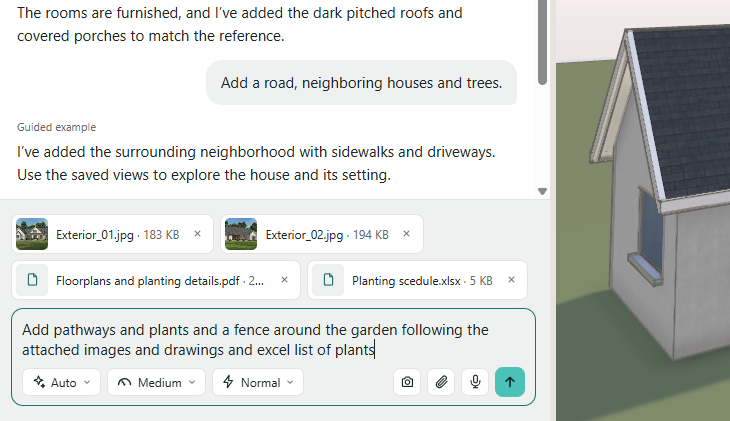
Use the paperclip in the chat, drag supported files into the chat, or paste a copied image into the message field. Add a description explaining how the agent should use each reference before sending.
Supported reference files
Images: PNG, JPG/JPEG, WebP, and GIF for visual references, floor plans, and sketches.
PDFs: PDF files for drawings, briefs, and specifications.
Word documents: DOC and DOCX for project descriptions and design requirements.
Spreadsheets: XLS, XLSX, and CSV for room schedules, dimensions, and other tabular information.
Presentations: PPTX for project presentations and reference material.
Text and data: TXT, Markdown (MD), and JSON for written instructions and structured information.
You can attach up to 100 files with a combined size of 50 MB per message. Keep each document below 50 MB.
Explain what you want the agent to use from each file. For example:
Use the attached room schedule to plan the layout. Follow the room names and target areas, and use the design brief for the material requirements.
For better results:
Explain whether the image should guide the layout, geometry, materials, or overall style.
Include important dimensions or a known measurement when working from a floor plan.
When attaching several images, explain what each one shows.
State which existing parts of the scene should remain unchanged.
Use this floor plan to create the ground-floor layout. The overall width is 12 metres. Keep the existing exterior walls and use the second image as a material reference.
3D model files use a separate import workflow. Dragging GLB, glTF, OBJ, or a ZIP containing supported models into the chat starts a model import rather than attaching a reference document. See Import models into Arkio Web for details.
Attaching an image gives the agent a reference. It does not automatically place that image in your 3D scene. But you can also ask your agent to do that for you.
Talk to the agent using voice
Voice mode lets you discuss your design with the agent and hear its responses while you explore the scene.
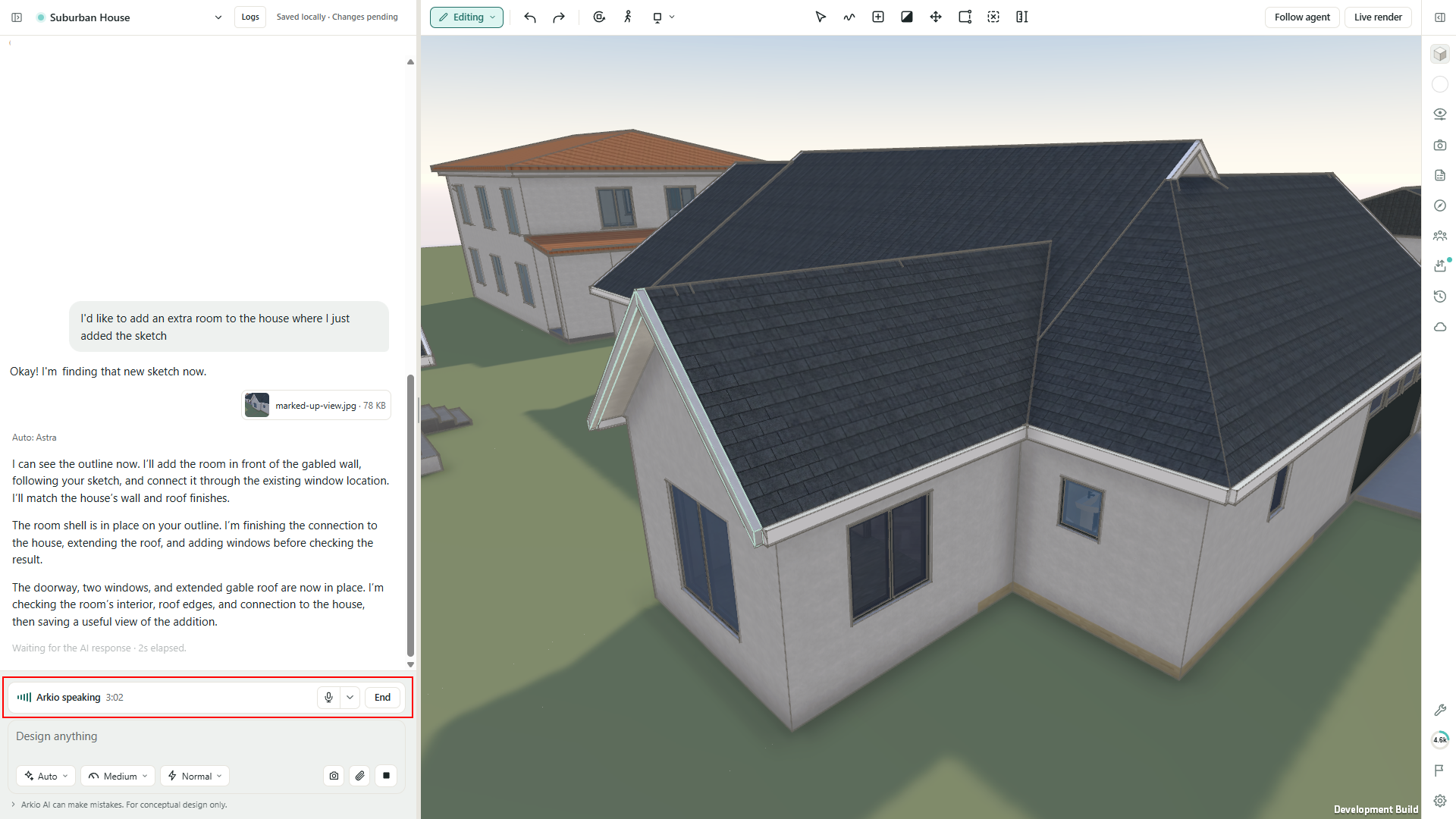
Select the microphone button in the chat message box.
Allow microphone access if your browser asks.
Describe your request naturally, including the objects or areas you mean.
Continue with follow-up instructions as you review the results.
Make this room feel more open, but keep the kitchen in its current position.
You can still type while voice mode is active. Use the microphone control to mute or unmute yourself, its menu to choose a microphone, and End to finish the voice session. If your browser blocks playback, select Play voice.
Voice mode uses AI credits, so end the session when you have finished.
Review and refine your results
Explore the model from different viewpoints to check the results. If something isn't quite right, explain what you'd like to change and ask the agent to make a focused correction.
You can also use Arkio's modeling tools to make changes directly in your scene, then continue working with the AI agent.
Choose the right AI settings
Use Auto to let Arkio choose between Sol and Astra for each task, or select a model yourself. Reasoning and speed settings help you balance design capability, response time, and credit usage.
Start with Auto, Medium reasoning, and Normal speed. For more guidance, see Choose your AI model, reasoning, and speed.
Share feedback or report an issue
If the AI agent doesn't produce the expected result, try refining your instructions or providing more context.
If you encounter unexpected behavior, you can report an issue directly from Arkio. Including your original request, what you expected, and what actually happened helps us investigate and improve the experience.
Was this helpful?
Still need help? Ask the team